
Checkbox
Lets users select one or more options from a set.
Use a checkbox to let users select none, one, or several independent options from a list. You can also use a single checkbox to ask for explicit acknowledgment or consent before submission.
Anatomy

- Checkbox: shows the checked or unchecked state
- Label: describes the option that users can select
- Information icon (optional): provides additional context on hover
States
.png)
Usage guidelines
When to use
Use checkboxes when:
- Users can select one or more options from a list of 7 or fewer related items.
- You need explicit confirmation before applying or submitting a change.
Consider alternatives
- To allow only one selection from a list of options, use Radio.
- To allow users to turn a setting on or off with immediate effect, use Switch.
- To avoid overwhelming users when there are more than 7 options, group related options or use Select.
Best practices
Alignment
When possible, arrange the checkbox and radio button groups vertically for easier reading. Use a horizontal layout only if there is limited vertical space, limit them to three items, and keep labels short with clear spacing.
Do
Lay out checkboxes vertically
.png)
Use with caution
Lay out checkboxes horizontally when labels are short, with enough spacing to keep each option distinct.
.png)
Nested group
Nest checkboxes when the options have a parent-child relationship. Avoid nesting more than one level deep.
- Selecting the parent checkbox selects all child checkboxes.
- Deselecting the parent checkbox deselects all child checkboxes.
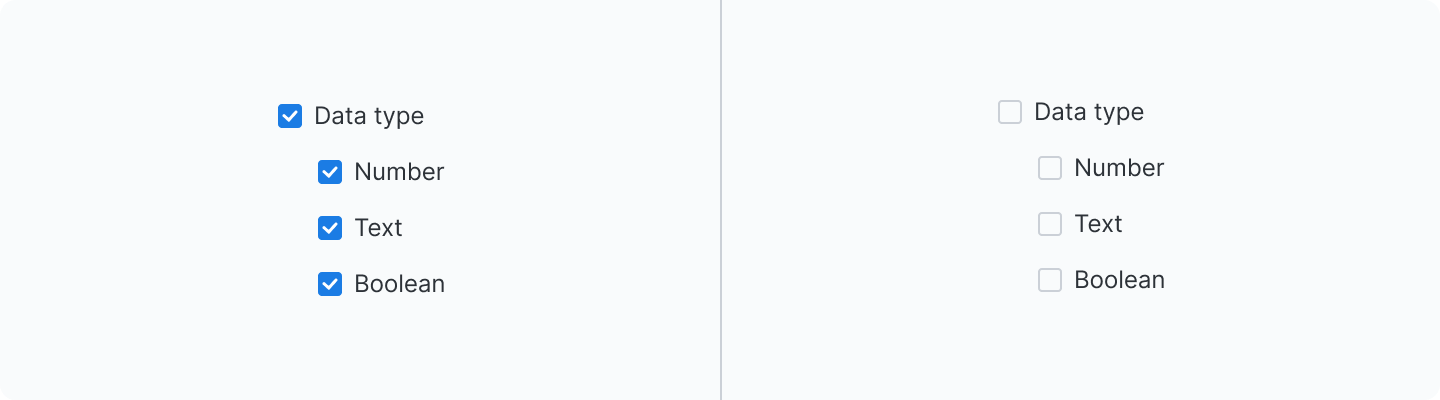
When only some child options are selected, display the parent checkbox in an indeterminate state.
Do
Use an indeterminate state
.png)
Don't
Lack indeterminate state
.png)
Disabled state
Use a disabled state when an option or group is temporarily unavailable due to system constraints, permissions, or prior selections.
Display a Tooltip on hover to provide a clear reason why an option or group is disabled, and place the explanation near the disabled control.
Pre-select
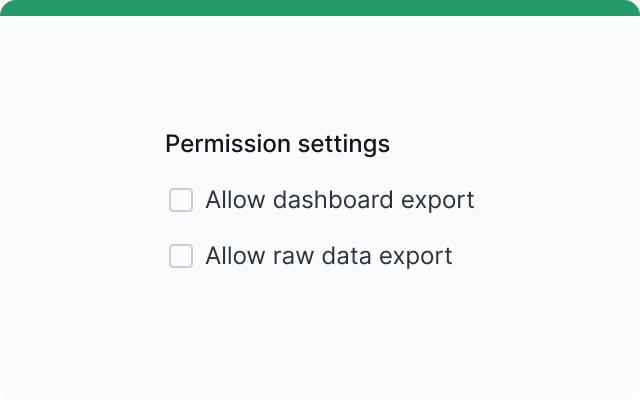
Pre-selection helps users move faster, but increases the risk of unintentional selection.
Use pre-selection only for clear defaults or system-recommended options that are safe, non-destructive, and commonly used.
Do
Leave options unselected by default to avoid accidental choices
Do
Pre-select options only when the default is safe, common, and unlikely to cause unintended outcomes
.png)
Listing
In some cases, ordering options intentionally can improve scannability and decision-making.
Common patterns include ordering by:
- Most likely to least likely to be selected
- Simplest to most complex operation
- Least to most risk
.png)
Content
Group labels
Group labels provide context for the set of options below and help users distinguish between checkbox groups.
- Use sentence case
- Keep it concise (2–5 words maximum)
Helper text
Use helper text to provide additional context or instructions.
Checkbox label
Describe what selecting each checkbox will do.
- Use sentence case
- Use parallel structure across options
- Use active voice
- Use positive wording
- Do not use punctuation at the end of labels
Error messages
Display when validation fails.
Be specific and actionable: explain what's wrong and how to fix it.