---
url: /patterns/notification-feedback.md
---
# {{ $frontmatter.title }}
## Notification goals
Keep users informed at the right time and place **without overwhelming them**.
Only send notifications where necessary. Confine each notification to the portion of the interface and workflow it is relevant to.
## Notification type
### Task-generated (user-triggered)
Initiated in response to a user's action. Give direct, immediate feedback. Place them in the region of the page the user is working in.
**Examples:**
* A form submits successfully
* There is a problem uploading a file
* Searched item can't be found
### System-generated (app-triggered)
Initiated by the application or system, independent of user action. Since they're unrelated to the user's current task, provide enough context to understand what happened.
**Examples:**
* Network connection lost
* Planned maintenance coming soon
* Trial period is about to expire
## Notification status
| Status | Color | When to use |
| --- | --- | --- |
| **Neutral** | Gray | General information that doesn't require emphasis or urgency |
| **Info** | Blue | Helpful context or tips that assist the user |
| **Success** | Green | Confirms a completed action |
| **Warning** | Yellow | Alerts users to potential issues. Use when the user can still prevent a problem |
| **Error or danger** | Red | Signals that an outcome has already failed, or warns before an irreversible action |
| **Ad-hoc** | Purple | Non-standard messaging |
## Component inventory
* [**Alert**](/components/alert): auto-dismissing confirmation of a completed user action
* [**Banner**](/components/banner): system-level, page-level, or section-level messages; persistent
* **Illustration or empty state**: full-page errors (404, 503/504) and empty data states
* [**Modal**](/components/modal): critical or complex actions requiring full focus
* **Notification panel**: persistent log of system-generated events
* [**Popover**](/components/popover): rich contextual info; inline confirmation (e.g. delete)
* **Inline indicators**: compact, in-context state shown alongside the affected element:
* [**Badge**](/components/badge): labels, status tags, categorization
* [**Progress bar**](/components/progress-bar): known-duration operations (10+ seconds)
* **Spinner**: unknown-duration operations (1–10 seconds)
* **Status indicator**: compact dot indicator for item-level state changes
## Decision diagrams
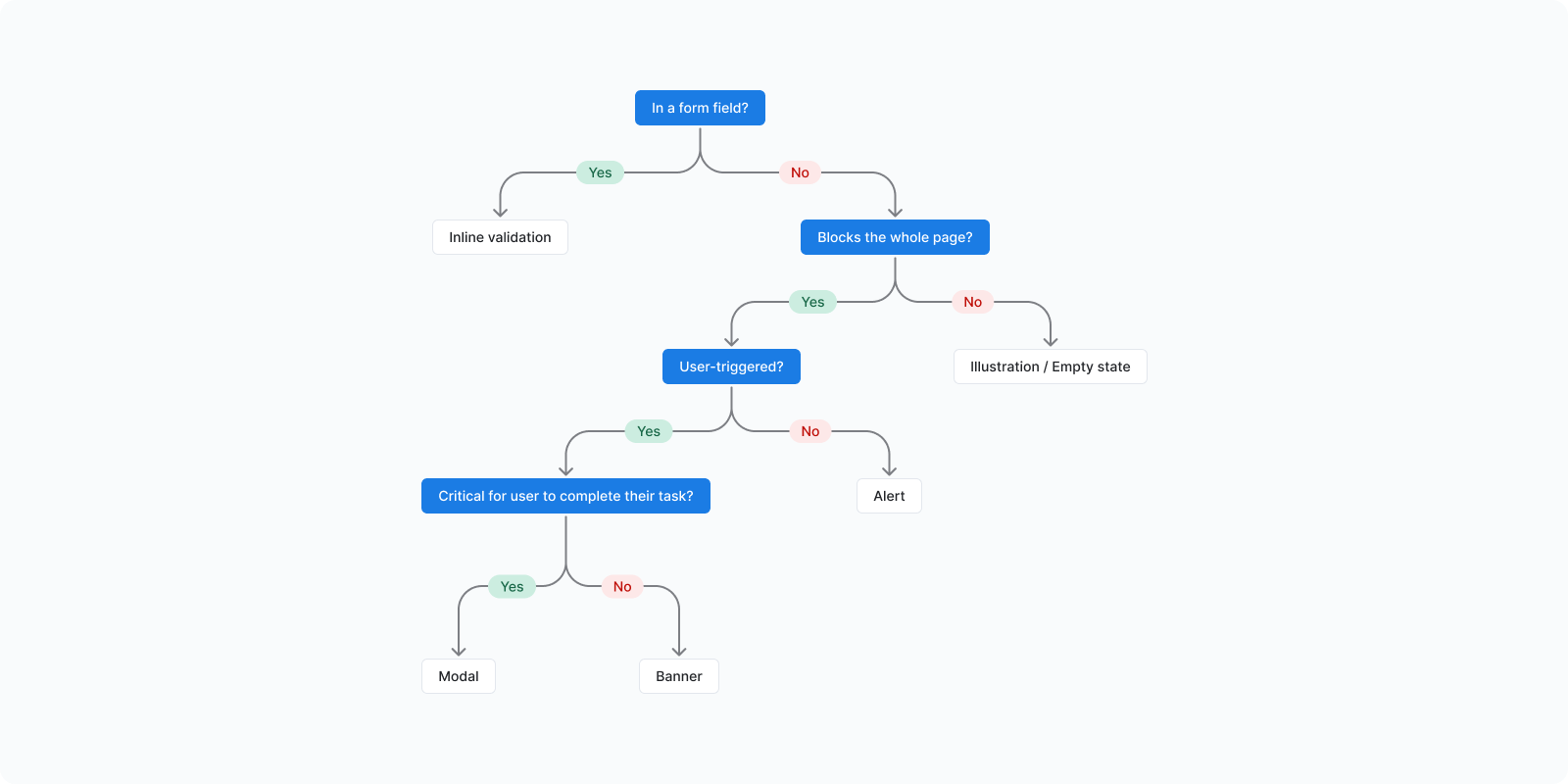
### Error path
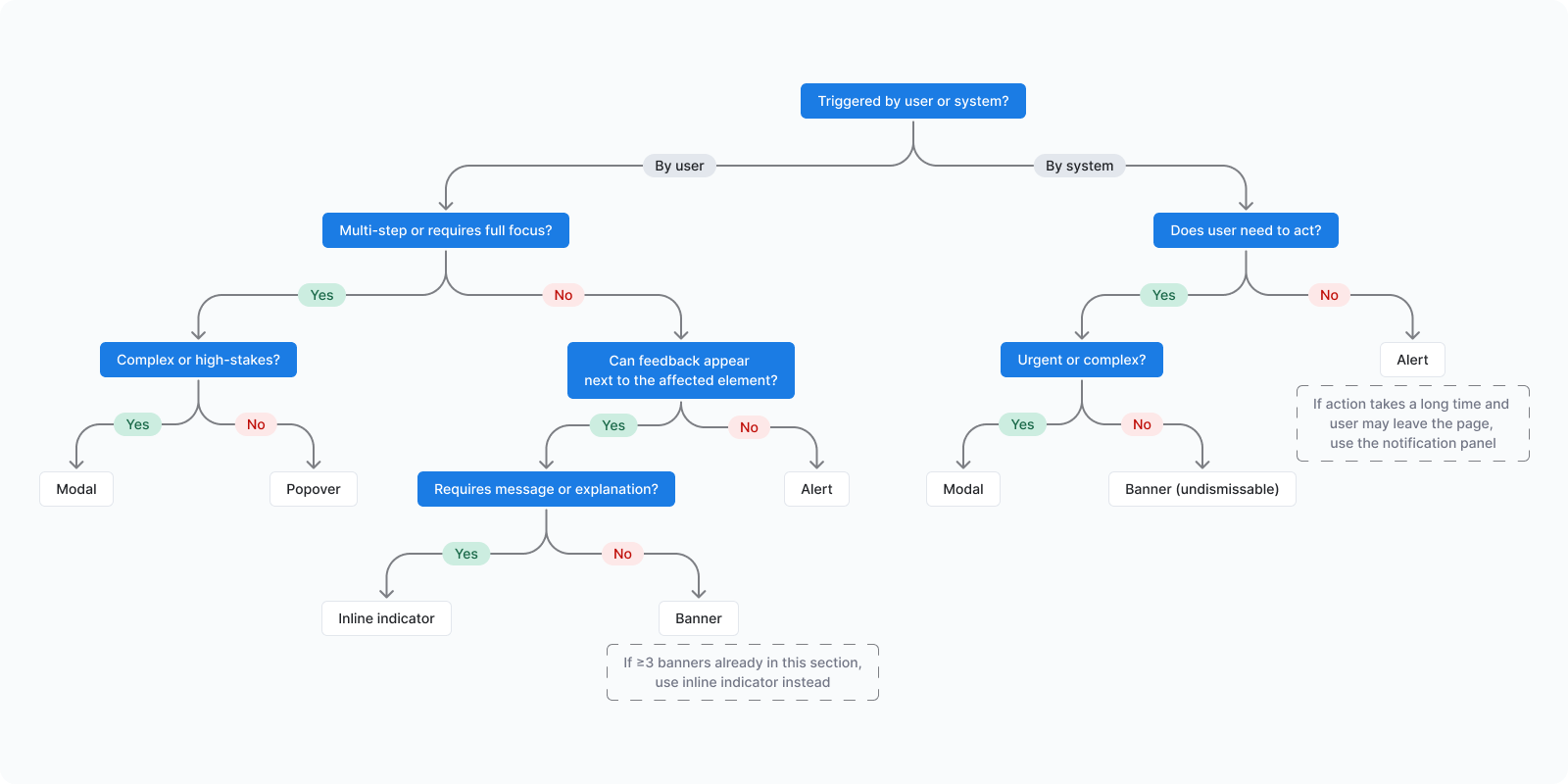
 ### Non-error path
 ## Component usage guidelines
### Alert
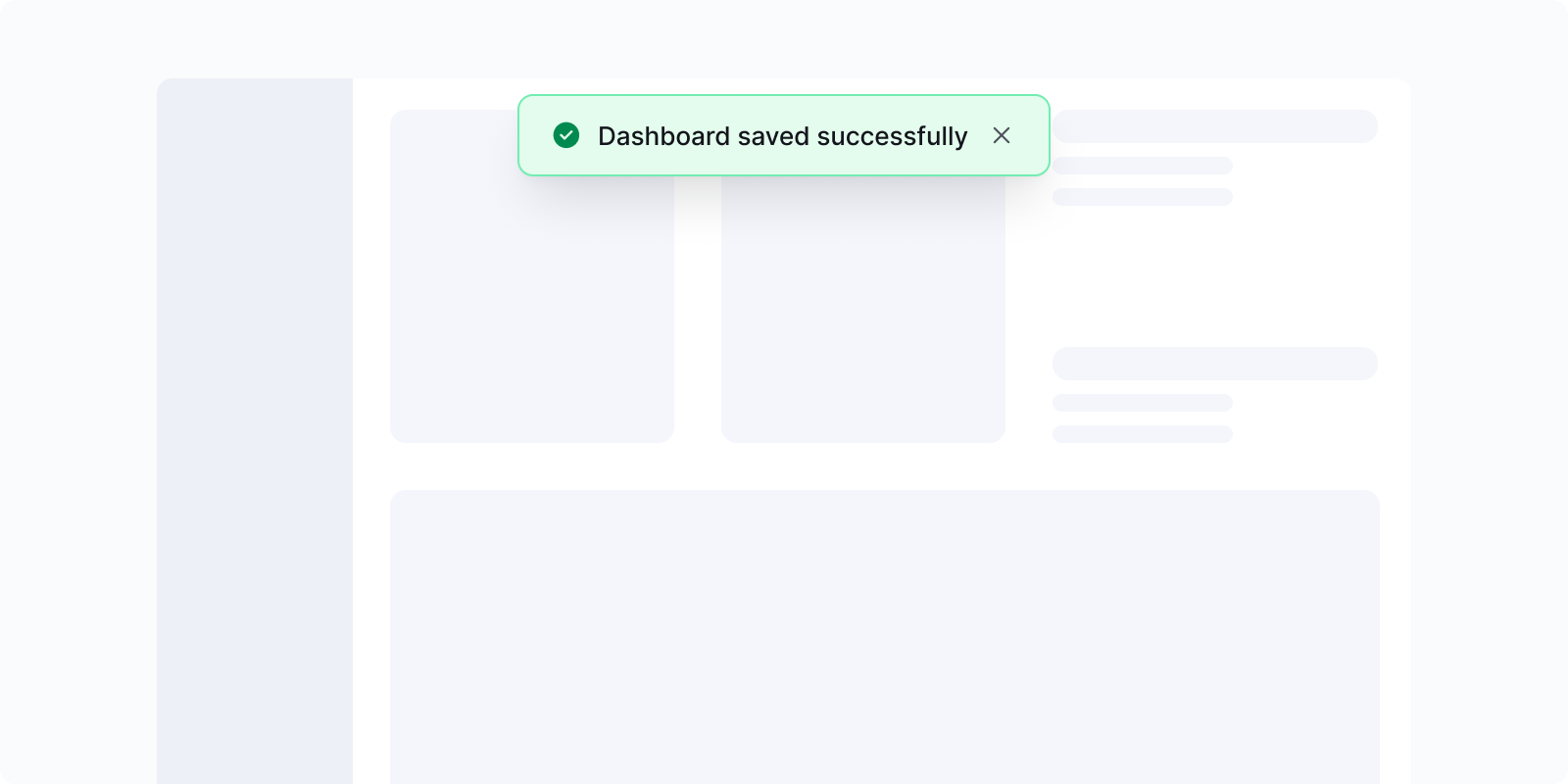
An alert is a brief message that provides timely feedback, including confirmations, warnings, and errors.
## Component usage guidelines
### Alert
An alert is a brief message that provides timely feedback, including confirmations, warnings, and errors.
 #### When to use
* Display temporary short messages (e.g. "Your changes will be saved and reflected in Reporting")
* State actions performed by users (e.g. "Dashboard saved successfully")
* Provide immediate feedback after form submissions (e.g. "Failed to save changes. Try again.")
#### Consider alternatives
Alerts are low-priority messages. Use higher-priority components when stronger attention or action is required.
* For important messages that need to remain in the interface, use [Banner](/components/banner) instead
* For complex messages that require immediate action, use [Modal](/components/modal)
* For messages that require explicit user confirmation, use [Modal](/components/modal) or [Confirmation popover](/components/popover)
### Badge
A small label used to categorize, tag, or highlight status information on an element.
#### When to use
* Display temporary short messages (e.g. "Your changes will be saved and reflected in Reporting")
* State actions performed by users (e.g. "Dashboard saved successfully")
* Provide immediate feedback after form submissions (e.g. "Failed to save changes. Try again.")
#### Consider alternatives
Alerts are low-priority messages. Use higher-priority components when stronger attention or action is required.
* For important messages that need to remain in the interface, use [Banner](/components/banner) instead
* For complex messages that require immediate action, use [Modal](/components/modal)
* For messages that require explicit user confirmation, use [Modal](/components/modal) or [Confirmation popover](/components/popover)
### Badge
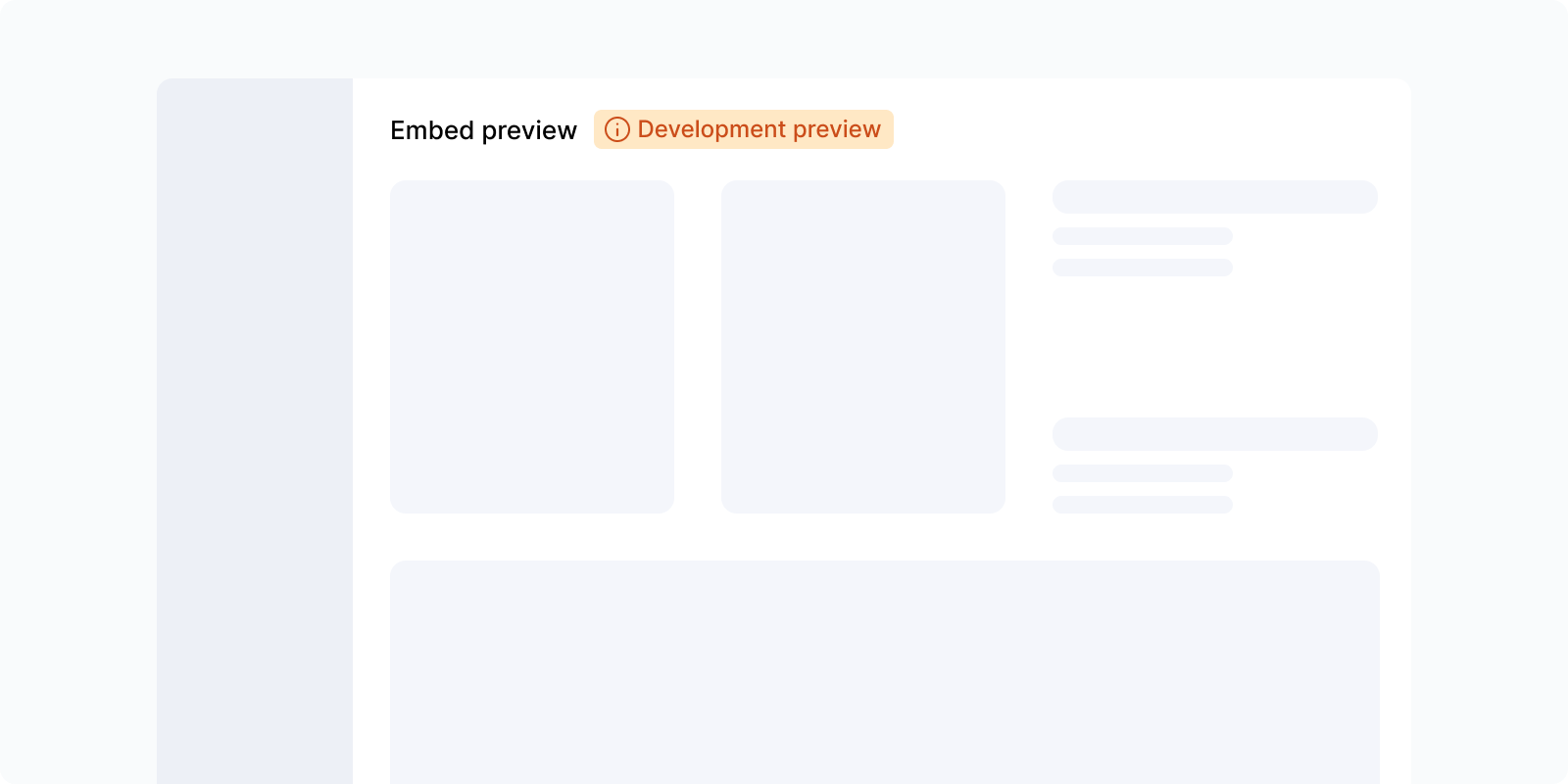
A small label used to categorize, tag, or highlight status information on an element.
 #### When to use
* Displaying the status of an item (e.g. "Published", "Draft", "Failed")
* Categorizing or tagging content for quick scanning
* Highlighting metadata or attributes on cards, rows, or list items
#### Consider alternatives
* For dynamic, time-sensitive feedback on an action → [Alert](/components/alert) or [Banner](/components/banner)
* For item-level state with limited space → Status indicator
### Banner
A banner communicates important, persistent information at the page or system level. It draws attention without blocking the workflow.
#### When to use
* Displaying the status of an item (e.g. "Published", "Draft", "Failed")
* Categorizing or tagging content for quick scanning
* Highlighting metadata or attributes on cards, rows, or list items
#### Consider alternatives
* For dynamic, time-sensitive feedback on an action → [Alert](/components/alert) or [Banner](/components/banner)
* For item-level state with limited space → Status indicator
### Banner
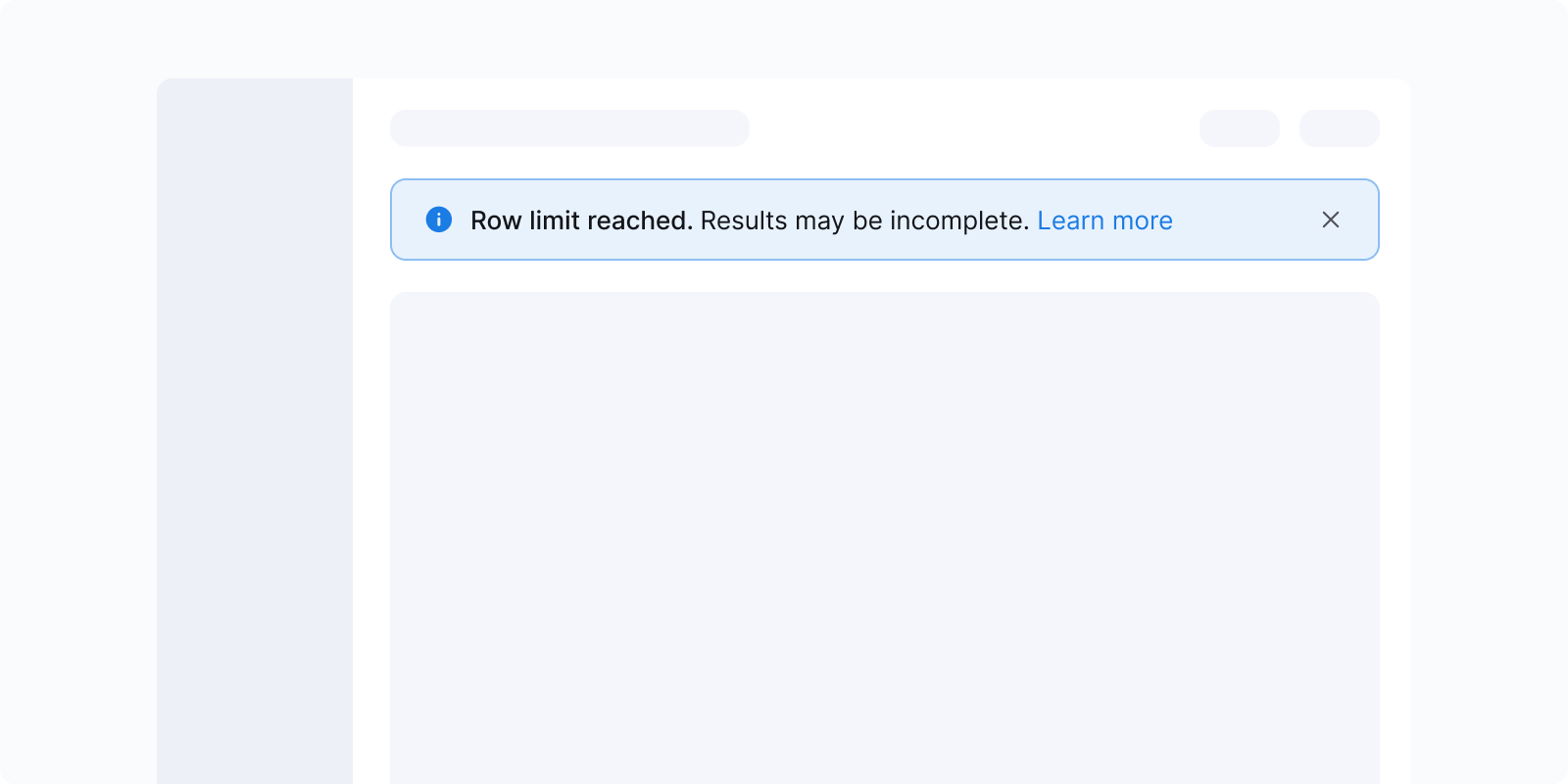
A banner communicates important, persistent information at the page or system level. It draws attention without blocking the workflow.
 #### When to use
* Highlight important information that should remain visible until it's read or resolved
* Communicate page-level or system-wide status, updates, changes, or tips
* Draw attention to issues that may require follow-up, even after the current action
#### Consider alternatives
Banners are medium-priority messages. Use higher- or lower-priority components based on criticality and whether action is required.
* For temporary messages, use [Alert](/components/alert) instead
* For complex messages that require immediate action, use [Modal](/components/modal)
* For messages that require explicit user confirmation, use [Modal](/components/modal) or [Confirmation popover](/components/popover)
* If ≥3 banners are already shown in the same section, consider using an Inline indicator instead
### Illustration or empty state
A full-page or full-section message combining an illustration with an explanation and an optional call to action (CTA). Used when there is no content to show or when a page-level error has occurred.
#### When to use
* Highlight important information that should remain visible until it's read or resolved
* Communicate page-level or system-wide status, updates, changes, or tips
* Draw attention to issues that may require follow-up, even after the current action
#### Consider alternatives
Banners are medium-priority messages. Use higher- or lower-priority components based on criticality and whether action is required.
* For temporary messages, use [Alert](/components/alert) instead
* For complex messages that require immediate action, use [Modal](/components/modal)
* For messages that require explicit user confirmation, use [Modal](/components/modal) or [Confirmation popover](/components/popover)
* If ≥3 banners are already shown in the same section, consider using an Inline indicator instead
### Illustration or empty state
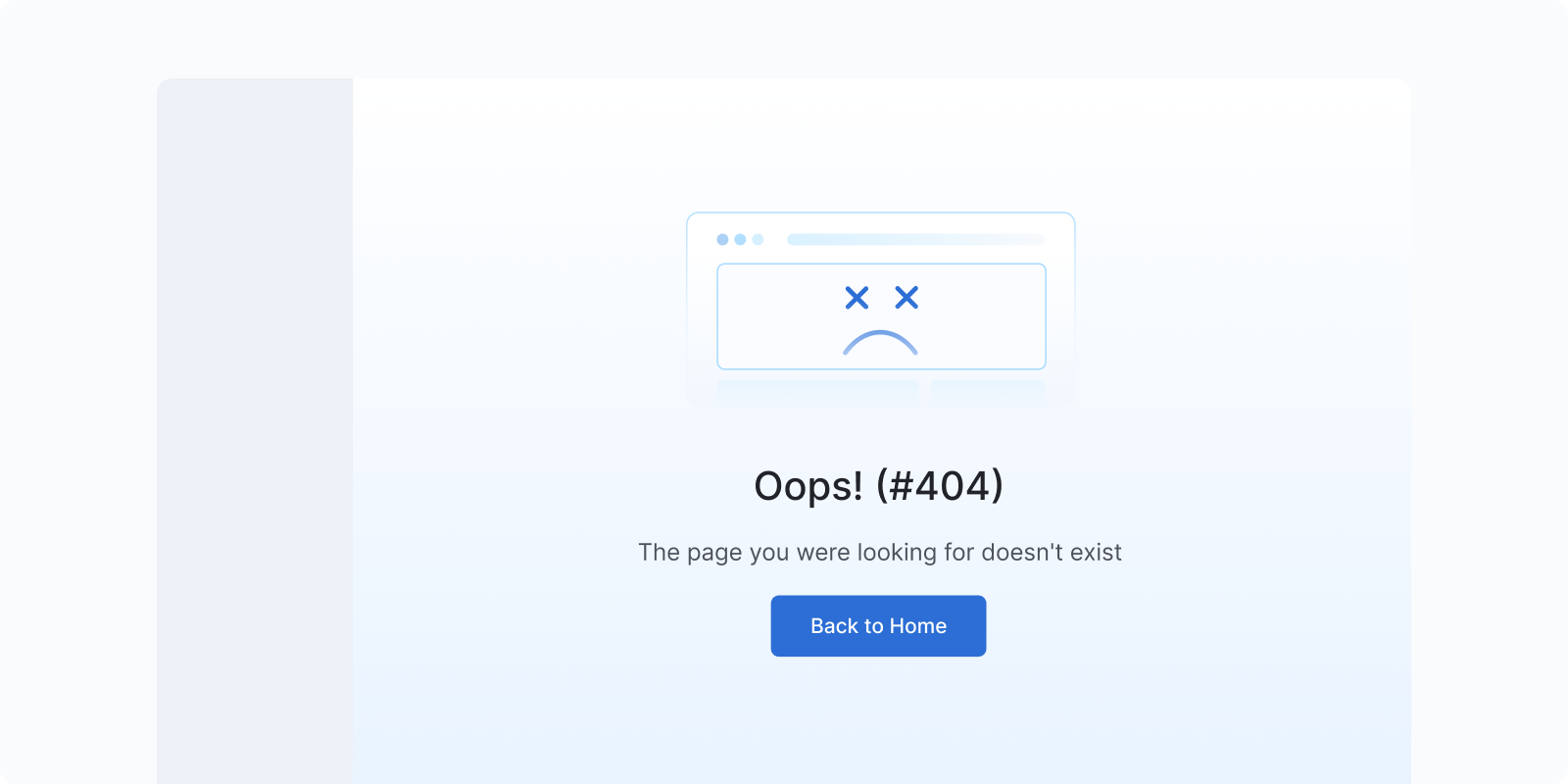
A full-page or full-section message combining an illustration with an explanation and an optional call to action (CTA). Used when there is no content to show or when a page-level error has occurred.
 #### When to use
* **Error pages:** 404 (page not found), 503/504 (server error, timeout). Show an illustration with a clear explanation and a way to recover (e.g. "Go back", "Retry").
* **Empty data states:** first-time use of a feature with no data yet, or a filtered view that returns nothing
* **Permission/access errors:** user lacks access to a page or resource
#### Consider alternatives
* For inline or section-level errors → [Alert](/components/alert) or [Banner](/components/banner)
* For transient action feedback → [Alert](/components/alert)
**Content structure:**
1. Illustration (communicates the situation visually)
2. Title (what happened, e.g. "Page not found" / "No reports yet")
3. Description (brief explanation, 1–2 sentences)
4. CTA (optional: "Go home", "Retry", "Create your first report")
### Modal
A window overlaid on the primary content, blocking interaction until acknowledged.
#### When to use
* **Error pages:** 404 (page not found), 503/504 (server error, timeout). Show an illustration with a clear explanation and a way to recover (e.g. "Go back", "Retry").
* **Empty data states:** first-time use of a feature with no data yet, or a filtered view that returns nothing
* **Permission/access errors:** user lacks access to a page or resource
#### Consider alternatives
* For inline or section-level errors → [Alert](/components/alert) or [Banner](/components/banner)
* For transient action feedback → [Alert](/components/alert)
**Content structure:**
1. Illustration (communicates the situation visually)
2. Title (what happened, e.g. "Page not found" / "No reports yet")
3. Description (brief explanation, 1–2 sentences)
4. CTA (optional: "Go home", "Retry", "Create your first report")
### Modal
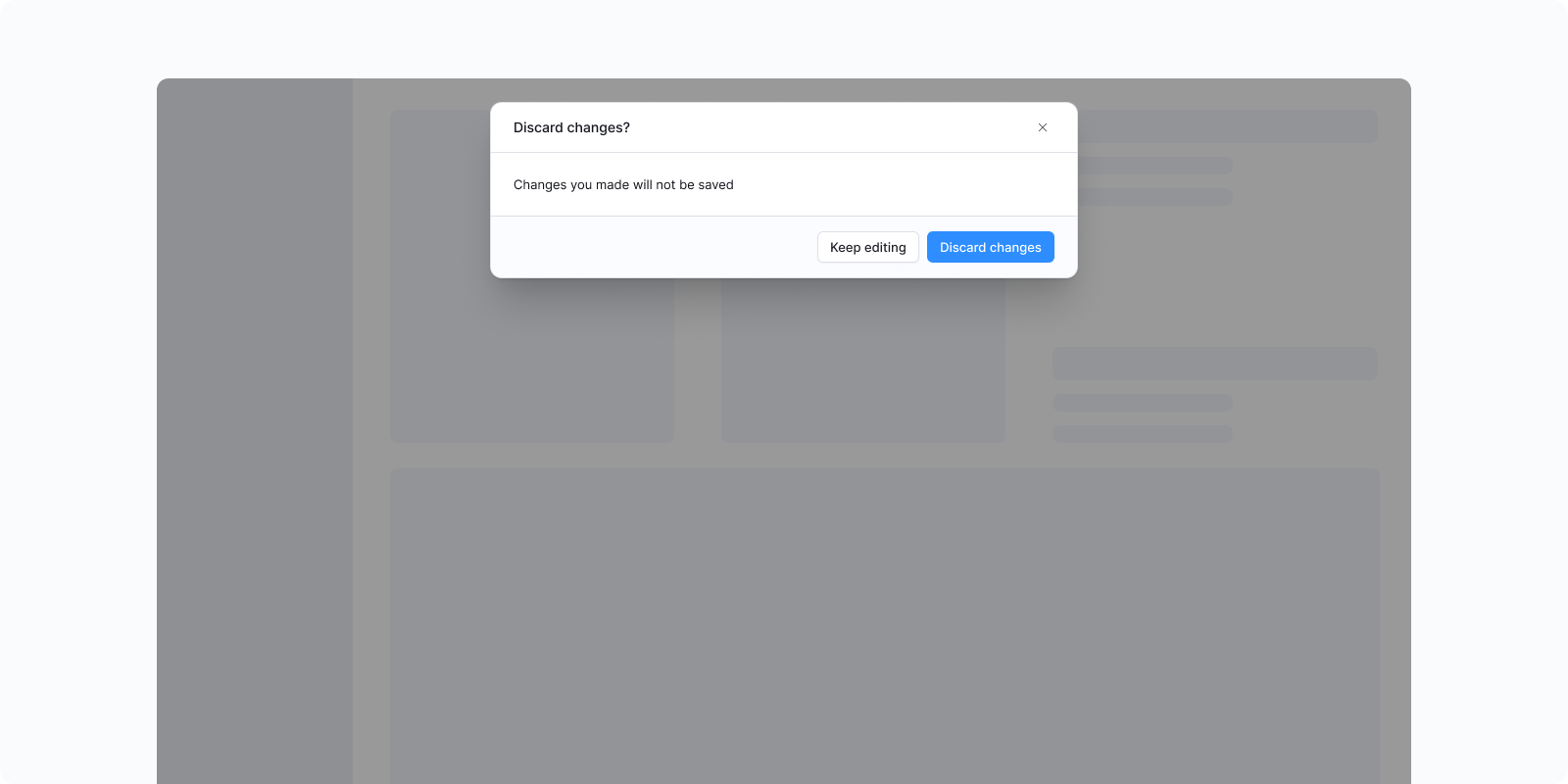
A window overlaid on the primary content, blocking interaction until acknowledged.
 #### When to use
* Confirming high-stakes destructive actions (delete all, disconnect integration, irreversible change)
* Collecting form data in isolation
* Actions or errors where the full context must be understood before the user can continue
#### Consider alternatives
* For simple single-item deletion → [Popover (confirmation)](/components/popover)
* For non-critical information → inline messages
* For quick supplementary info → [Popover](/components/popover) or [Tooltip](/components/tooltip)
### Notification panel
A persistent log of system-generated events that users can revisit. Dismissed interface notifications are **not recoverable**; notification panel entries are.
#### When to use
* Confirming high-stakes destructive actions (delete all, disconnect integration, irreversible change)
* Collecting form data in isolation
* Actions or errors where the full context must be understood before the user can continue
#### Consider alternatives
* For simple single-item deletion → [Popover (confirmation)](/components/popover)
* For non-critical information → inline messages
* For quick supplementary info → [Popover](/components/popover) or [Tooltip](/components/tooltip)
### Notification panel
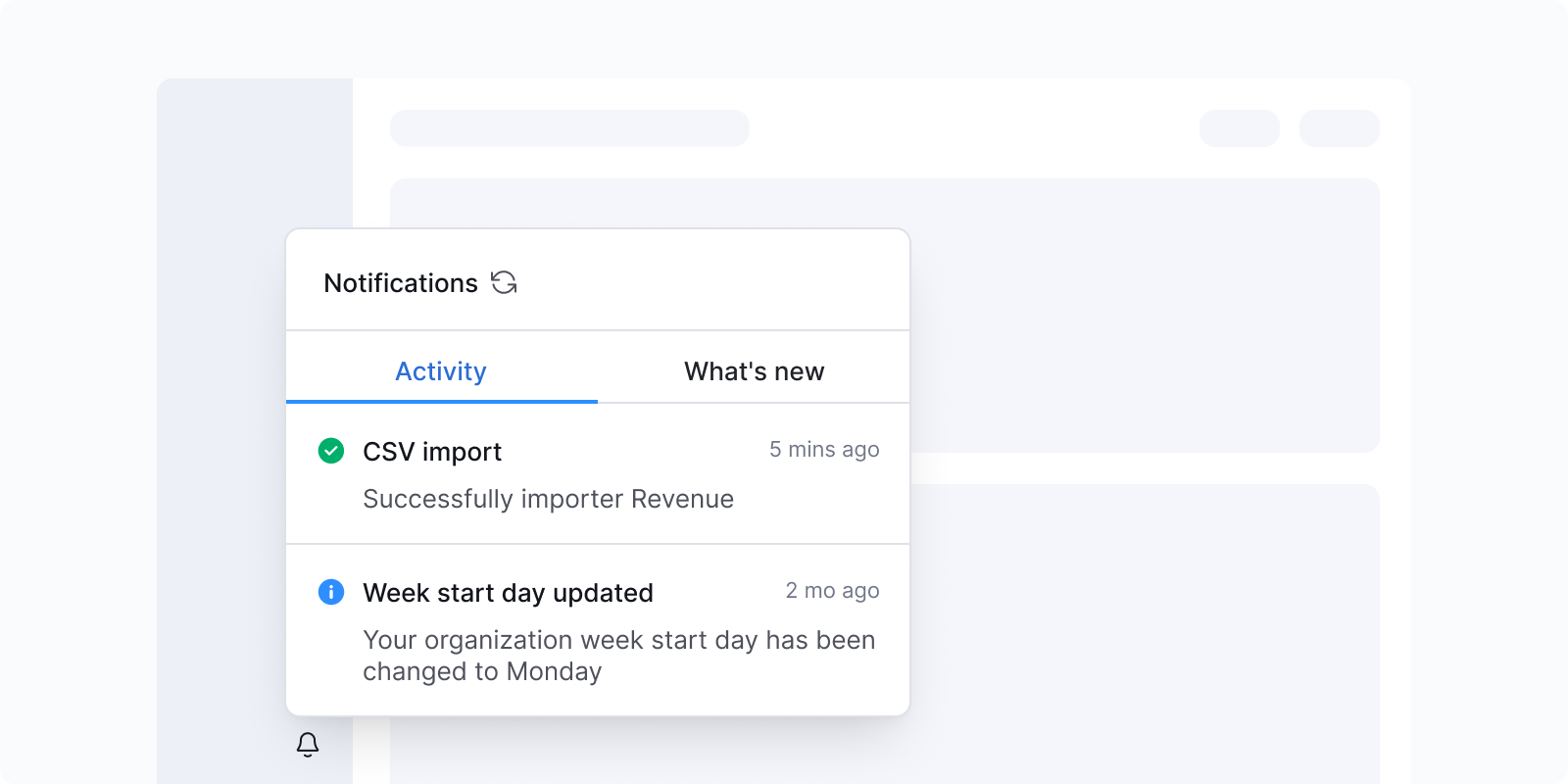
A persistent log of system-generated events that users can revisit. Dismissed interface notifications are **not recoverable**; notification panel entries are.
 **What to include:**
* Events relevant to the user's work (new report ready, shared with you, comment mention)
* Anything that happened while the user was away
**What not to include:**
* Transient task feedback (save confirmations, copy actions)
* System noise unrelated to the user's work
### Popover
A rich floating element displayed on click or hover. Supports complex content including text, buttons, and icons.
**What to include:**
* Events relevant to the user's work (new report ready, shared with you, comment mention)
* Anything that happened while the user was away
**What not to include:**
* Transient task feedback (save confirmations, copy actions)
* System noise unrelated to the user's work
### Popover
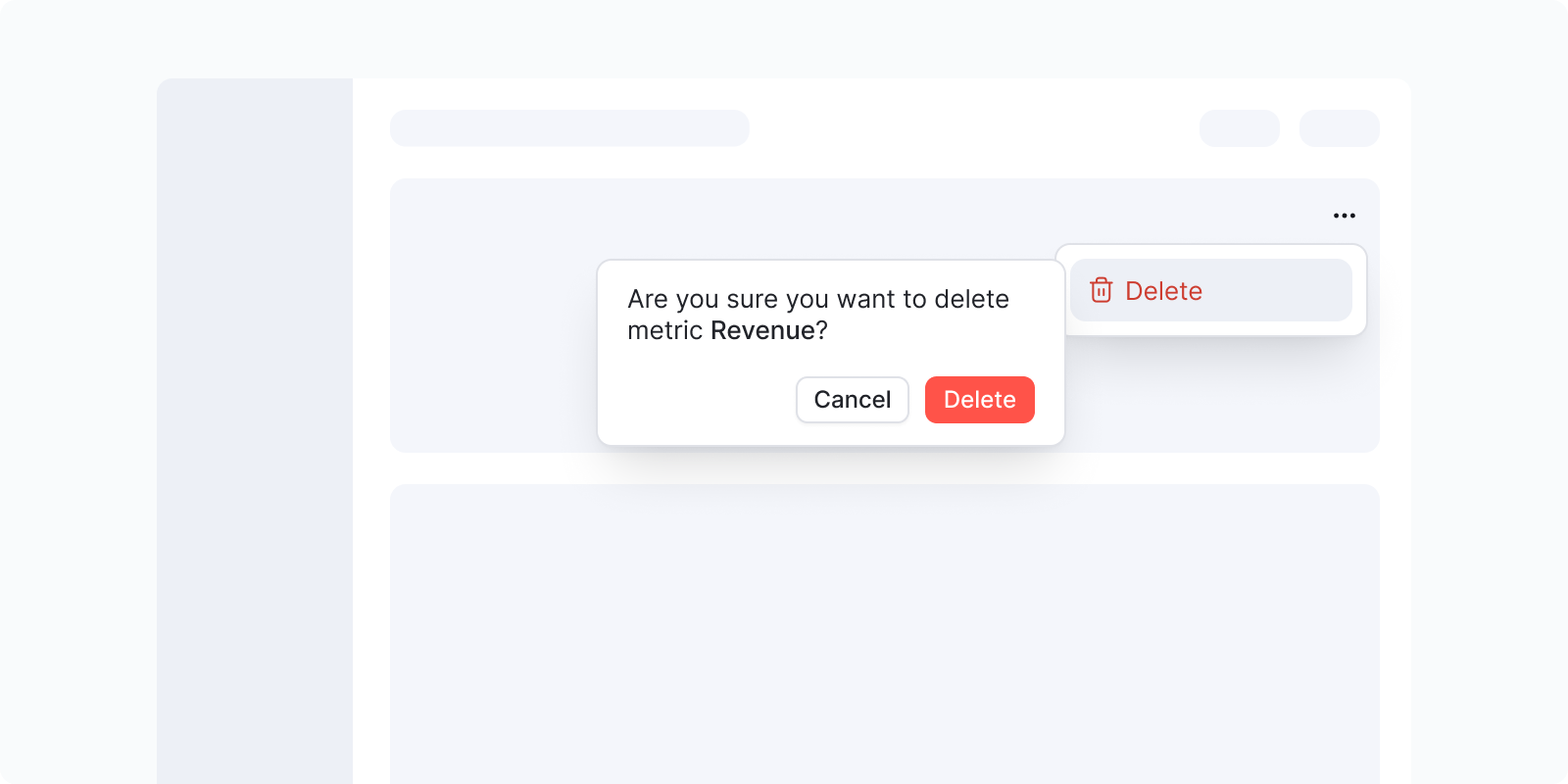
A rich floating element displayed on click or hover. Supports complex content including text, buttons, and icons.
 #### When to use
* **Inline confirmation (most common feedback use):** when a user clicks delete on a table row or inline item, a Popover appears anchored to that item asking "Are you sure?" with Delete / Cancel actions. This avoids the overhead of a full [Modal](/components/modal) for simple, low-stakes destructive actions.
* Contextual metadata or detail on hover/click
* Action buttons related to a specific element
#### Consider alternatives
* For simple text hints → [Tooltip](/components/tooltip)
* For high-stakes destructive actions with complex consequences → [Modal](/components/modal)
* For onboarding flows → [Popover (Onboarding)](/components/popover-onboarding)
### Progress bar and spinner
#### When to use
* **Inline confirmation (most common feedback use):** when a user clicks delete on a table row or inline item, a Popover appears anchored to that item asking "Are you sure?" with Delete / Cancel actions. This avoids the overhead of a full [Modal](/components/modal) for simple, low-stakes destructive actions.
* Contextual metadata or detail on hover/click
* Action buttons related to a specific element
#### Consider alternatives
* For simple text hints → [Tooltip](/components/tooltip)
* For high-stakes destructive actions with complex consequences → [Modal](/components/modal)
* For onboarding flows → [Popover (Onboarding)](/components/popover-onboarding)
### Progress bar and spinner
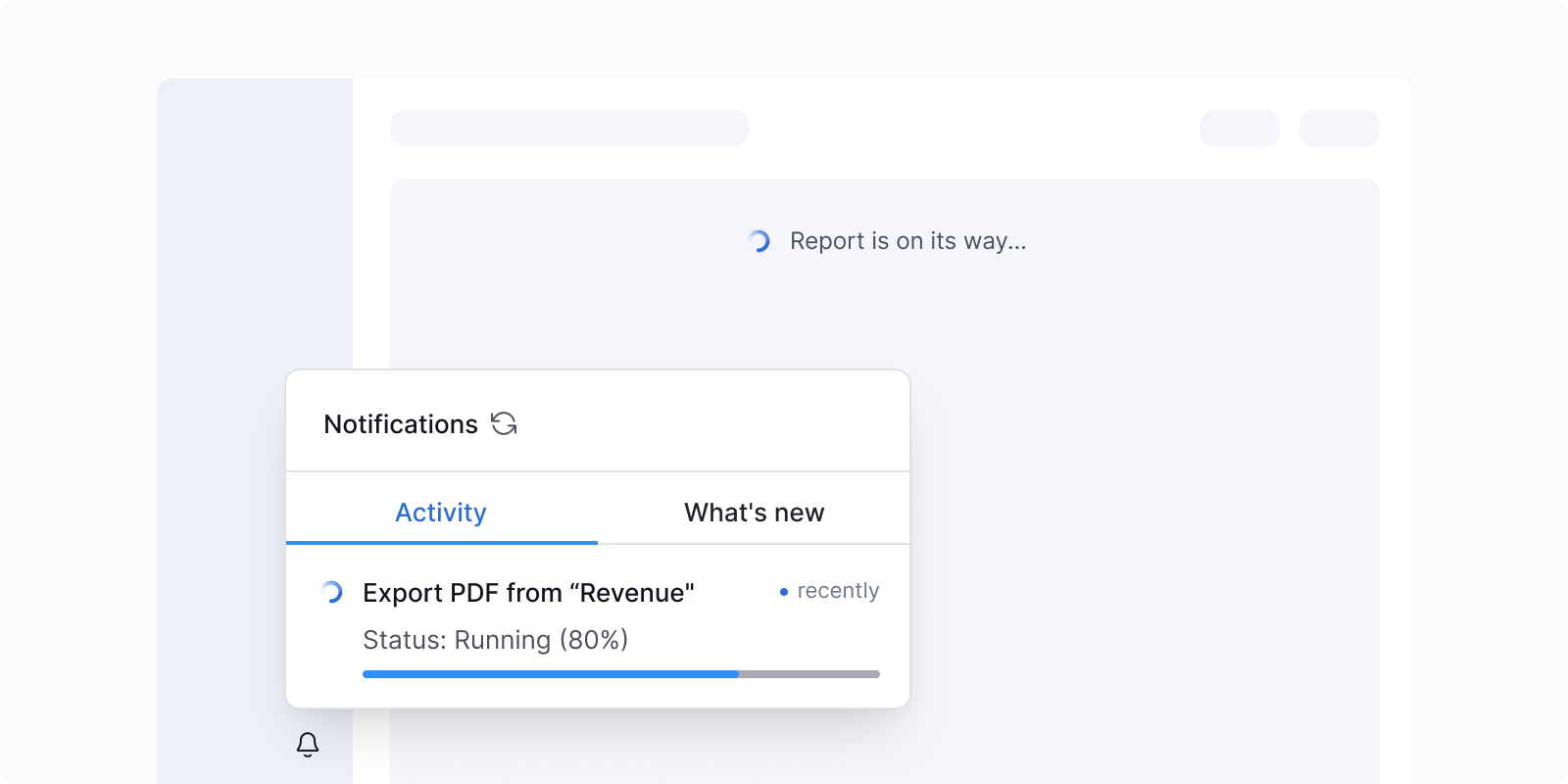 | Component | When to use | Duration |
| --- | --- | --- |
| **No feedback** | Operation completes instantly | Under 1 second |
| **Spinner** | Unknown duration; user waits | 1–10 seconds |
| **Progress bar** | Known duration; user can do other things | 10+ seconds |
Based on Nielsen Norman Group response time thresholds.
### Status indicator
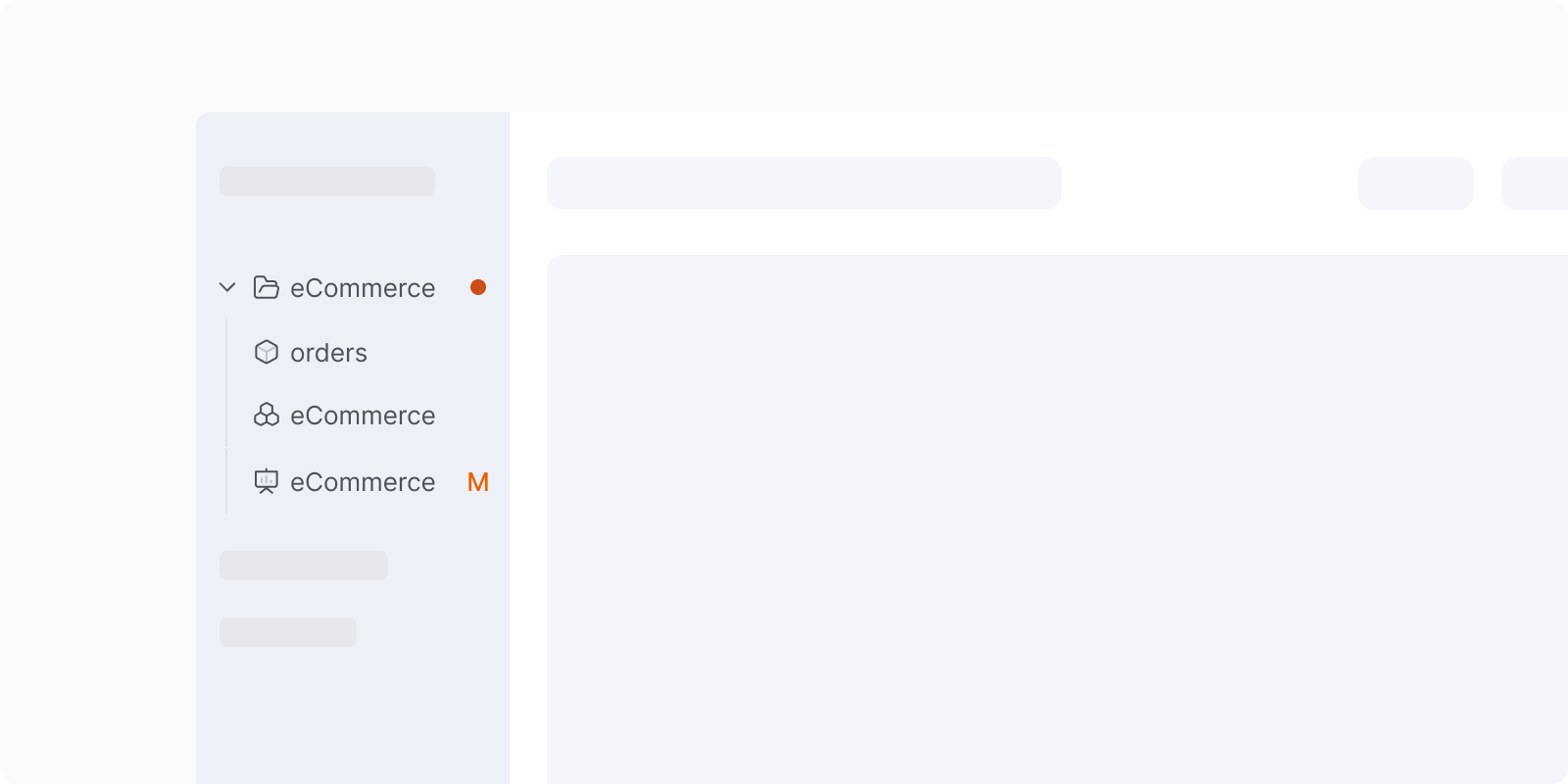
A compact colored dot that communicates the state of an item. Used inline in lists, trees, or tables, not as a standalone notification.
| Component | When to use | Duration |
| --- | --- | --- |
| **No feedback** | Operation completes instantly | Under 1 second |
| **Spinner** | Unknown duration; user waits | 1–10 seconds |
| **Progress bar** | Known duration; user can do other things | 10+ seconds |
Based on Nielsen Norman Group response time thresholds.
### Status indicator
A compact colored dot that communicates the state of an item. Used inline in lists, trees, or tables, not as a standalone notification.
 **Variants:**
* Highlight / New: Blue
* Danger / Deleted: Red
* Warning / Modified: Orange
* Success / Verified: Green
#### When to use
* Indicating that an item has unsaved changes, is new, deleted, or verified
* Showing item-level status at a glance in dense lists or tree views
#### Consider alternatives
* For page-level or action-level feedback → [Alert](/components/alert) or [Banner](/components/banner)
* When the status needs explanation → pair with a label or use a [Badge](/components/badge)
## Accessibility
### Use more than color alone
Color alone doesn't reliably distinguish alert types. Pair with icons and clear copy so the message is understood without color.
### Don't auto-dismiss critical or emergency messages
Users with low vision or motor impairments read 1.5–2× slower and need more time to act. A timed dismissal can make them miss critical information. See the Web Content Accessibility Guidelines (WCAG) 2.1, success criterion 2.2.1 Timing Adjustable.
### Use ARIA live regions
Screen readers need to announce notification content as it changes. Use the Accessible Rich Internet Applications (ARIA) roles: `role="alert"` for errors and warnings, and `role="status"` for info and success.
### Provide user control
Let users postpone or suppress non-critical notifications, except emergencies. See WCAG 2.1, success criterion 2.2.4 Interruptions.
## Content guidelines
### General rules
* **Task-generated messages**: no need for extensive background, since the user has context from their own action
* **System-generated messages**: ensure sufficient context since it's unrelated to the user's current task
* [Sentence case](/content/grammar-mechanics#capitalization); no exclamation marks or emoji
* No "please", "sorry", "oops", "oh no"
* [Active voice](/content/grammar-mechanics#active-and-passive-voice); passive acceptable to soften system errors
* No [periods](/content/grammar-mechanics#periods) in short notifications or alerts
For full guidelines, visit [In-app messages](/content/in-app-messages), [Grammar and mechanics](/content/grammar-mechanics), and [Tone of voice](/content/tone-of-voice).
## Fatigue checklist
Before adding a notification, run through this checklist to avoid overwhelming users:
* Is this notification necessary for the user to know?
* Is it relevant to what they're doing right now?
* Is it in the right place (near the action)?
* Is the right component being used for the urgency level?
* Would a success indicator be self-evident without this message?
* Is the message concise (no more than 1–2 sentences)?
* Does it tell the user what to do next?
* Is it accessible (icon + color, readable duration)?
**Variants:**
* Highlight / New: Blue
* Danger / Deleted: Red
* Warning / Modified: Orange
* Success / Verified: Green
#### When to use
* Indicating that an item has unsaved changes, is new, deleted, or verified
* Showing item-level status at a glance in dense lists or tree views
#### Consider alternatives
* For page-level or action-level feedback → [Alert](/components/alert) or [Banner](/components/banner)
* When the status needs explanation → pair with a label or use a [Badge](/components/badge)
## Accessibility
### Use more than color alone
Color alone doesn't reliably distinguish alert types. Pair with icons and clear copy so the message is understood without color.
### Don't auto-dismiss critical or emergency messages
Users with low vision or motor impairments read 1.5–2× slower and need more time to act. A timed dismissal can make them miss critical information. See the Web Content Accessibility Guidelines (WCAG) 2.1, success criterion 2.2.1 Timing Adjustable.
### Use ARIA live regions
Screen readers need to announce notification content as it changes. Use the Accessible Rich Internet Applications (ARIA) roles: `role="alert"` for errors and warnings, and `role="status"` for info and success.
### Provide user control
Let users postpone or suppress non-critical notifications, except emergencies. See WCAG 2.1, success criterion 2.2.4 Interruptions.
## Content guidelines
### General rules
* **Task-generated messages**: no need for extensive background, since the user has context from their own action
* **System-generated messages**: ensure sufficient context since it's unrelated to the user's current task
* [Sentence case](/content/grammar-mechanics#capitalization); no exclamation marks or emoji
* No "please", "sorry", "oops", "oh no"
* [Active voice](/content/grammar-mechanics#active-and-passive-voice); passive acceptable to soften system errors
* No [periods](/content/grammar-mechanics#periods) in short notifications or alerts
For full guidelines, visit [In-app messages](/content/in-app-messages), [Grammar and mechanics](/content/grammar-mechanics), and [Tone of voice](/content/tone-of-voice).
## Fatigue checklist
Before adding a notification, run through this checklist to avoid overwhelming users:
* Is this notification necessary for the user to know?
* Is it relevant to what they're doing right now?
* Is it in the right place (near the action)?
* Is the right component being used for the urgency level?
* Would a success indicator be self-evident without this message?
* Is the message concise (no more than 1–2 sentences)?
* Does it tell the user what to do next?
* Is it accessible (icon + color, readable duration)?