---
url: /foundations/brand-foundations.md
---
# {{ $frontmatter.title }}
::: info This page is under construction
In the meantime, ask your questions in the **#design-system** channel in Slack.
:::
---
---
url: /foundations/product-design-principles.md
---
# {{ $frontmatter.title }}
::: info This page is under construction
In the meantime, ask your questions in the **#design-system** channel in Slack.
:::
---
---
url: /base-elements/logo.md
---
# {{ $frontmatter.title }}
::: info This page is under construction
In the meantime, ask your questions in the **#design-system** channel in Slack.
:::
---
---
url: /base-elements/color.md
description: 'The semantic color tokens the design system exposes, in light and dark mode.'
---
# {{ $frontmatter.title }}
{{ $frontmatter.description }}
Each row lists a token, its value in light and dark mode, and where to use it. Reference tokens by name rather than by raw value, so your colors follow the theme.
---
---
url: /base-elements/icon.md
description: Display an icon crafted specifically for Holistics.
---
# Icon
{{ $frontmatter.description }}
:::: tabs key:icon
\== Library
## List icons
::: raw
:::
\== Usage
## Design guideline
[Open the icon library in Figma](https://www.figma.com/design/RrumCUwk03DcAj8EFQon7av9/Design-System--Components?node-id=33939-60147\&t=6Ip5pJc78xGEMT6o-4)
> Before designing a new icon, check whether an existing icon can be used or adapted.
>
> Search for a suitable icon in the [Master Figma Library](https://www.figma.com/design/1AF69I1UNwhc1QTlVdYxZK/-Nov-2025--Untitled-UI-Icons-%E2%80%93-PRO--v1.6-?node-id=0-1\&t=OVrnKF94aFlvmgMn-1) or our icon list:
>
> * If an icon can be reused, refine it.
> * If no suitable icon exists, design a new icon.
### Design an icon
#### Style
1. The icon set comes in 2 themes: **Line** and **Filled**.
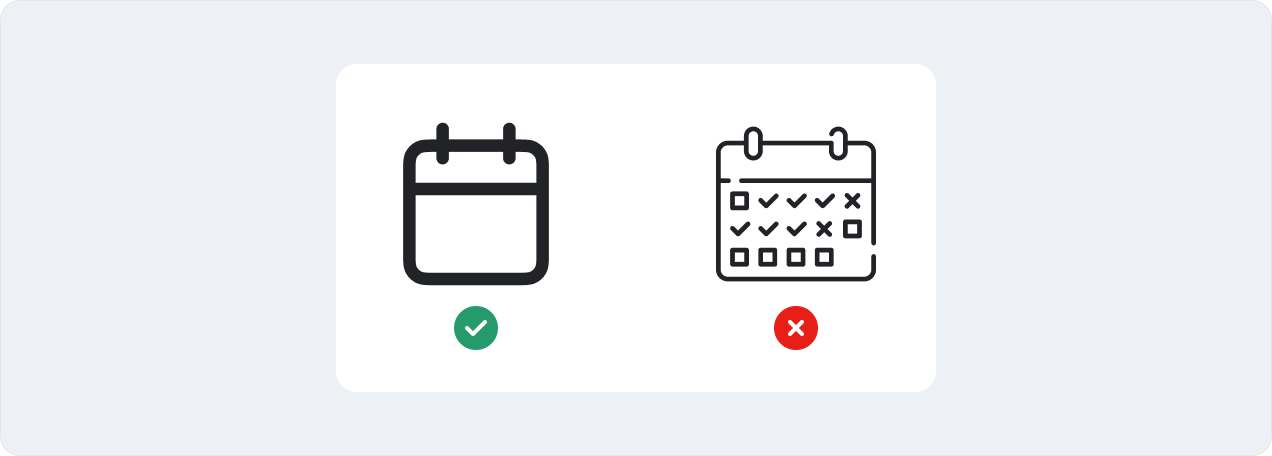
2. Use simplified shapes with the minimum detail.
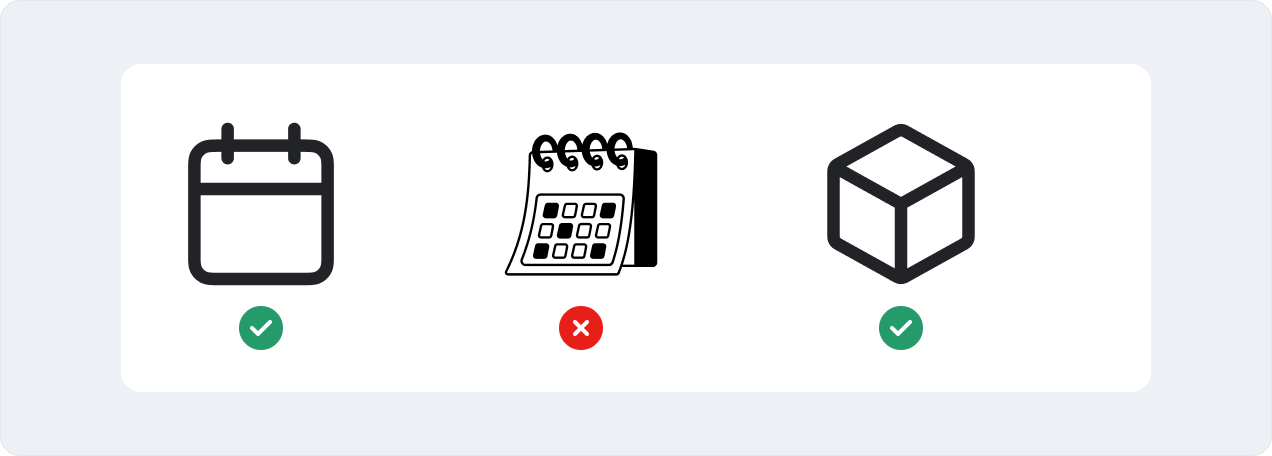
3. Icons are two-dimensional, and objects face forward. Depth and perspective should only be used when it's absolutely necessary to clarify a concept.
### Construction
#### Grid
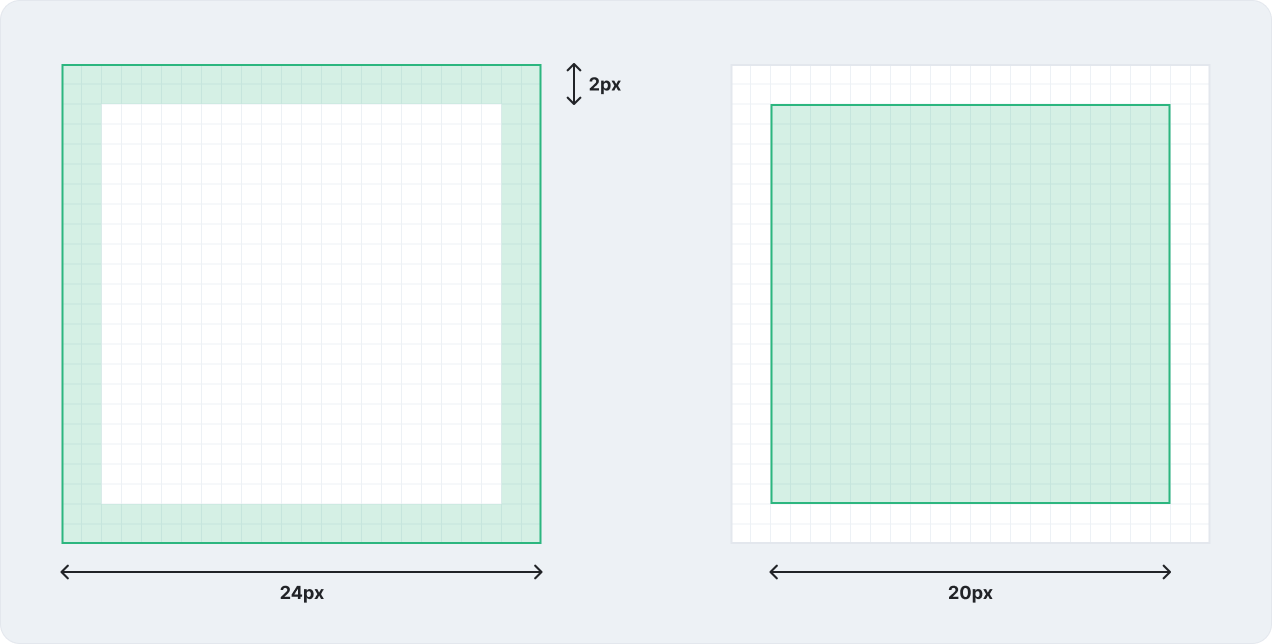
All icons should be drawn on a **24×24px grid frame**. Each frame includes key shapes and a **2px padding** on all sides as guidance.
#### Key shapes
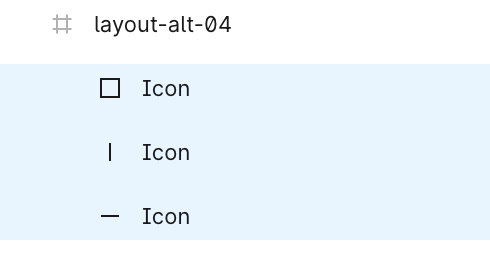
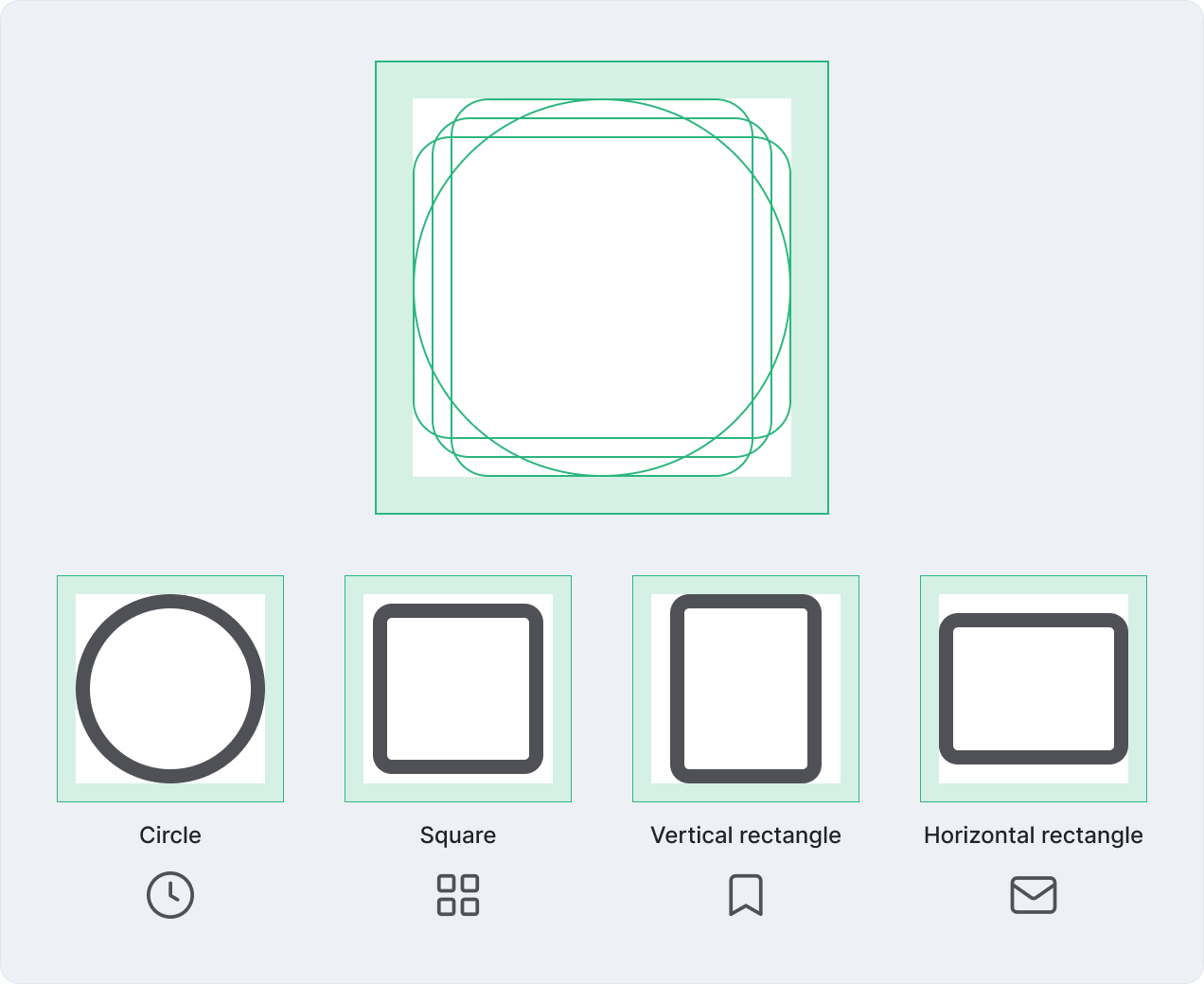
Based on our 24×24px grid, we defined **4 key shapes**: circle, square, vertical rectangle, and horizontal rectangle. These fundamental shapes help us to maintain consistency across all system icons.
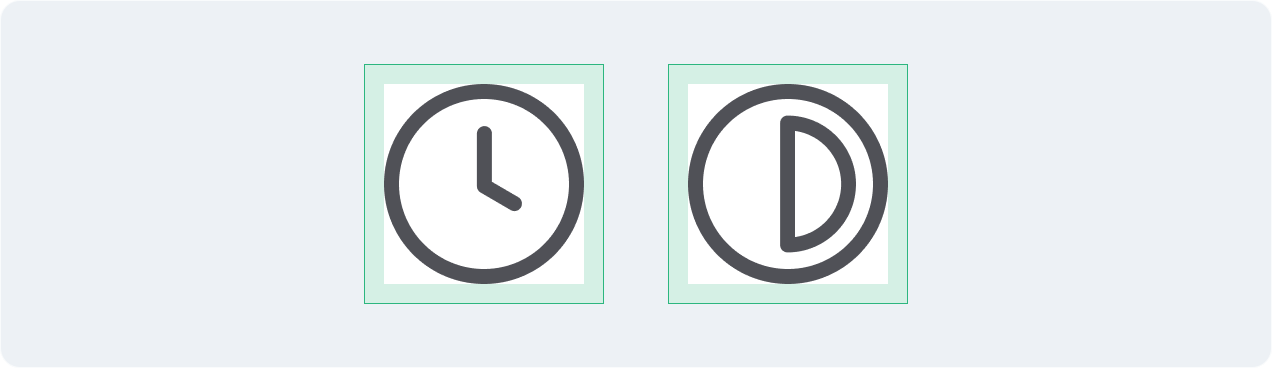
For example, the following icons share the same underlying circle shape, so build them on the circle key shape.
### Stroke
#### Stroke weight and stroke alignment
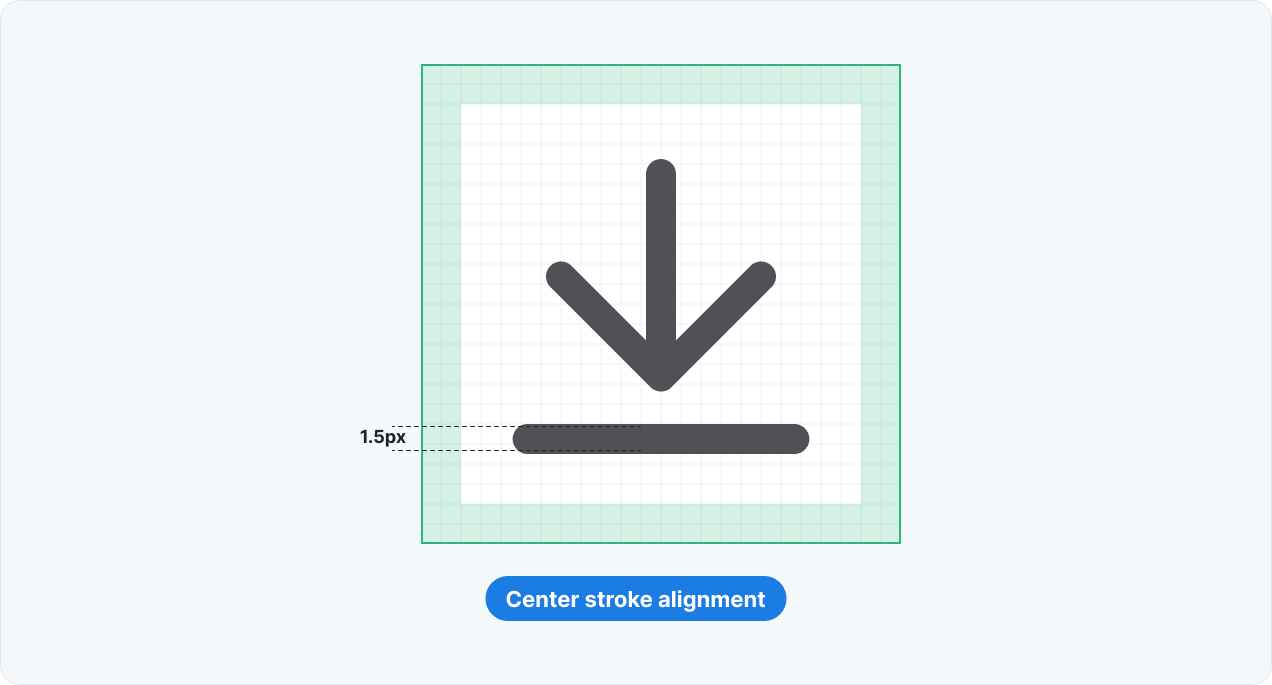
Maintain the same visual weight by using a **1.5px centered stroke** for all icons.
#### Negative space
When converting a line icon to a filled icon, stroke size may be adjusted to create a stronger contrast and emphasis of the primary symbol.
For example, for `Exclamation-circle` (Filled), the stroke size of the exclamation mark is adjusted from **1.5px to 2px**.
#### End caps
Use **rounded end caps**
#### Corner radius
Use a **2px outer corner radius** on icon shapes. Inner corners differ between themes:
* **Line icon**
* **Filled icon**
### Refine the icon frame
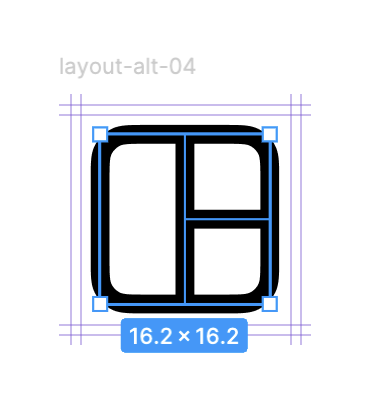
* **Step 1:** Copy the icon from the [Master Figma Library](https://www.figma.com/design/1AF69I1UNwhc1QTlVdYxZK/-Nov-2025--Untitled-UI-Icons-%E2%80%93-PRO--v1.6-?node-id=0-1\&t=OVrnKF94aFlvmgMn-1)
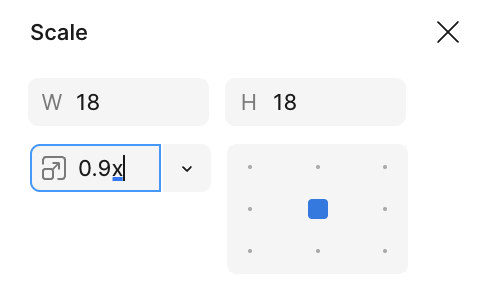
* **Step 2:** Scale the icon content down to `0.9x`
* **Step 3:** Apply the following specs to the icon
| Spec | Value |
| --- | --- |
| Stroke weight | `1.5px` |
| Stroke cap / join | Round |
| Corner radius (outer) | `2px` |
| Color | `icon/default` |
| Fill/ | Opacity 30% `icon/default` |
* **Step 4:** Clean up the icon:
* Remove the layout guide
* Flatten strokes
* Rename the icon layer based on the icon type
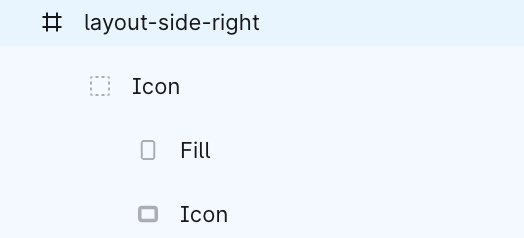
* **Outline icon:** Rename the icon layer to `Icon`.
* **Mixed-fill icon:** Group the layer and rename the group to `Icon`
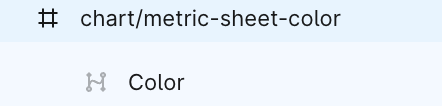
* **Multi-color icon:** Rename the layer content to `Color`
* **Step 5:** Name the icon based on our [naming guideline](https://app.notion.com/p/Doc-Update-Icon-doc-37df89dc7e498038bfc8f607e0bef993?pvs=21)
* **Step 6**: Get approval from the Design system team to finalize and publish
## Naming icons
* **Use unique, semantic names** to describe what the icon represents, not where it's used.
* **Ask for suggestions on naming** if unsure about the name. Provide 2–3 alternatives with context, and get feedback on #design-system
* **Do**:
* Use a generic noun or verb to describe the icon.
* Icon type:
* Default outlined icons don’t need a suffix.
* Add a suffix for `color` or `solid` icons
* **Don’t**: Avoid context-specific/feature names, or multiple icons with the same meaning.
* **Good names:**
* What it is: `arrow-left`, `arrow-right`
* Main object and secondary object: `user-plus`, `user-hide`, `user-group`
* **Examples:**
✅ `trash` vs. ❌ `delete`
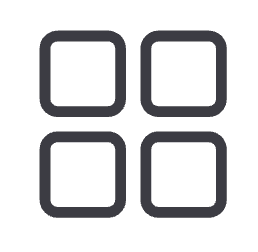
✅ `grid` vs. ❌ `layout/arrange-grid`
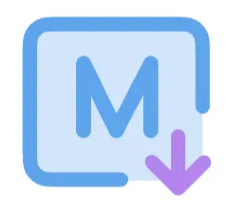
✅ `markdown-color` vs. ❌ `markdown`
\== Code
```vue
```
## Examples
### Sizes
```vue {20}
{{ size }}
```
## Steps to add a new icon
1. **Copy the SVG file:**
Place your icon's Scalable Vector Graphics (SVG) file in the `./src/icons` directory and give it a clear name. The build generates the icon's name from the file name and, where it applies, the parent folder. Both are case-sensitive.
**Icon naming pattern:**
* If the file is in `src/icons`:
* Example: `src/icons/delete.svg` → icon name: `delete`
* If the file is in a subfolder of src/icons:
* Example: `src/icons/onboarding/analytics.svg` → icon name: `onboarding/analytics`
2. **Set the Fill Color for Single-Color icons:**
For the single color icon, set the `fill` attribute to `currentColor`. For example:
```js
```
Single color icon:
Multi colors icon:
3. **Generate the icon map:**
Run the icon map generation script to include your new icon:
```bash
node ./generateIconMap.cjs
```
4. **Bump the package version:**
Use `pnpm changeset` to bump the package version. If you're only adding or updating icons, select a `patch` version.
## API
### Pass-through: ``
::: info What does this mean?
All props, events, and attrs that are **not specified in the tables below** will be passed to the element/component described above.
:::
### Props
### Events
::::
---
---
url: /base-elements/illustration.md
---
# {{ $frontmatter.title }}
::: info This page is under construction
In the meantime, ask your questions in the **#design-system** channel in Slack.
:::
---
---
url: /base-elements/typography.md
description: >-
The type tokens the design system exposes, with their size, weight, and line
height.
---
# {{ $frontmatter.title }}
{{ $frontmatter.description }}
Each row lists a token and the font family, size, weight, and line height it applies. Reference tokens by name rather than setting these values yourself, so text stays consistent across the product.
---
---
url: /content/tone-of-voice.md
---
# {{ $frontmatter.title }}
::: info This page is under construction
In the meantime, ask your questions in the **#design-system** channel in Slack.
:::
---
---
url: /content/grammar-mechanics.md
---
# {{ $frontmatter.title }}
## Plain language
* Write for all users: Use words and language that our users use. Avoid jargon or technical terminology Aim for a Grade 7 reading level.
* Be clear and concise: Some people will read every word you write. Others will just skim. Create a hierarchy of information. Lead sentences with the main point.
## Spelling and formatting
### American spelling
Use American spelling for all external-facing content.
### Bold and italics
* Use bold sparingly and only where strong emphasis is required. Don’t use italics and quotation marks.
* Use for:
* Headings and titles
* Referring to UI elements
✅
* Visit the **My Account** page to update your avatar.
* Data source **demo2** is invalid.
❌
* Visit the “My Account” page to update your avatar.
* Data source “*demo2*” is invalid.
## Abbreviations
Spell out an acronym on first use and include it in parentheses.
* Period-over-period comparison (PoP)
* Two-factor authentication (2FA)
Use the abbreviation or acronym if it’s well-recognized, like SQL or API.
## Active and passive voice
Use active voice in most cases and use passive voice sparingly.
* With **active voice**, sentences are simpler, shorter, clearer, and more conversational.
* With **passive voice**, you can soften and provide distance in select situations (e.g., notification of a disabled account).
### Active voice
Generally, write in the active voice: Subject (person/thing acting) verb (the action) object (receives the action)
✅ Susan commented on your dashboard
❌ Your dashboard was commented on by Susan
### Passive voice
In some cases when active voice comes across too harshly, use passive voice:
* Separates the actor from the action to soften a sentence.
* If the object (thing having action done to it) is more important than the subject (person doing the thing)
✅ Your payment has been declined
❌ We declined your payment.
## Contraction
Contractions make sentences shorter and easier to read. Use commonly understood contractions to keep sentences from feeling out-of-touch, robotic, or overly formal.
✅
* Can’t run query
* This feature isn’t available for your version
* You’re all set up
* An error occurred and your changes couldn’t be saved
❌
* Cannot run query
* This feature is not available for your version
* You are all set up
* An error occurred and your changes could not be saved
## Capitalization
* Use sentence case capitalization in most cases:
* Capitalize the initial letter of the first word of a sentence, heading, title, or description.
* Capitalize proper nouns and trademarked nouns. [**View the Word list**](https://design.holistics.dev/content/word-list.html)
* Use lowercase for everything else.
* Don’t capitalize the word after a slash or hyphen if the first word isn’t capitalized.
* Don't use all uppercase for emphasis. It hinders readability and may appear rude to users. Use [**bold**](https://design.holistics.dev/content/grammar-mechanics#bold-and-italics) instead.
* Only use all uppercase when asking users to type to confirm. Example: Type DELETE to confirm bulk delete
## Emoji
* Don’t use emoji in product UI copy: labels, buttons, alerts, tooltips, and messages.
* Use them sparingly and deliberately in promotional and onboarding content, such as a welcome tour or a release announcement.
## Date and time
### Date
Use the **American English** date format. When possible, use the month’s full name. If there are space constraints, use 3-letter abbreviations.
* Wednesday, May 15, 2015
* May 13, 2015
* May 15
Use date with numerals only in cache or refresh status:
* 2015-05-13 14:00:00 GMT+07:00
### Time
* When using the 12-hour time, write in numerals, with am or pm, and a space in between.
✅ 2:00 pm
❌ 2PM
* When using the 24-hour time, always use at least 4 digits:
✅ 2015-05-13 08:25:00 +07:00
❌ 2015-05-13 8:25 +07:00
## Lists
### Bulleted
Use a bulleted list when items are related but sequence or priority doesn’t matter. Introduce the list with a full sentence and a colon.
Capitalize the first word of the sentence.
### Numbered
Use a numbered list when item sequence or priority does matter. Introduce the list with a full sentence and a colon.
Capitalize the first word of the sentence.
### Dropdown and select menus
* **Actions in a menu:** Actions in a menu follow a {verb}+{noun} pattern. If there’s enough context, only a verb might be required.
* **Nouns in a menu:** Nouns in a menu should be concise, but still give the user enough information so that they can easily find and accurately select the item that they want.
### List punctuation
Don’t add a comma or semicolon at the end of a bulleted or numbered list item.
## Numbers
* Use the numeral in the UI copy:
* Deleted 3 fields successfully
* We found 20 search results
* Use commas for numbers over 3 digits:
* 123 users
* 1,234 users
* Use an en dash without a space on either side for number ranges
* The process might take 1–3 days
## Punctuation
### Ampersands `&`
Use “and” instead of “&” in UI copy. It reads more clearly and is easier to translate.
### Apostrophes `’`
Use apostrophes to represent omitted letters:
* Verb contractions (don’t, can’t, won’t)
* Omitted letters (it’s, you’re, we’re)
Use apostrophes to form possessives:
* Singular nouns: add *’s*, even if they end in *s* (dashboard’s, field’s)
* Plural nouns that don’t end in s: add *’s* (women’s, men’s)
* Plural nouns that end in s: add an apostrophe (types’, users’)
### Asterisks `*`
Use asterisks ( \* ) to indicate form fields as required.
### Colons `:`
* Colons are helpful when introducing lists of items or steps in a workflow.
* Don’t use a colon at the end of a label for a form field.
* Don’t capitalize the first word after the colon unless it’s a proper noun.
* Don’t use colons to introduce radio buttons or checkboxes.
### Commas `,`
Use the Oxford comma (also known as the serial comma) when writing a list with 3 or more items.
Don’t use commas to separate bulleted or numbered list items.
### Ellipses `…`
✅ Use ellipses for:
* Truncation
* Communicate in-progress status: “Loading…”
* Placeholder copy: “Input field name…”
❌ Don’t use ellipses for:
* Trailing off a sentence: “Welcome to Holistics…”
### Exclamation marks `!`
* Don’t use exclamation marks. They can come across as too excited and easily overused.
### Hyphens `-`
Use hyphens without spaces before and after to link words into a single phrase.
Form compound modifiers: 2 words combining to modify or describe the following noun.
### Periods `.`
* Use periods in full-sentence description:
* Modal’s description with more than 1 sentence
* A list item with more than 1 sentence
* Don’t use periods in UI elements’ copy, such as:
* Button
* Inline link
* Notification
* Alert, Banner
* Headings, Titles
* Tooltip
* Placeholder
* Radio button, checkbox
* A list item with only 1 sentence
### Question marks `?`
✅ Use question marks if you don’t know the result of the question:
* Can’t access your authenticator app?
* Do you want to proceed?
❌ Don’t use question marks if:
* It’s the only option available: “Reset password?”
* It’s an on/off option: “Enforce Two-factor Authentication?”
---
---
url: /content/word-list.md
---
# Word list
Users rely on consistent labels to predict how an interface behaves. This list defines our terminology, so we use the same word for the same thing.
For guidance not on this page, we defer to these style guides:
* [Microsoft Style Guide](https://learn.microsoft.com/en-us/style-guide/welcome/)
* [Google Developer Documentation Style Guide](https://developers.google.com/style)
## Recommended words
### Things
**A**
* AQL (Analytical Querying Language)
* AMQL (Analytics Modeling and Querying Language)
* AML (Analytical Modeling Language)
* aggregate awareness
**B**
**C**
* canvas dashboard
* dashboard
* Canal
* custom field
**D**
* data model
* dataset
* database
* data source
* data warehouse
* demo
* Development
* development mode
* dbt
* drill-down, drill-through
**E**
**F**
* filter
* interactive control (IC)
* field
**G**
* Git sync
**H**
* Holistics
* Holistics Playground
**I**
* ID
**J**
**K**
**L**
**M**
* measure
* metric
**N**
**O**
**P**
* page
* period comparison
* production mode
* public roadmap
* publish
**Q**
* query param
**R**
* report
* Reporting
* refresh
* release note
* relationship
**S**
* sign in, sign out
* single sign-on (SSO)
**T**
* third-party, 3rd-party
* two-factor authentication (2FA)
**U**
**V**
* version control
**W**
* widget
**X**
* x-axis
**Y**
* y-axis
**Z**
#### Verbs
* cancel
### Open questions
We haven't picked a single spelling for these yet. Ask in **#design-system** before you use one.
* Analytics As-code, Analytics as-code, or Analytics as Code
* auto run, auto-run, or autorun
### Words to avoid
* please
* sorry
* oops, whoops, oh no
* AML studio
* guys
* deploy
---
---
url: /content/in-app-messages.md
---
# In-app messages
## Tone and voice
* **Context**: Limited screen space, task-focused attention
* **Examples**: Tooltips, banners, buttons, labels, modals
* **Tone**: Instructive, neutral, focused
* Prefer **second person** (“you”) and **active voice**; keep verbs simple (present or simple past/future).
* **Sentence case** everywhere (labels, menus, tooltips). No exclamation marks, no emoji, no ampersands.
* **Plain language > cleverness.** Avoid jargon unless it’s the exact term users already use in-app.
* **Structure for scanning.** If an icon or the component affordance communicates it, delete the text.
* Use **consistent numerals, dates, and lists**; avoid trailing punctuation in short UI phrases.
* **Write meaningful links.** Tell users exactly where links go and what they'll find there.
* **Why:** Microcopy lives under tight attention and space constraints; clarity, consistency, and inclusivity reduce cognitive load.
## Message types
Different messages serve different purposes in guiding users through their workflows. Each type follows specific patterns so users know what to expect and how to respond.
* **Error message:** Alerts users when something has gone wrong and guides them toward resolution
* **Success message:** Confirms users have completed an action or task successfully
* **Warning message:** Alerts users about conditions that might cause problems in the future
* **Confirmation message:** Double-checks whether users want to proceed with significant or irreversible actions
* **Onboarding message:** Introduces new features to existing users or helps new users learn core workflows
## How to display your content
| | Success | Error | Warning | Confirmation | Onboarding |
| --- | --- | --- | --- | --- | --- |
| Banner | | ✔️ | ✔️ | | |
| Alert | ✔️ | ✔️ | ✔️ | | |
| Empty state | | ✔️ | | | ✔️ |
| Inline message | ✔️ | ✔️ | ✔️ | | ✔️ |
| Hero banner | | | | | ✔️ |
| Popover onboarding | | | | | ✔️ |
| Modal | | | | ✔️ | ✔️ |
| Confirmation popover | | | | ✔️ | |
## Best practices
Most people scan text instead of reading everything. Make every word count and avoid irrelevant details.
* **Use everyday language:** Write how users talk, not how technical documentation sounds.
* **Structure for scanning:** Put the most important information first and make it easy to spot.
* **Write meaningful links:** Tell users exactly where links go and what they'll find there.
### Quick checklist
* Can our intended user understand this immediately?
* Is the main point visible within the first few words?
* Does every sentence add value, or can something be cut?
* Do links describe their destination clearly?
## Success message
* Confirms users have completed an action or task successfully.
* **When to use:**
* Completed actions or tasks
* Successful saves, updates, or creations
* Achievement of user goals
* **Writing best practices:**
* **Title**
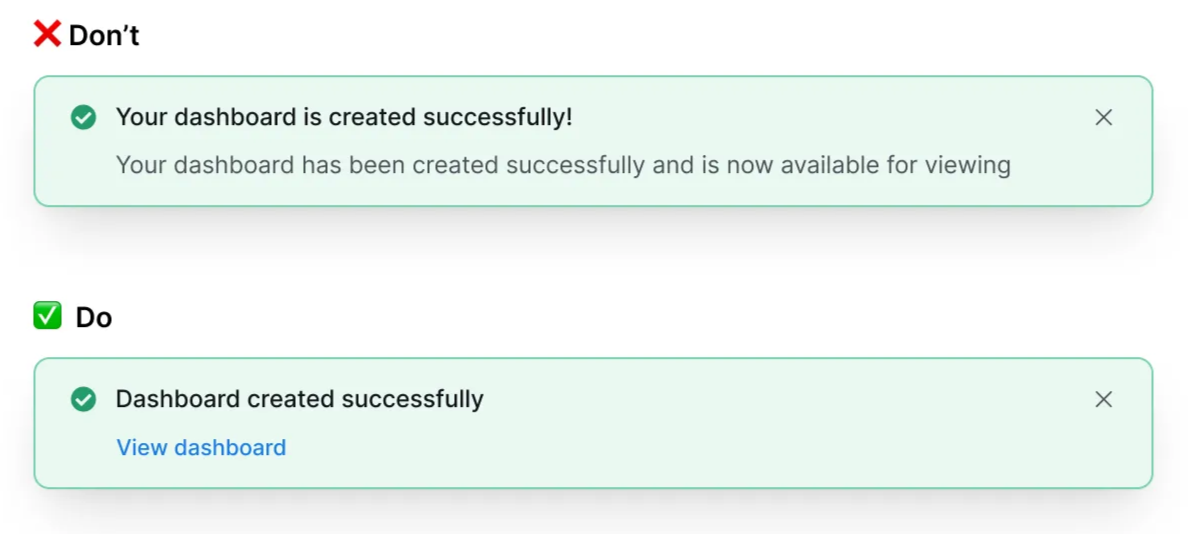
* Common format: Subject - verb - adverb. For example: “Dashboard created successfully”
* Make titles scannable and self-contained. Users should understand the message from the title alone.
* Avoid generic phrases like "Success!". Use sentence case and skip exclamation marks, so the message stays professional instead of overly excited.
* **Body (where applicable)**
* If the action needs more explanation, add a description. Confirm what the user completed.
* Avoid repeating content from the title.
* Limit to 1–2 sentences
* Avoid technical jargon. Include links to docs when necessary.
* **Call to action (CTA), where applicable**
* Include a CTA when there are necessary follow-up options. For example, if the user has created something, give them the option to view it.
* Limit the CTA to 1–3 words.
* Examples:
## Error message
* Alerts users when something has gone wrong and guides them toward resolution.
* **Design considerations**
* **When to use:**
* Problems that have already happened
* System failures or user mistakes
* Failed operations or invalid inputs
* **Error vs. warnings:**
* Errors = already happened
* Warnings = might happen later
* Use distinct icons, colors, and text patterns to help users recognize the difference immediately
* **Writing best practices**
* **Title**
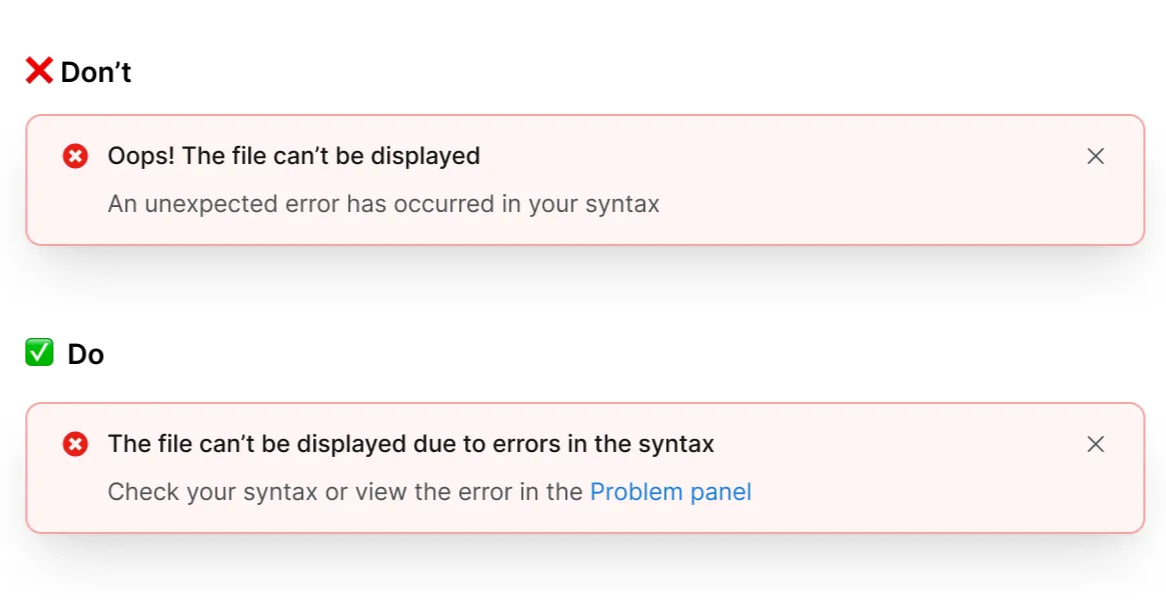
* Make titles scannable and self-contained. Users should understand the issue from the title alone.
* Use sentence case with no exclamation mark, so the tone stays calm and professional instead of overly excited.
* **Description (when applicable)**
* Include what went wrong, how to fix it, and the consequences (if relevant)
* Avoid repeating content from the title.
* Limit to 1–2 sentences
* Avoid technical jargon. Include links to docs when necessary.
* **CTA (when applicable)**
* Include a CTA when there are any necessary follow-up options.
* Limit the CTA to 1–3 words.
* **Examples:**
## Warning message
* Alerts users about conditions that might cause problems in the future.
* **Design considerations:**
* **When to use:**
* Potential future problems
* Approaching limits or deadlines: for scheduled maintenance, approaching limits, or actions that will permanently affect their data.
* Actions that will affect data or workflows
* **Error vs. warning:**
* Errors = already happened
* Warnings = might happen later
* Use distinct icons, colors, and text patterns to help users recognize the difference immediately
* **Warning vs. confirmation:**
* Warnings = inform about risks or conditions
* Confirmations = interrupt actions requiring explicit consent
* Warnings let users continue working while confirmations force a decision
* **Writing best practices:**
* **Title**
* Make titles scannable and self-contained. Users should understand the warning from the title alone.
* Use sentence case to maintain a calm, professional tone during stressful moments
* Use "will" for certain outcomes, "may" or "might" for possible outcomes.
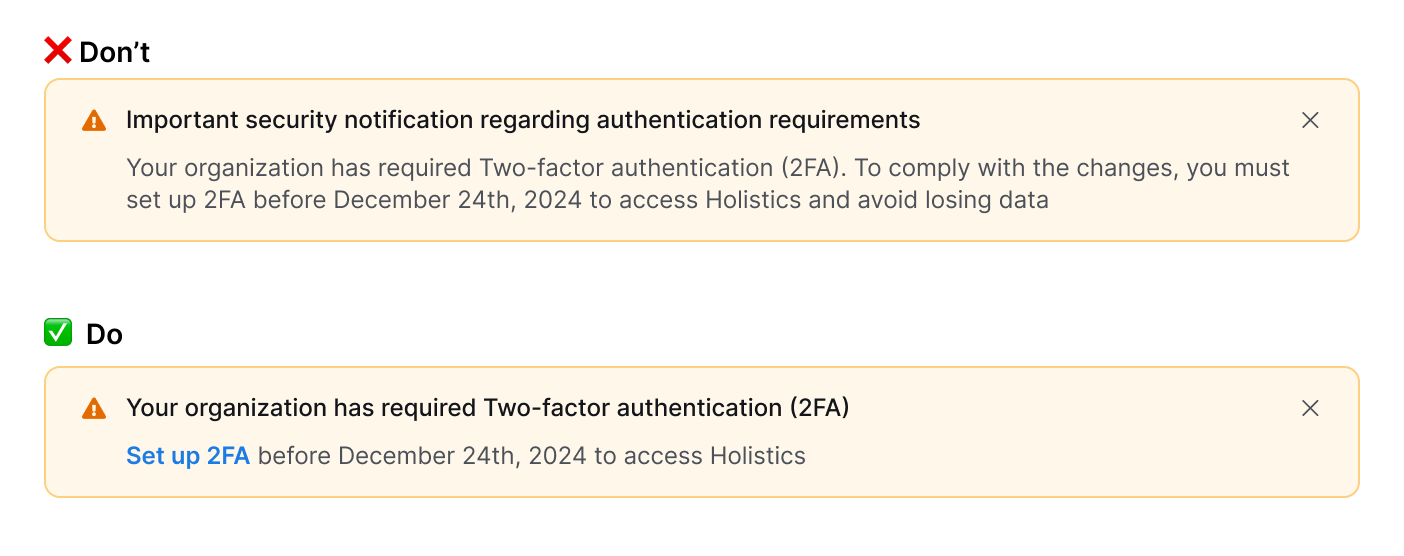
* Most of the time, start each statement with a verb, instead of “You can”, “You must”, “There is”, “There are”. Example:
* Instead of: You must set up 2FA before today.
* Use: Set up 2FA before today.
* **Description (when applicable)**
* Include what might happen, when, and what users can do.
* Avoid repeating content from the title.
* Limit to 1–2 sentences
* Avoid technical jargon. Include links to docs when necessary.
* Focus on what users need to know to make a decision. If the action is irreversible, state this explicitly.
* **CTA: (Optional)**
* Use specific action words instead of a generic **OK**.
* For destructive actions, use words like **Delete**, **Remove**, or **Proceed**.
* **Examples:**
## Confirmation message
* Double-checks whether users want to proceed with significant or irreversible actions.
* **Design considerations:**
* **When to use:**
* Before irreversible actions (deleting data, disconnecting integrations)
* Changes affecting team members or workflows
* Risk of losing user work or data
* **When not to use:**
* Easily reversible or undo actions
* Routine, low-risk tasks
* **Warning vs. confirmation:**
* Warnings = inform about risks or conditions
* Confirmations = interrupt actions requiring explicit consent
* Warnings let users continue working; confirmations force a decision
* **Writing best practices:**
* **Title**
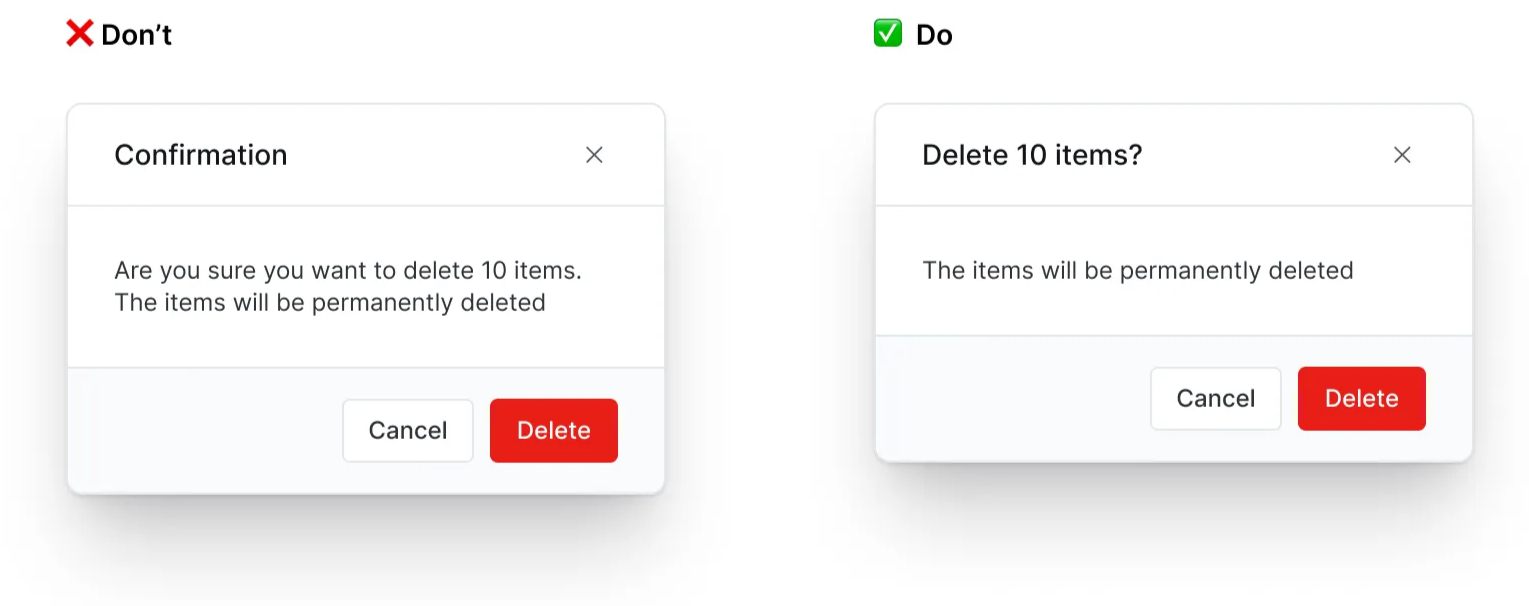
* Frame as a direct question starting with a verb: "Delete report #1234?" or "Quit editing?"
* Match the verb to what the user originally selected (Delete vs Remove, Save vs Keep).
* Be specific when possible: include names, numbers, or identifying details.
* Avoid generic confirmations: **Are you sure…?**, **Do you want to…?**, **Confirmation**, and **Warning**.
* Use sentence case with a question mark. Maintain a calm, professional tone to confirm consequential actions.
* **Body**
* Include consequences: what will be lost or affected that users might not expect.
* Include "This can't be undone" for permanent actions.
* Avoid repeating the title. If the body repeats the title, skip body content or consider using the Confirmation popover component.
* Passive voice is acceptable here to focus attention on what's being affected.
* **CTA (Required)**
* Always provide 2 clear options that correspond to the title question
* Use specific action words, avoid generic "Yes/No" or "OK/Cancel".
* Primary CTA (right): confirms the action that matches the title
* Secondary CTA (left): safe option (Keep, Don't save, Cancel)
* Avoid double negatives or confusing pairs like "Cancel" with "Delete".
* **Examples:**
## Onboarding message
* Introduces new features to existing users or helps new users learn core workflows.
* **Design considerations:**
* **Types of onboarding messages:**
* **Feature discovery**: Highlight new or updated experiences, make users feel curious and empowered to try something new.
* **New user onboarding**: Onboard core workflows and deliver value quickly.
* **Contextual tooltips**: Provide contextual help for specific tasks or UI elements.
* **Progressive and contextual:**
* Show messages based on what users are trying to accomplish
* Consider their current context and logical next steps
* Determine if you need to inform (feature moved) or educate (interaction changed).
* They might disrupt users if shown repeatedly. Limit how often each user sees them, and check which other onboarding messages appear in the same place.
* **Writing best practices:**
* **Title**
* Focus on user benefits: "Find your files faster" instead of "New search". Lead with verbs when introducing new features.
* Write in sentence case with no exclamation mark.
* Be clear and optimistic about new features.
* **Body**
* Focus on what users can accomplish, not technical details
* Consider their current context to show the relevant instruction.
* Avoid explaining the entire feature workflow.
* Don't use as marketing or value propositions
* **CTA**
* Provide clear next steps. For example:
* If there is a clear action: “Set up 2FA”, “Create your first tag”, etc.
* If there is no clear action: "Try now", "Learn more", "Get started", etc.
* Always include dismissal option: "Skip", "Got it", or close.
* For guided tours, limit to 3–4 tooltips.
* Avoid directional instructions and any language that requires the reader to follow the layout or design of the page.
---
---
url: /guides/tailwindcss-preset.md
description: 'Custom TailwindCSS configurations including color palette, font styles,...'
---
# TailwindCSS preset
{{ $frontmatter.description }}
## Installation
::: code-group
```shell [npm]
npm add -D @holistics/configs
```
```shell [pnpm]
pnpm add -D @holistics/configs
```
```shell [yarn]
yarn add -D @holistics/configs
```
:::
Then in your TailwindCSS config file, extend the preset:
::: code-group
```js [tailwind.config.cjs]
/** @type {import('tailwindcss').Config} */
module.exports = {
presets: [
require('@holistics/configs/tailwind.config.cjs'), // [!code ++]
],
content: [ 'src/**/*.{vue,js,ts}' ],
}
```
:::
## Preview
---
---
url: /guides/modal-mechanism.md
description: Guides and tips for working with the Modal component.
---
# Modal mechanism
{{ $frontmatter.description }}
## Data flow
A default modal has two events:
* : emitted when the user clicks the secondary footer button, the **close** icon in the top-right corner, or the mask behind the modal. This event **hides** the modal.
* : emitted when the user clicks the primary footer button. This event **hides** the modal.
When you create a modal, you usually redefine these two events to carry more data as event parameters. The caller can then listen to them and control the data flow **after the modal hides**.
## Show and hide
### 1. In ``
This is the simplest way to use a modal. Create a `ref` and bind it to `v-model:shown`:
```vue
Open
```
The modal works like a normal Vue component here. Define props, emits, slots, and injections as usual, and all Vue behaviors apply:
```vue {10-12,14-17,19,37-40,45,47,57}
Message: {{ message }}
```
### 2. Programmatically
Sometimes, you may want to show a modal, doing something with it, and then expects it to return some data in an **imperative** manner. You can achieve that by passing an entire Vue component into the `open()` function **injected** via the `useModal()` composable.
::: warning PREREQUISITES
To make this work, you **must** ensure the following conditions are met:
* There must be a `` placed as an ancestor of wherever `useModal()` is called
* The modal component passed to `open()`:
* Must place `` at root and make sure `inheritAttrs = true` ***OR*** set `inheritAttrs = false` and bind all the attrs to ``
* *If defined*, the following props and events must be bound to ``:
* `shown` prop and events
* and events
:::
```vue
```
To pass props to the modal component, you can use the 2nd argument of `open()`. The composable is infallible: it **always returns a `Promise`**. What the `Promise` contains depends on whether or was emitted:
* If is emitted, the `Promise` contains an object with `state = 'dismiss'`
* If is emitted, the `Promise` contains an object with `state = 'resolve'` and a `data` array holding the parameters that defines.
::: tip Typing
The second argument of `open()` and the `data` property are **typed automatically**, based on the modal component you pass in.
If you don't want automatic typing, you can manually adjust them via generics when calling `open()`. For example: `open(Modal)`
:::
::: tip Don't want to `await`?
You can use `onDismiss` and `onResolve` callbacks when passing the 2nd argument to `open()` instead of `await`ing and then checking for the values of `state` and `data`.
This also applies to all events defined by the modal component if you want to do something without closing the modal. **Every event is a prop with an `on` prefix.**
:::
::: tip `provide` and `inject`
Every modal component you pass to `open()` mounts as a **direct child** of ``. Use this to inject the contexts your modals need: place `` at the right point in the tree, instead of threading data through props and emits.
:::
---
---
url: /guides/floating-ui-mechanism.md
description: Guides and tips about the mechanisms of floating components.
---
# {{ $frontmatter.title }}
{{ $frontmatter.description }}
## Concepts
The following are examples of floating UI components:
* [HPopover](../components/popover.md)
* [HTooltip](../components/tooltip.md)
* [HSelect](../components/select.md)
* [HDropdown](../components/dropdown.md)
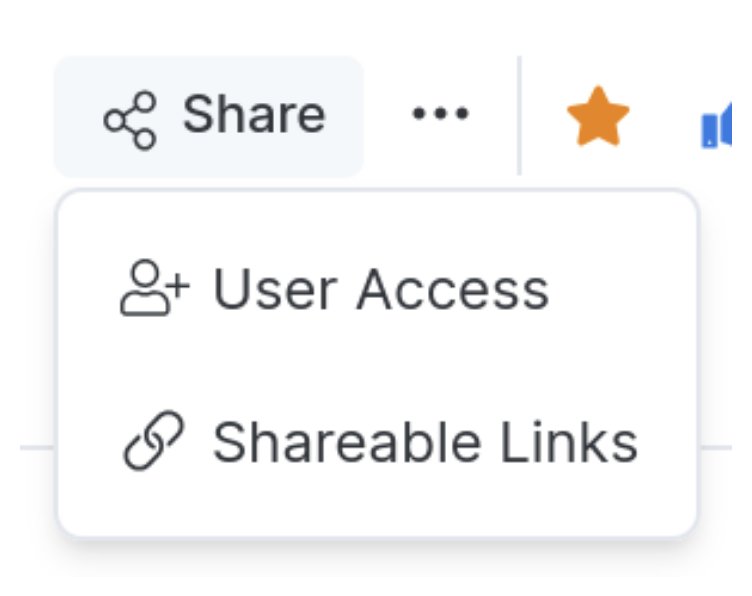
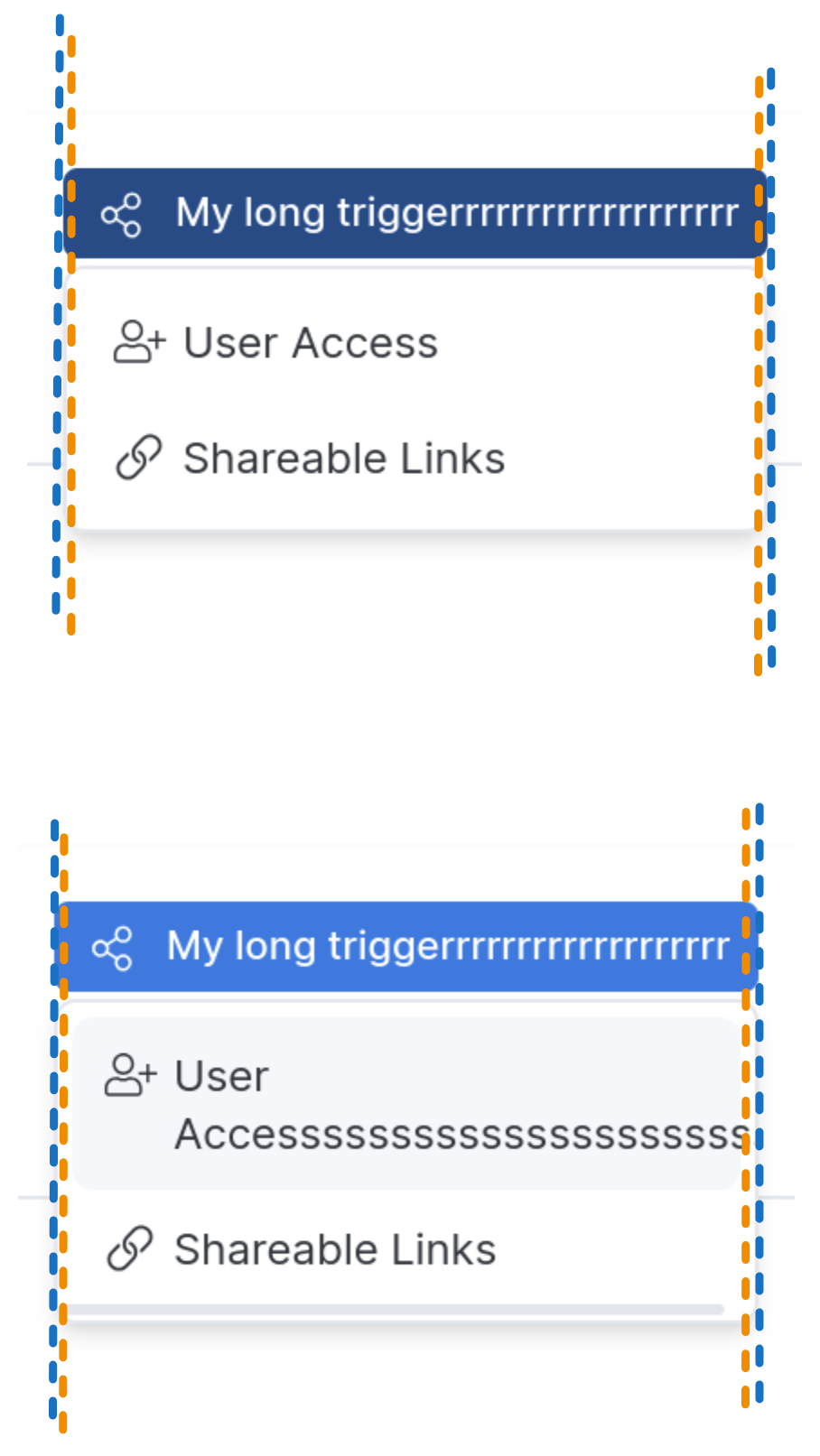
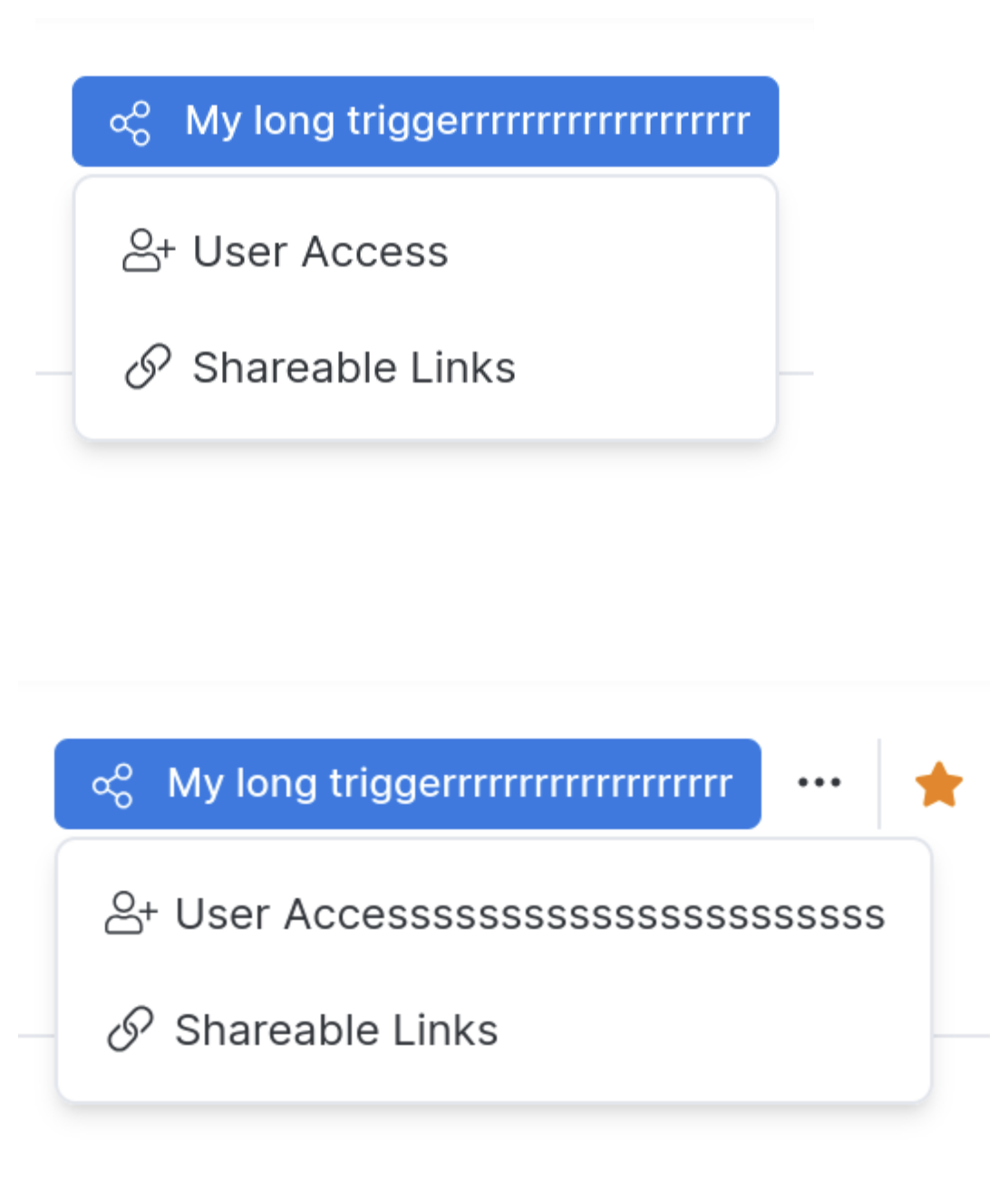
Consider a dropdown component: when you click the Share button, a dropdown menu appears:
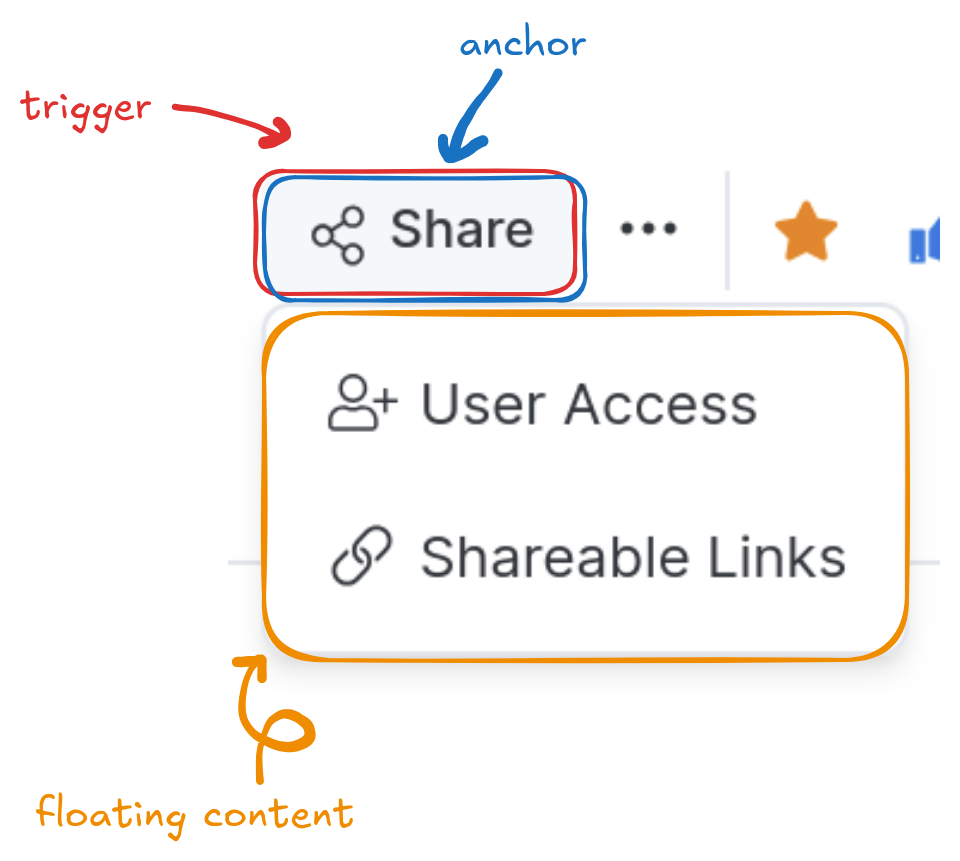
A floating component consists of three parts:
* **Trigger**: When the user interacts with this element (e.g., focus or click), it toggles the open state of the menu.
* **Anchor**: When the menu is open, it is positioned relative to this element.
* **Floating content**: The menu itself.
By default, the **trigger** also serves as the **anchor**. Clicking the Share button displays the menu directly beneath it:
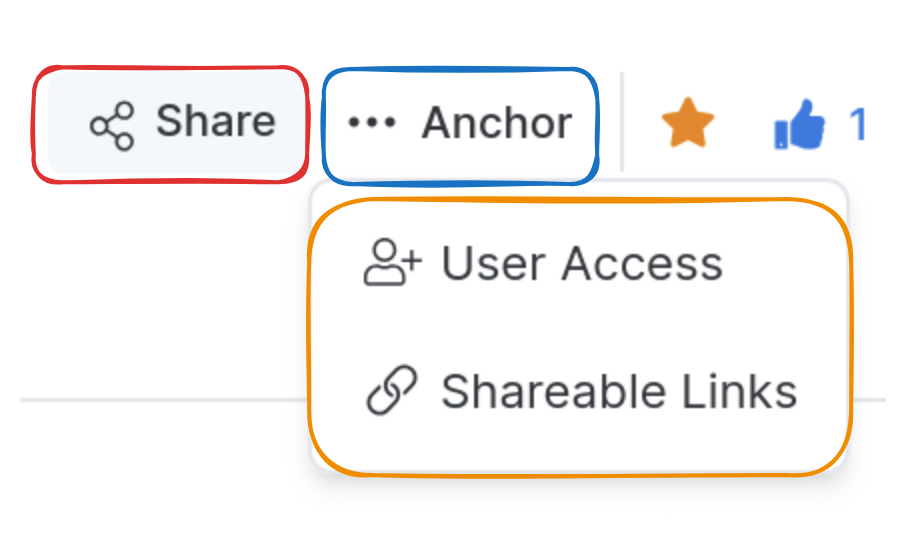
You can change the anchor to display the floating content in a different position (see [Changing the anchor](./floating-ui-mechanism.md#changing-the-anchor)):
## Basic usage
### Props mapping
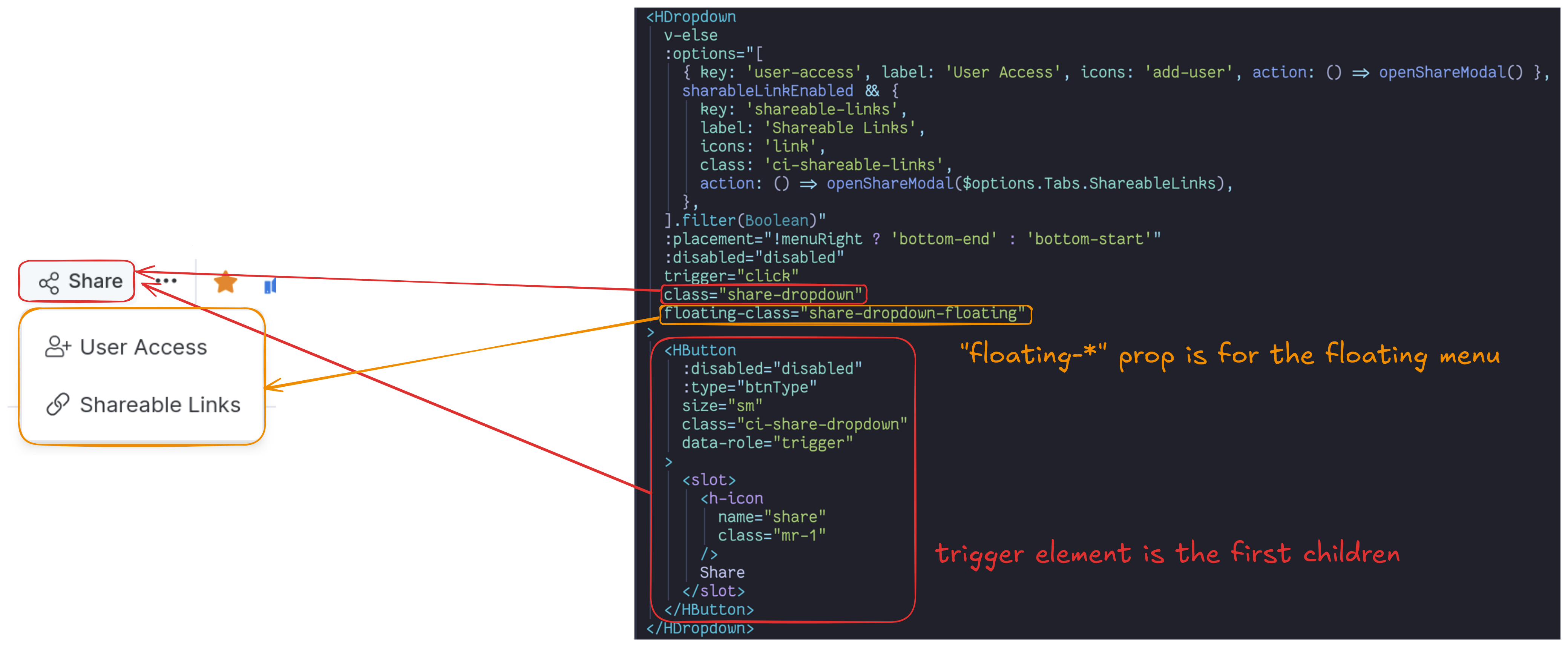
* The trigger element is the first child of the floating component.
* `floating-*` props apply to the floating content element.
::: tip Conditional rendering of the trigger element
Don't set `v-if` directly on the trigger element. It forces the component to re-render, so the floating UI can lose its anchor element reference and the menu appears in the wrong position.
```html
```
Instead, either move the `v-if` to the floating component itself (recommended), or wrap the trigger element in a `
`:
```html
```
:::
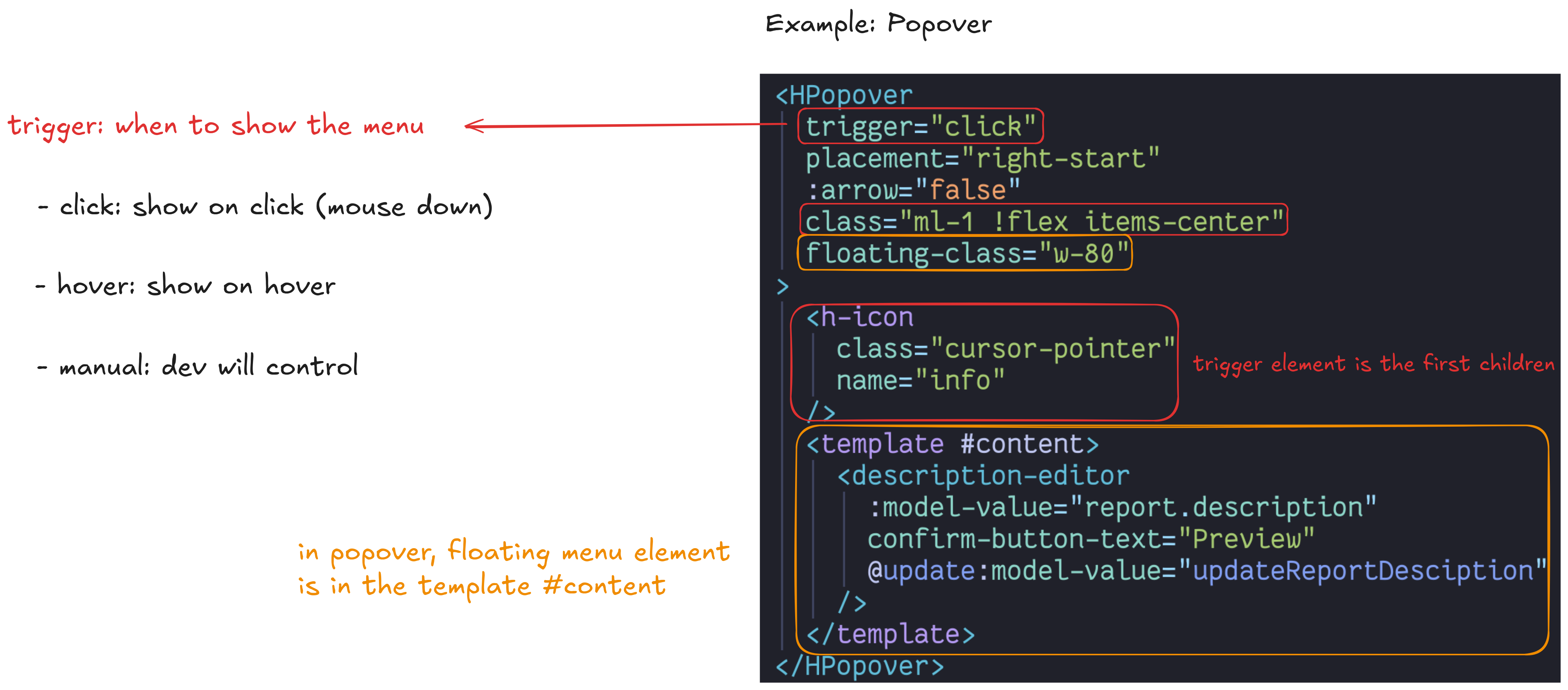
### Trigger
### Changing the anchor

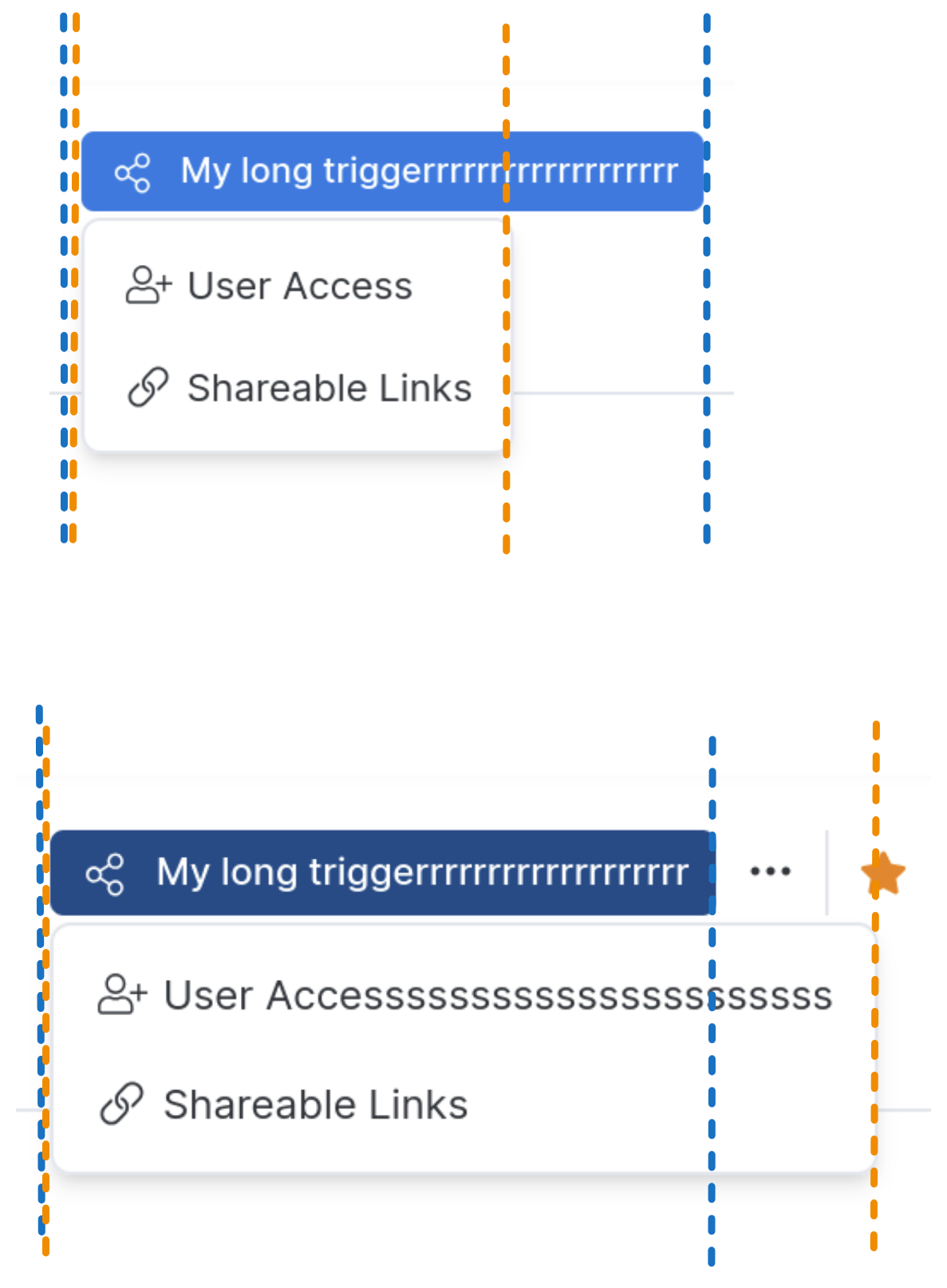
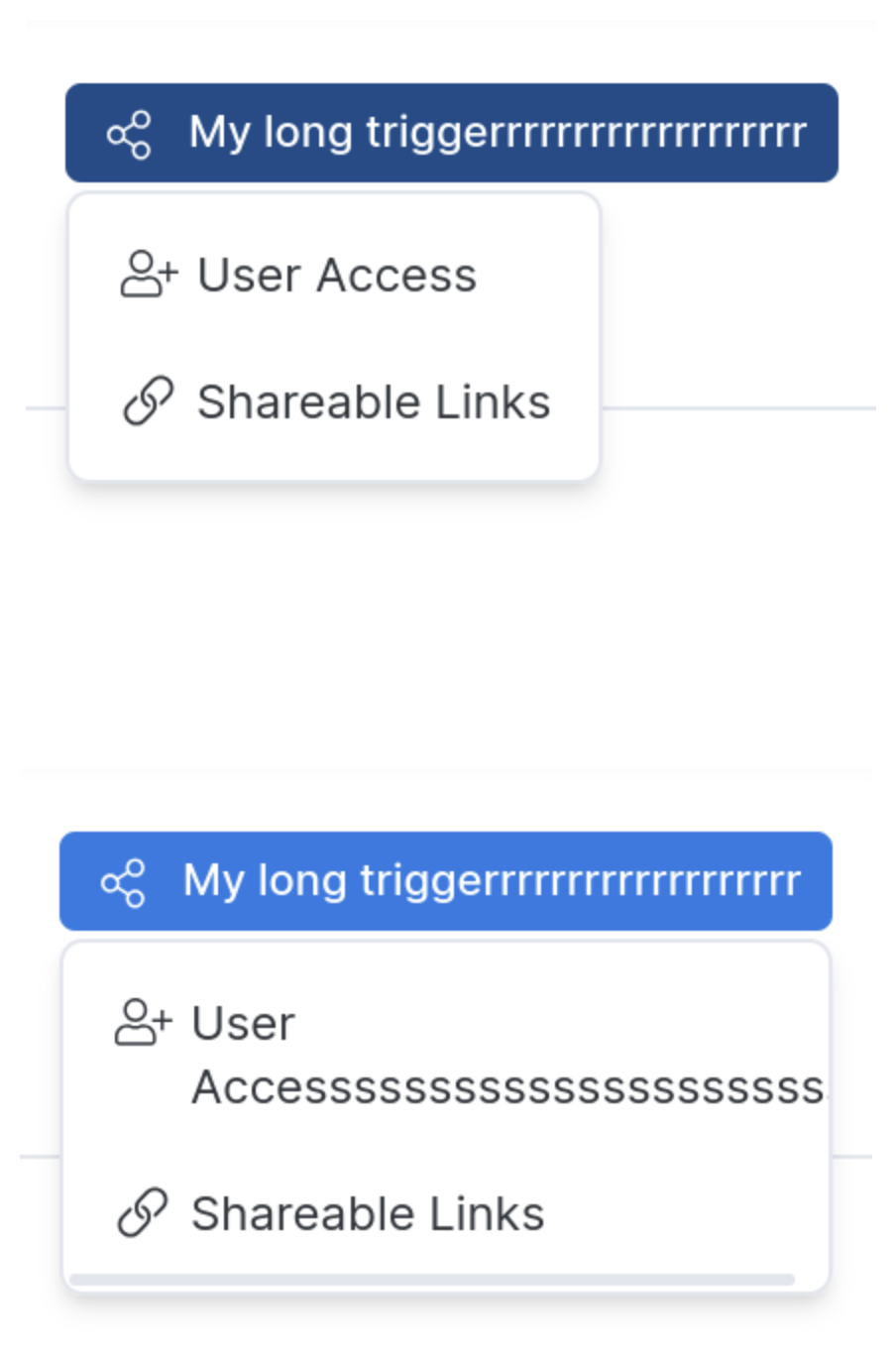
## `match-anchor-size` prop behavior
This prop controls how the floating menu's width is determined.
false: The floating menu size grows freely.
true: The floating menu size matches the anchor size.
min: The minimum floating menu size matches the anchor size.
max: The maximum floating menu size matches the anchor size.
## Nested layers and click-outside behavior
### Scenario
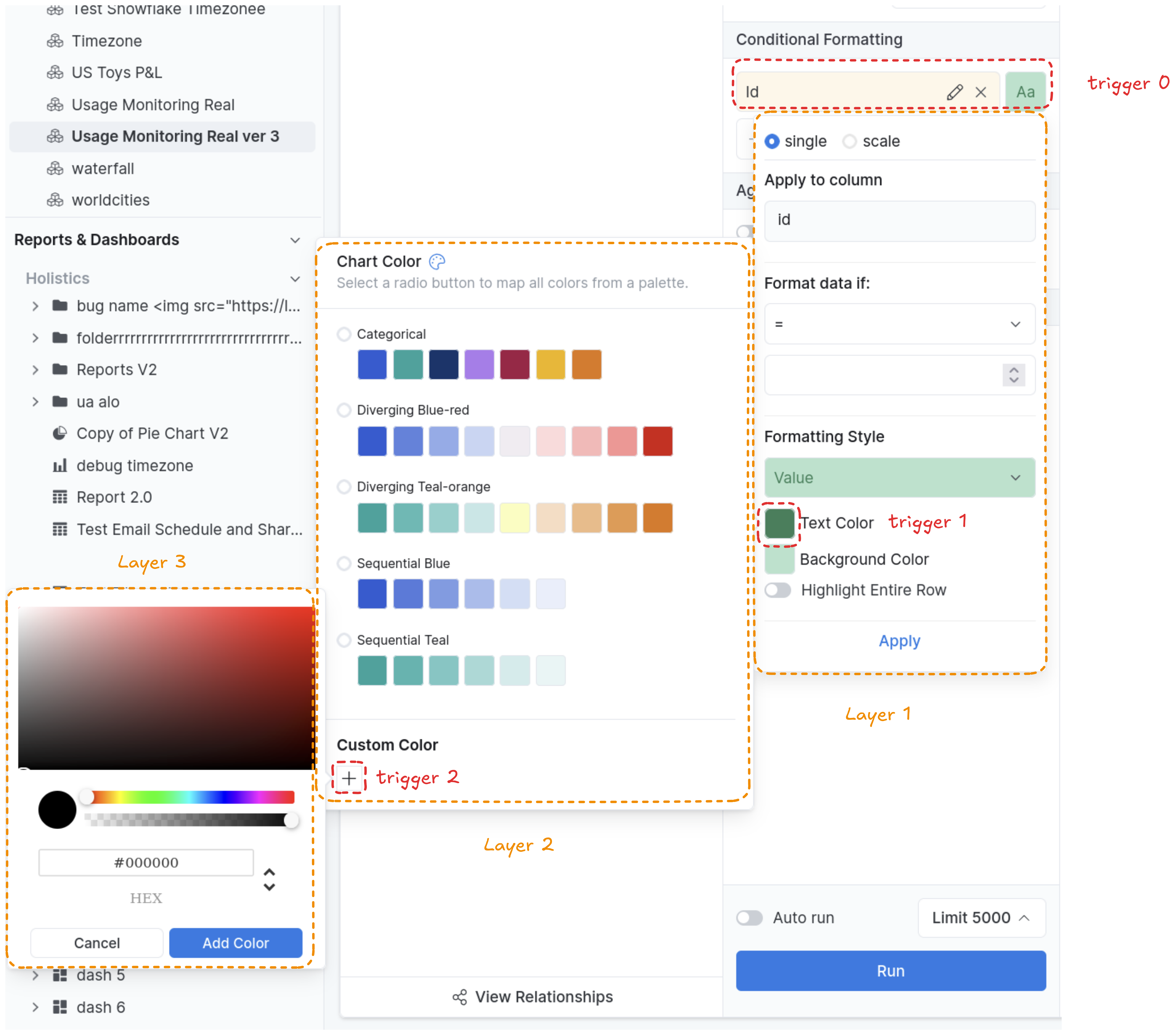
* Clicking Trigger 0 opens Layer 1.
* Clicking Trigger 1 opens Layer 2.
* Clicking Trigger 2 opens Layer 3.
### Default behavior
Clicking outside all layers closes **all layers**.
Clicking inside a child layer (but outside its parent) does **not** close the parent layer.\
**For example:** Clicking on Layer 3 doesn't close Layer 2.
### Closing layers one by one
If you want to close layers one at a time when clicking outside, set the prop `disableOutSidePointerEvent = true` on each layer you want to behave this way.
**Example:** If you set this prop to `true` for Layer 2 and Layer 3:
1. Click outside → closes Layer 3.
2. Click outside again → closes Layer 2.
3. Click outside again → closes Layer 1.
---
---
url: /guides/forms.md
description: A guide to building forms with Holistics components.
---
# Forms
{{ $frontmatter.description }}
## Form mechanism
We use the `vee-validate` package for the form logic and `zod` package for the validation schema.
The form and field communicate using the provide/inject pattern.
List of supported field controls:
* [Text Area](/components/text-area)
* [Text Input](/components/text-input)
* [Radio Group](/components/radio)
* [Checkbox](/components/checkbox)
* [Select](/components/select)
## Create your first form
### Initialize the form schema and validation
1. Define the validation schema with `zod`:
```typescript
import { z } from 'zod'
const schema = z.object({
email: z.email(),
password: z.string().min(8),
rememberMe: z.boolean(),
})
```
2. Init the form with `useHForm` composable:
```typescript
const {
handleSubmit,
HForm,
HField,
} = useHForm({
validationSchema: schema,
initialValues: {
email: '',
password: '',
rememberMe: false,
},
})
```
### Integrate components
Use `HForm` and `HField` from the composable to design the form. The `HField` component exposes a `fieldProps` object in its default slot, which can be bound directly to input components:
```html
```
Alternatively, you can manually bind the props if you need more control or are using custom components that don't follow the standard prop naming:
```html
```
### Submitting data
Use `handleSubmit` to wrap your submission logic. This function ensures validation runs before your callback is executed.
```typescript
const onSubmit = handleSubmit(data => {
// The data is validated here
console.log(data)
})
```
```vue
Submit
```
## Form with nested components
In a large form, you may need to break it down into multiple components. In this case, you can use the `useHField` composable in child components to inject the field logic into the root form.
**1. In the parent or root form, define the final schema and initial values:**
```vue
```
**2. Then, in the child component, you can either:**
a. Use `useHField` composable with the field name:
```vue
```
b. Import and use `HField` directly (if extracted from `useHForm` somewhere or generic `HField`)
```vue
```
## Validation and error
Validation is handled automatically by `vee-validate` based on the `zod` schema.
The submit button should remain enabled, as `handleSubmit` will prevent submission if the form is invalid.
## Standalone and reusable field
If you want to display a field or use the field validation without a form, you can use the `useHField` composable standalone.
```vue
```
Later, you can reuse this field logic inside any parent form.
---
---
url: /components/accordion.md
description: Expands and collapses sections of content.
---
# Accordion
{{ $frontmatter.description }}
```vue
Lorem ipsum dolor sit amet, consectetur adipiscing elit, sed do eiusmod tempor incididunt ut labore et dolore magna aliqua. Ut enim ad minim veniam, quis nostrud exercitation ullamco laboris nisi ut aliquip ex ea commodo consequat. Duis aute irure dolor in reprehenderit in voluptate velit esse cillum dolore eu fugiat nulla pariatur. Excepteur sint occaecat cupidatat non proident, sunt in culpa qui officia deserunt mollit anim id est laborum.
```
## Examples
### With pill
```vue {8,9}
Lorem ipsum dolor sit amet, consectetur adipiscing elit, sed do eiusmod tempor incididunt ut labore et dolore magna aliqua. Ut enim ad minim veniam, quis nostrud exercitation ullamco laboris nisi ut aliquip ex ea commodo consequat. Duis aute irure dolor in reprehenderit in voluptate velit esse cillum dolore eu fugiat nulla pariatur. Excepteur sint occaecat cupidatat non proident, sunt in culpa qui officia deserunt mollit anim id est laborum.
```
### With button
```vue {8}
Lorem ipsum dolor sit amet, consectetur adipiscing elit, sed do eiusmod tempor incididunt ut labore et dolore magna aliqua. Ut enim ad minim veniam, quis nostrud exercitation ullamco laboris nisi ut aliquip ex ea commodo consequat. Duis aute irure dolor in reprehenderit in voluptate velit esse cillum dolore eu fugiat nulla pariatur. Excepteur sint occaecat cupidatat non proident, sunt in culpa qui officia deserunt mollit anim id est laborum.
```
### With icon
```vue {8,9}
Lorem ipsum dolor sit amet, consectetur adipiscing elit, sed do eiusmod tempor incididunt ut labore et dolore magna aliqua. Ut enim ad minim veniam, quis nostrud exercitation ullamco laboris nisi ut aliquip ex ea commodo consequat. Duis aute irure dolor in reprehenderit in voluptate velit esse cillum dolore eu fugiat nulla pariatur. Excepteur sint occaecat cupidatat non proident, sunt in culpa qui officia deserunt mollit anim id est laborum.
```
### With switch
```vue {8}
Lorem ipsum dolor sit amet, consectetur adipiscing elit, sed do eiusmod tempor incididunt ut labore et dolore magna aliqua. Ut enim ad minim veniam, quis nostrud exercitation ullamco laboris nisi ut aliquip ex ea commodo consequat. Duis aute irure dolor in reprehenderit in voluptate velit esse cillum dolore eu fugiat nulla pariatur. Excepteur sint occaecat cupidatat non proident, sunt in culpa qui officia deserunt mollit anim id est laborum.
```
### With description
```vue {8}
Lorem ipsum dolor sit amet, consectetur adipiscing elit, sed do eiusmod tempor incididunt ut labore et dolore magna aliqua. Ut enim ad minim veniam, quis nostrud exercitation ullamco laboris nisi ut aliquip ex ea commodo consequat. Duis aute irure dolor in reprehenderit in voluptate velit esse cillum dolore eu fugiat nulla pariatur. Excepteur sint occaecat cupidatat non proident, sunt in culpa qui officia deserunt mollit anim id est laborum.
```
## API
### Pass-through: `
`
::: info What does this mean?
All props, events, and attrs that are **not specified in the tables below** will be passed to the element/component described above.
:::
### Props
### Events
### Slots
---
---
url: /components/alert.md
description: 'Shows a brief, timely message such as a confirmation, warning, or error.'
---
# Alert
{{ $frontmatter.description }}
:::: tabs key:usage
\== Usage
## Anatomy
1. **Icon and background color:** the icon and color match the default for the message type. For example, warning messages are yellow with an exclamation point icon.
2. **Title (optional):** indicates the purpose of the message.
3. **Description:** describes the issue and any action the person needs to take to resolve it, if applicable.
4. **Close button (optional):** allows users to close the alert.
5. **Actions (optional):** enables users to act on the message content. Can be one or more buttons and/or links.
### Variants
**Neutral**
General information that doesn't require emphasis or urgency
**Info**
Helpful context or tips that assist the user
**Success**
Confirms a completed action
**Warning**
Alerts users to potential issues that don't block their workflow. Use Warning when the user can still prevent a problem.
**Error**
Signals errors. Use Error when the outcome has already failed.
## Usage guidelines
### When to use
Use alerts to:
* Display temporary short messages (e.g. "Your changes will be saved and reflected in Reporting")
* State actions performed by users (e.g. "Dashboard saved successfully")
* Provide immediate feedback after form submissions (e.g. "Failed to save changes. Try again.")
#### Consider alternatives
Alerts are low-priority messages. Use higher-priority components when stronger attention or action is required.
* For important messages that need to remain in the interface, use [Banner](/components/banner) instead.
* For complex messages that require immediate action, use Modal instead.
* For messages that require explicit user confirmation, use Modal or Confirmation popover instead.
For detailed guidance on selecting components for in-app messages, refer to [In-app messages](/content/in-app-messages).
### Best practices
#### Use alerts with caution
Avoid using alerts for critical information that requires immediate action. When you do use them, keep messages short.
Alerts can be difficult for users with low vision or limited dexterity to access because they:
* Disappear automatically
* Are difficult to reach with a keyboard
* May appear outside the user's current focus area
#### Visibility
Alerts should be visible and noticeable, with the default placement at the top center of the viewport. When a modal is open, alerts should appear above it (higher z-index).
**Do**
Place the alert at the top-center of the viewport, above other content.
**Don't**
Avoid placing alerts where they're easy to overlook.
#### Auto-dismiss
By default, alerts disappear after 5 seconds. The timer pauses when users hover over or focus on the alert, and resumes when they move away.
Error alerts don't auto-dismiss. They remain visible until the user manually dismisses them, so users have enough time to read and act on the error.
**Do**
Auto-dismiss non-critical alerts after 5 seconds, and pause the timer on hover or focus to allow users to read.
**Do**
Keep error alerts visible until the user dismisses them.
#### Avoid in-progress alerts
Don't show in-progress alerts, such as **Saving…** or **Creating object…**.
These alerts add little value and can stack with other alerts, creating noise. Show alerts only for meaningful outcomes, such as success or error states.
**Do**
Show alerts only for meaningful outcomes (e.g. success or error).
**Don't**
Show "in progress" alerts (e.g. "Saving…", "Creating…").
#### Stacking
When multiple alerts appear, newer ones stack above older ones. Show up to 4 at a time. When the limit is reached, the oldest one disappears first.
**Do**
Stack newer alerts above older ones, limiting to 4 alerts.
**Don't**
Display too many alerts at once without limits.
#### Use more than color alone
To maximize accessibility, ensure the message is clear from its content alone. Icons can reinforce meaning, since color alone doesn't reliably distinguish alert types.
**Do**
Use clear, descriptive text, and reinforce meaning with icons alongside color.
**Don't**
Rely on color alone or ambiguous text to convey alert meaning.
## Content
Messages should be scannable at a glance and provide clear value to the user. The two most common variants are:
* **Success:** confirms users have completed an action or task successfully
* **Error:** alerts users when something has gone wrong and guides them toward resolution
For detailed content guidelines for each message type, refer to [In-app messages](/content/in-app-messages).
\== Code
```vue
Lorem ipsum dolor sit amet, consectetur adipiscing elit, sed do eiusmod tempor incididunt ut labore et dolore magna aliqua. Ut enim ad minim veniam, quis nostrud exercitation ullamco laboris nisi ut aliquip ex ea commodo consequat.
```
## Examples
### Types
```vue {10}
Lorem ipsum dolor sit amet, consectetur adipiscing elit, sed do eiusmod tempor incididunt ut labore et dolore magna aliqua.
```
### With button
```vue {12}
Lorem ipsum dolor sit amet, consectetur adipiscing elit, sed do eiusmod tempor incididunt ut labore et dolore magna aliqua.
```
### Dismissible
```vue {31-33,58,60}
{{ type.toUpperCase() }}
Lorem ipsum dolor sit amet, consectetur adipiscing elit, sed do eiusmod tempor incididunt ut labore et dolore magna aliqua.
```
::: warning 🗑️ Destroy component after dismiss!
Even though the component destroys its DOMs, its internal states still persist in VDOM. Therefore, you should manually unmount the component on event.
*Why? This is because a component cannot control its life-cycle, otherwise race conditions and memory leaks could happen!*
:::
### Dismiss after a duration
```vue {13,32-34,59,60,62}
{{ type.toUpperCase() }}
Lorem ipsum dolor sit amet, consectetur adipiscing elit, sed do eiusmod tempor incididunt ut labore et dolore magna aliqua.
```
::: warning 🗑️ Destroy component after dismiss!
Even though the component destroys its DOMs, its internal states still persist in VDOM. Therefore, you should manually unmount the component on event.
*Why? This is because a component cannot control its life-cycle, otherwise race conditions and memory leaks could happen!*
:::
## API
### Pass-through: `
`
::: info What does this mean?
All props, events, and attrs that are **not specified in the tables below** will be passed to the element/component described above.
:::
### Props
### Events
### Slots
::::
---
---
url: /components/avatar.md
description: 'Shows a user''s profile image, or their initials when no image is available.'
---
# Avatar
{{ $frontmatter.description }}
```vue
```
## Examples
### Shapes
```vue {17}
```
### With image
```vue {11}
```
### With name or initials
When no image is available, specify either the `name` or `initials` prop to show user initials. If you specify both, the component uses `initials` for the characters and `name` for the tooltip text.
```vue {9,14,19-20,25-26}
```
### With badge
```vue {11,18}
```
## API
### Pass-through
* Always be `tag` if specified
* Else, if `to` is specified: [``](https://router.vuejs.org/api/interfaces/RouterLinkI.html)
* Else, if `href` is specified: ``
* Otherwise, `
 2. Use simplified shapes with the minimum detail.
 3. Icons are two-dimensional, and objects face forward. Depth and perspective should only be used when it's absolutely necessary to clarify a concept.
 ### Construction
#### Grid
All icons should be drawn on a **24×24px grid frame**. Each frame includes key shapes and a **2px padding** on all sides as guidance.
### Construction
#### Grid
All icons should be drawn on a **24×24px grid frame**. Each frame includes key shapes and a **2px padding** on all sides as guidance.
 #### Key shapes
Based on our 24×24px grid, we defined **4 key shapes**: circle, square, vertical rectangle, and horizontal rectangle. These fundamental shapes help us to maintain consistency across all system icons.
#### Key shapes
Based on our 24×24px grid, we defined **4 key shapes**: circle, square, vertical rectangle, and horizontal rectangle. These fundamental shapes help us to maintain consistency across all system icons.
 For example, the following icons share the same underlying circle shape, so build them on the circle key shape.
 ### Stroke
#### Stroke weight and stroke alignment
Maintain the same visual weight by using a **1.5px centered stroke** for all icons.
### Stroke
#### Stroke weight and stroke alignment
Maintain the same visual weight by using a **1.5px centered stroke** for all icons.
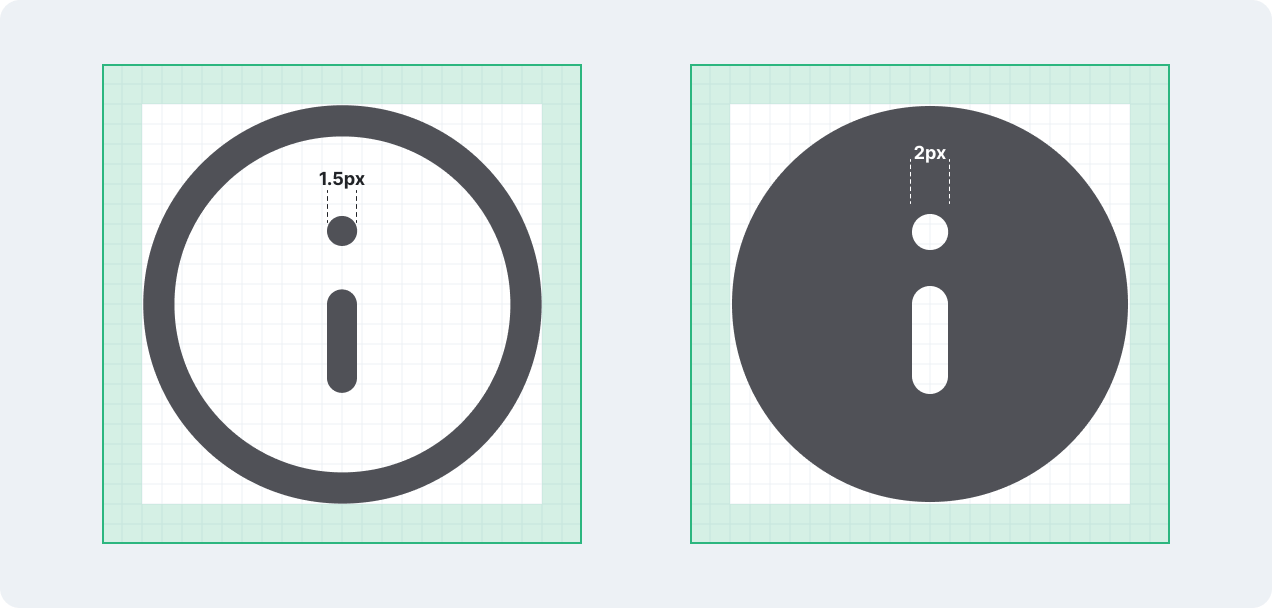
 #### Negative space
When converting a line icon to a filled icon, stroke size may be adjusted to create a stronger contrast and emphasis of the primary symbol.
For example, for `Exclamation-circle` (Filled), the stroke size of the exclamation mark is adjusted from **1.5px to 2px**.
#### Negative space
When converting a line icon to a filled icon, stroke size may be adjusted to create a stronger contrast and emphasis of the primary symbol.
For example, for `Exclamation-circle` (Filled), the stroke size of the exclamation mark is adjusted from **1.5px to 2px**.
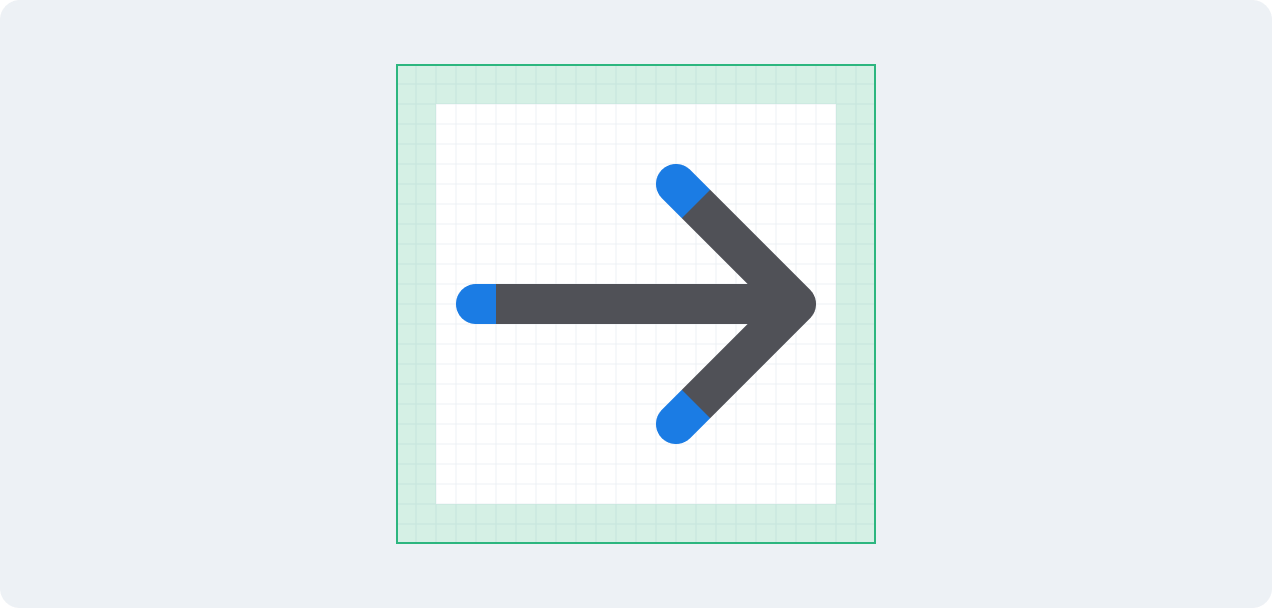
 #### End caps
Use **rounded end caps**
#### End caps
Use **rounded end caps**
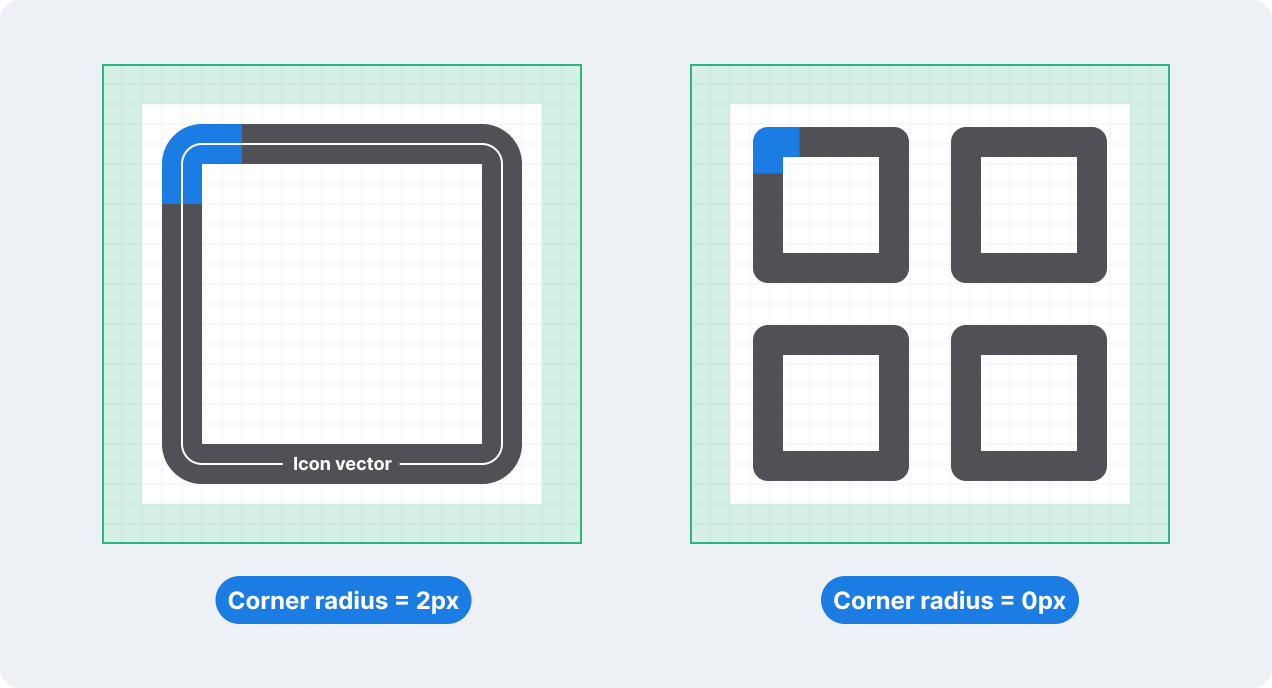
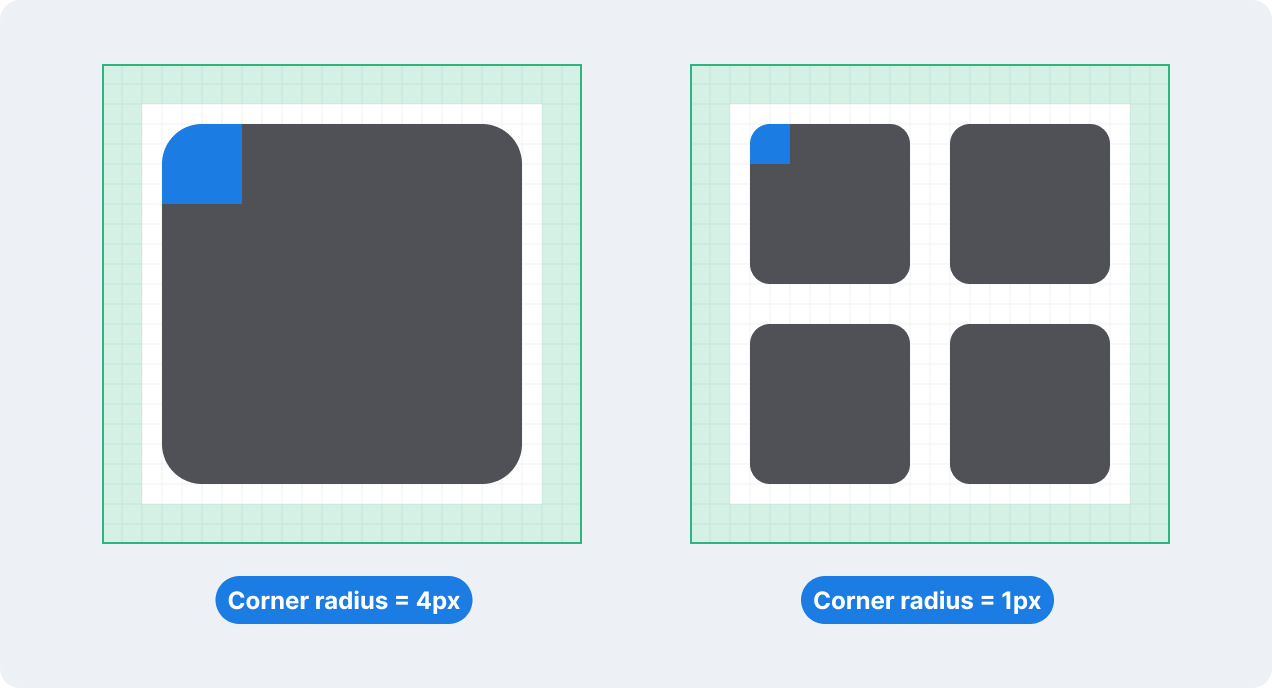
 #### Corner radius
Use a **2px outer corner radius** on icon shapes. Inner corners differ between themes:
* **Line icon**
#### Corner radius
Use a **2px outer corner radius** on icon shapes. Inner corners differ between themes:
* **Line icon**
 * **Filled icon**
 ### Refine the icon frame
* **Step 1:** Copy the icon from the [Master Figma Library](https://www.figma.com/design/1AF69I1UNwhc1QTlVdYxZK/-Nov-2025--Untitled-UI-Icons-%E2%80%93-PRO--v1.6-?node-id=0-1\&t=OVrnKF94aFlvmgMn-1)
* **Step 2:** Scale the icon content down to `0.9x`
### Refine the icon frame
* **Step 1:** Copy the icon from the [Master Figma Library](https://www.figma.com/design/1AF69I1UNwhc1QTlVdYxZK/-Nov-2025--Untitled-UI-Icons-%E2%80%93-PRO--v1.6-?node-id=0-1\&t=OVrnKF94aFlvmgMn-1)
* **Step 2:** Scale the icon content down to `0.9x`
 * **Mixed-fill icon:** Group the layer and rename the group to `Icon`

 * **Multi-color icon:** Rename the layer content to `Color`

 * **Step 5:** Name the icon based on our [naming guideline](https://app.notion.com/p/Doc-Update-Icon-doc-37df89dc7e498038bfc8f607e0bef993?pvs=21)
* **Step 6**: Get approval from the Design system team to finalize and publish
## Naming icons
* **Use unique, semantic names** to describe what the icon represents, not where it's used.
* **Ask for suggestions on naming** if unsure about the name. Provide 2–3 alternatives with context, and get feedback on #design-system
* **Do**:
* Use a generic noun or verb to describe the icon.
* Icon type:
* Default outlined icons don’t need a suffix.
* Add a suffix for `color` or `solid` icons
* **Don’t**: Avoid context-specific/feature names, or multiple icons with the same meaning.
* **Good names:**
* What it is: `arrow-left`, `arrow-right`
* Main object and secondary object: `user-plus`, `user-hide`, `user-group`
* **Examples:**
* **Step 5:** Name the icon based on our [naming guideline](https://app.notion.com/p/Doc-Update-Icon-doc-37df89dc7e498038bfc8f607e0bef993?pvs=21)
* **Step 6**: Get approval from the Design system team to finalize and publish
## Naming icons
* **Use unique, semantic names** to describe what the icon represents, not where it's used.
* **Ask for suggestions on naming** if unsure about the name. Provide 2–3 alternatives with context, and get feedback on #design-system
* **Do**:
* Use a generic noun or verb to describe the icon.
* Icon type:
* Default outlined icons don’t need a suffix.
* Add a suffix for `color` or `solid` icons
* **Don’t**: Avoid context-specific/feature names, or multiple icons with the same meaning.
* **Good names:**
* What it is: `arrow-left`, `arrow-right`
* Main object and secondary object: `user-plus`, `user-hide`, `user-group`
* **Examples:**
 ✅ `trash` vs. ❌ `delete`
 ✅ `grid` vs. ❌ `layout/arrange-grid`
 ✅ `markdown-color` vs. ❌ `markdown`
\== Code
✅ `markdown-color` vs. ❌ `markdown`
\== Code
 ## Error message
* Alerts users when something has gone wrong and guides them toward resolution.
* **Design considerations**
* **When to use:**
* Problems that have already happened
* System failures or user mistakes
* Failed operations or invalid inputs
* **Error vs. warnings:**
* Errors = already happened
* Warnings = might happen later
* Use distinct icons, colors, and text patterns to help users recognize the difference immediately
* **Writing best practices**
* **Title**
* Make titles scannable and self-contained. Users should understand the issue from the title alone.
* Use sentence case with no exclamation mark, so the tone stays calm and professional instead of overly excited.
* **Description (when applicable)**
* Include what went wrong, how to fix it, and the consequences (if relevant)
* Avoid repeating content from the title.
* Limit to 1–2 sentences
* Avoid technical jargon. Include links to docs when necessary.
* **CTA (when applicable)**
* Include a CTA when there are any necessary follow-up options.
* Limit the CTA to 1–3 words.
* **Examples:**
## Error message
* Alerts users when something has gone wrong and guides them toward resolution.
* **Design considerations**
* **When to use:**
* Problems that have already happened
* System failures or user mistakes
* Failed operations or invalid inputs
* **Error vs. warnings:**
* Errors = already happened
* Warnings = might happen later
* Use distinct icons, colors, and text patterns to help users recognize the difference immediately
* **Writing best practices**
* **Title**
* Make titles scannable and self-contained. Users should understand the issue from the title alone.
* Use sentence case with no exclamation mark, so the tone stays calm and professional instead of overly excited.
* **Description (when applicable)**
* Include what went wrong, how to fix it, and the consequences (if relevant)
* Avoid repeating content from the title.
* Limit to 1–2 sentences
* Avoid technical jargon. Include links to docs when necessary.
* **CTA (when applicable)**
* Include a CTA when there are any necessary follow-up options.
* Limit the CTA to 1–3 words.
* **Examples:**
 ## Warning message
* Alerts users about conditions that might cause problems in the future.
* **Design considerations:**
* **When to use:**
* Potential future problems
* Approaching limits or deadlines: for scheduled maintenance, approaching limits, or actions that will permanently affect their data.
* Actions that will affect data or workflows
* **Error vs. warning:**
* Errors = already happened
* Warnings = might happen later
* Use distinct icons, colors, and text patterns to help users recognize the difference immediately
* **Warning vs. confirmation:**
* Warnings = inform about risks or conditions
* Confirmations = interrupt actions requiring explicit consent
* Warnings let users continue working while confirmations force a decision
* **Writing best practices:**
* **Title**
* Make titles scannable and self-contained. Users should understand the warning from the title alone.
* Use sentence case to maintain a calm, professional tone during stressful moments
* Use "will" for certain outcomes, "may" or "might" for possible outcomes.
* Most of the time, start each statement with a verb, instead of “You can”, “You must”, “There is”, “There are”. Example:
* Instead of: You must set up 2FA before today.
* Use: Set up 2FA before today.
* **Description (when applicable)**
* Include what might happen, when, and what users can do.
* Avoid repeating content from the title.
* Limit to 1–2 sentences
* Avoid technical jargon. Include links to docs when necessary.
* Focus on what users need to know to make a decision. If the action is irreversible, state this explicitly.
* **CTA: (Optional)**
* Use specific action words instead of a generic **OK**.
* For destructive actions, use words like **Delete**, **Remove**, or **Proceed**.
* **Examples:**
## Warning message
* Alerts users about conditions that might cause problems in the future.
* **Design considerations:**
* **When to use:**
* Potential future problems
* Approaching limits or deadlines: for scheduled maintenance, approaching limits, or actions that will permanently affect their data.
* Actions that will affect data or workflows
* **Error vs. warning:**
* Errors = already happened
* Warnings = might happen later
* Use distinct icons, colors, and text patterns to help users recognize the difference immediately
* **Warning vs. confirmation:**
* Warnings = inform about risks or conditions
* Confirmations = interrupt actions requiring explicit consent
* Warnings let users continue working while confirmations force a decision
* **Writing best practices:**
* **Title**
* Make titles scannable and self-contained. Users should understand the warning from the title alone.
* Use sentence case to maintain a calm, professional tone during stressful moments
* Use "will" for certain outcomes, "may" or "might" for possible outcomes.
* Most of the time, start each statement with a verb, instead of “You can”, “You must”, “There is”, “There are”. Example:
* Instead of: You must set up 2FA before today.
* Use: Set up 2FA before today.
* **Description (when applicable)**
* Include what might happen, when, and what users can do.
* Avoid repeating content from the title.
* Limit to 1–2 sentences
* Avoid technical jargon. Include links to docs when necessary.
* Focus on what users need to know to make a decision. If the action is irreversible, state this explicitly.
* **CTA: (Optional)**
* Use specific action words instead of a generic **OK**.
* For destructive actions, use words like **Delete**, **Remove**, or **Proceed**.
* **Examples:**
 ## Confirmation message
* Double-checks whether users want to proceed with significant or irreversible actions.
* **Design considerations:**
* **When to use:**
* Before irreversible actions (deleting data, disconnecting integrations)
* Changes affecting team members or workflows
* Risk of losing user work or data
* **When not to use:**
* Easily reversible or undo actions
* Routine, low-risk tasks
* **Warning vs. confirmation:**
* Warnings = inform about risks or conditions
* Confirmations = interrupt actions requiring explicit consent
* Warnings let users continue working; confirmations force a decision
* **Writing best practices:**
* **Title**
* Frame as a direct question starting with a verb: "Delete report #1234?" or "Quit editing?"
* Match the verb to what the user originally selected (Delete vs Remove, Save vs Keep).
* Be specific when possible: include names, numbers, or identifying details.
* Avoid generic confirmations: **Are you sure…?**, **Do you want to…?**, **Confirmation**, and **Warning**.
* Use sentence case with a question mark. Maintain a calm, professional tone to confirm consequential actions.
* **Body**
* Include consequences: what will be lost or affected that users might not expect.
* Include "This can't be undone" for permanent actions.
* Avoid repeating the title. If the body repeats the title, skip body content or consider using the Confirmation popover component.
* Passive voice is acceptable here to focus attention on what's being affected.
* **CTA (Required)**
* Always provide 2 clear options that correspond to the title question
* Use specific action words, avoid generic "Yes/No" or "OK/Cancel".
* Primary CTA (right): confirms the action that matches the title
* Secondary CTA (left): safe option (Keep, Don't save, Cancel)
* Avoid double negatives or confusing pairs like "Cancel" with "Delete".
* **Examples:**
## Confirmation message
* Double-checks whether users want to proceed with significant or irreversible actions.
* **Design considerations:**
* **When to use:**
* Before irreversible actions (deleting data, disconnecting integrations)
* Changes affecting team members or workflows
* Risk of losing user work or data
* **When not to use:**
* Easily reversible or undo actions
* Routine, low-risk tasks
* **Warning vs. confirmation:**
* Warnings = inform about risks or conditions
* Confirmations = interrupt actions requiring explicit consent
* Warnings let users continue working; confirmations force a decision
* **Writing best practices:**
* **Title**
* Frame as a direct question starting with a verb: "Delete report #1234?" or "Quit editing?"
* Match the verb to what the user originally selected (Delete vs Remove, Save vs Keep).
* Be specific when possible: include names, numbers, or identifying details.
* Avoid generic confirmations: **Are you sure…?**, **Do you want to…?**, **Confirmation**, and **Warning**.
* Use sentence case with a question mark. Maintain a calm, professional tone to confirm consequential actions.
* **Body**
* Include consequences: what will be lost or affected that users might not expect.
* Include "This can't be undone" for permanent actions.
* Avoid repeating the title. If the body repeats the title, skip body content or consider using the Confirmation popover component.
* Passive voice is acceptable here to focus attention on what's being affected.
* **CTA (Required)**
* Always provide 2 clear options that correspond to the title question
* Use specific action words, avoid generic "Yes/No" or "OK/Cancel".
* Primary CTA (right): confirms the action that matches the title
* Secondary CTA (left): safe option (Keep, Don't save, Cancel)
* Avoid double negatives or confusing pairs like "Cancel" with "Delete".
* **Examples:**
 ## Onboarding message
* Introduces new features to existing users or helps new users learn core workflows.
* **Design considerations:**
* **Types of onboarding messages:**
* **Feature discovery**: Highlight new or updated experiences, make users feel curious and empowered to try something new.
* **New user onboarding**: Onboard core workflows and deliver value quickly.
* **Contextual tooltips**: Provide contextual help for specific tasks or UI elements.
* **Progressive and contextual:**
* Show messages based on what users are trying to accomplish
* Consider their current context and logical next steps
* Determine if you need to inform (feature moved) or educate (interaction changed).
* They might disrupt users if shown repeatedly. Limit how often each user sees them, and check which other onboarding messages appear in the same place.
* **Writing best practices:**
* **Title**
* Focus on user benefits: "Find your files faster" instead of "New search". Lead with verbs when introducing new features.
* Write in sentence case with no exclamation mark.
* Be clear and optimistic about new features.
* **Body**
* Focus on what users can accomplish, not technical details
* Consider their current context to show the relevant instruction.
* Avoid explaining the entire feature workflow.
* Don't use as marketing or value propositions
* **CTA**
* Provide clear next steps. For example:
* If there is a clear action: “Set up 2FA”, “Create your first tag”, etc.
* If there is no clear action: "Try now", "Learn more", "Get started", etc.
* Always include dismissal option: "Skip", "Got it", or close.
* For guided tours, limit to 3–4 tooltips.
* Avoid directional instructions and any language that requires the reader to follow the layout or design of the page.
---
---
url: /guides/tailwindcss-preset.md
description: 'Custom TailwindCSS configurations including color palette, font styles,...'
---
# TailwindCSS preset
## Onboarding message
* Introduces new features to existing users or helps new users learn core workflows.
* **Design considerations:**
* **Types of onboarding messages:**
* **Feature discovery**: Highlight new or updated experiences, make users feel curious and empowered to try something new.
* **New user onboarding**: Onboard core workflows and deliver value quickly.
* **Contextual tooltips**: Provide contextual help for specific tasks or UI elements.
* **Progressive and contextual:**
* Show messages based on what users are trying to accomplish
* Consider their current context and logical next steps
* Determine if you need to inform (feature moved) or educate (interaction changed).
* They might disrupt users if shown repeatedly. Limit how often each user sees them, and check which other onboarding messages appear in the same place.
* **Writing best practices:**
* **Title**
* Focus on user benefits: "Find your files faster" instead of "New search". Lead with verbs when introducing new features.
* Write in sentence case with no exclamation mark.
* Be clear and optimistic about new features.
* **Body**
* Focus on what users can accomplish, not technical details
* Consider their current context to show the relevant instruction.
* Avoid explaining the entire feature workflow.
* Don't use as marketing or value propositions
* **CTA**
* Provide clear next steps. For example:
* If there is a clear action: “Set up 2FA”, “Create your first tag”, etc.
* If there is no clear action: "Try now", "Learn more", "Get started", etc.
* Always include dismissal option: "Skip", "Got it", or close.
* For guided tours, limit to 3–4 tooltips.
* Avoid directional instructions and any language that requires the reader to follow the layout or design of the page.
---
---
url: /guides/tailwindcss-preset.md
description: 'Custom TailwindCSS configurations including color palette, font styles,...'
---
# TailwindCSS preset
 A floating component consists of three parts:
* **Trigger**: When the user interacts with this element (e.g., focus or click), it toggles the open state of the menu.
* **Anchor**: When the menu is open, it is positioned relative to this element.
* **Floating content**: The menu itself.
By default, the **trigger** also serves as the **anchor**. Clicking the Share button displays the menu directly beneath it:
A floating component consists of three parts:
* **Trigger**: When the user interacts with this element (e.g., focus or click), it toggles the open state of the menu.
* **Anchor**: When the menu is open, it is positioned relative to this element.
* **Floating content**: The menu itself.
By default, the **trigger** also serves as the **anchor**. Clicking the Share button displays the menu directly beneath it:
 You can change the anchor to display the floating content in a different position (see [Changing the anchor](./floating-ui-mechanism.md#changing-the-anchor)):
 ## Basic usage
### Props mapping

* The trigger element is the first child of the floating component.
* `floating-*` props apply to the floating content element.
::: tip Conditional rendering of the trigger element
Don't set `v-if` directly on the trigger element. It forces the component to re-render, so the floating UI can lose its anchor element reference and the menu appears in the wrong position.
```html
## Basic usage
### Props mapping

* The trigger element is the first child of the floating component.
* `floating-*` props apply to the floating content element.
::: tip Conditional rendering of the trigger element
Don't set `v-if` directly on the trigger element. It forces the component to re-render, so the floating UI can lose its anchor element reference and the menu appears in the wrong position.
```html
.png) 1. **Icon and background color:** the icon and color match the default for the message type. For example, warning messages are yellow with an exclamation point icon.
2. **Title (optional):** indicates the purpose of the message.
3. **Description:** describes the issue and any action the person needs to take to resolve it, if applicable.
4. **Close button (optional):** allows users to close the alert.
5. **Actions (optional):** enables users to act on the message content. Can be one or more buttons and/or links.
### Variants
**Neutral**
General information that doesn't require emphasis or urgency
1. **Icon and background color:** the icon and color match the default for the message type. For example, warning messages are yellow with an exclamation point icon.
2. **Title (optional):** indicates the purpose of the message.
3. **Description:** describes the issue and any action the person needs to take to resolve it, if applicable.
4. **Close button (optional):** allows users to close the alert.
5. **Actions (optional):** enables users to act on the message content. Can be one or more buttons and/or links.
### Variants
**Neutral**
General information that doesn't require emphasis or urgency
.png) **Info**
Helpful context or tips that assist the user
**Info**
Helpful context or tips that assist the user
.png) **Success**
Confirms a completed action
**Success**
Confirms a completed action
.png) **Warning**
Alerts users to potential issues that don't block their workflow. Use Warning when the user can still prevent a problem.
**Warning**
Alerts users to potential issues that don't block their workflow. Use Warning when the user can still prevent a problem.
.png) **Error**
Signals errors. Use Error when the outcome has already failed.
**Error**
Signals errors. Use Error when the outcome has already failed.
.png) ## Usage guidelines
### When to use
Use alerts to:
* Display temporary short messages (e.g. "Your changes will be saved and reflected in Reporting")
* State actions performed by users (e.g. "Dashboard saved successfully")
* Provide immediate feedback after form submissions (e.g. "Failed to save changes. Try again.")
#### Consider alternatives
Alerts are low-priority messages. Use higher-priority components when stronger attention or action is required.
* For important messages that need to remain in the interface, use [Banner](/components/banner) instead.
* For complex messages that require immediate action, use Modal instead.
* For messages that require explicit user confirmation, use Modal or Confirmation popover instead.
For detailed guidance on selecting components for in-app messages, refer to [In-app messages](/content/in-app-messages).
### Best practices
#### Use alerts with caution
Avoid using alerts for critical information that requires immediate action. When you do use them, keep messages short.
Alerts can be difficult for users with low vision or limited dexterity to access because they:
* Disappear automatically
* Are difficult to reach with a keyboard
* May appear outside the user's current focus area
#### Visibility
Alerts should be visible and noticeable, with the default placement at the top center of the viewport. When a modal is open, alerts should appear above it (higher z-index).
**Do**
Place the alert at the top-center of the viewport, above other content.
## Usage guidelines
### When to use
Use alerts to:
* Display temporary short messages (e.g. "Your changes will be saved and reflected in Reporting")
* State actions performed by users (e.g. "Dashboard saved successfully")
* Provide immediate feedback after form submissions (e.g. "Failed to save changes. Try again.")
#### Consider alternatives
Alerts are low-priority messages. Use higher-priority components when stronger attention or action is required.
* For important messages that need to remain in the interface, use [Banner](/components/banner) instead.
* For complex messages that require immediate action, use Modal instead.
* For messages that require explicit user confirmation, use Modal or Confirmation popover instead.
For detailed guidance on selecting components for in-app messages, refer to [In-app messages](/content/in-app-messages).
### Best practices
#### Use alerts with caution
Avoid using alerts for critical information that requires immediate action. When you do use them, keep messages short.
Alerts can be difficult for users with low vision or limited dexterity to access because they:
* Disappear automatically
* Are difficult to reach with a keyboard
* May appear outside the user's current focus area
#### Visibility
Alerts should be visible and noticeable, with the default placement at the top center of the viewport. When a modal is open, alerts should appear above it (higher z-index).
**Do**
Place the alert at the top-center of the viewport, above other content.
.png) **Don't**
Avoid placing alerts where they're easy to overlook.
**Don't**
Avoid placing alerts where they're easy to overlook.
.png) #### Auto-dismiss
By default, alerts disappear after 5 seconds. The timer pauses when users hover over or focus on the alert, and resumes when they move away.
Error alerts don't auto-dismiss. They remain visible until the user manually dismisses them, so users have enough time to read and act on the error.
**Do**
Auto-dismiss non-critical alerts after 5 seconds, and pause the timer on hover or focus to allow users to read.
#### Auto-dismiss
By default, alerts disappear after 5 seconds. The timer pauses when users hover over or focus on the alert, and resumes when they move away.
Error alerts don't auto-dismiss. They remain visible until the user manually dismisses them, so users have enough time to read and act on the error.
**Do**
Auto-dismiss non-critical alerts after 5 seconds, and pause the timer on hover or focus to allow users to read.
.png) **Do**
Keep error alerts visible until the user dismisses them.
**Do**
Keep error alerts visible until the user dismisses them.
.png) #### Avoid in-progress alerts
Don't show in-progress alerts, such as **Saving…** or **Creating object…**.
These alerts add little value and can stack with other alerts, creating noise. Show alerts only for meaningful outcomes, such as success or error states.
**Do**
Show alerts only for meaningful outcomes (e.g. success or error).
#### Avoid in-progress alerts
Don't show in-progress alerts, such as **Saving…** or **Creating object…**.
These alerts add little value and can stack with other alerts, creating noise. Show alerts only for meaningful outcomes, such as success or error states.
**Do**
Show alerts only for meaningful outcomes (e.g. success or error).
.png) **Don't**
Show "in progress" alerts (e.g. "Saving…", "Creating…").
**Don't**
Show "in progress" alerts (e.g. "Saving…", "Creating…").
.png) #### Stacking
When multiple alerts appear, newer ones stack above older ones. Show up to 4 at a time. When the limit is reached, the oldest one disappears first.
**Do**
Stack newer alerts above older ones, limiting to 4 alerts.
#### Stacking
When multiple alerts appear, newer ones stack above older ones. Show up to 4 at a time. When the limit is reached, the oldest one disappears first.
**Do**
Stack newer alerts above older ones, limiting to 4 alerts.
.png) **Don't**
Display too many alerts at once without limits.
**Don't**
Display too many alerts at once without limits.
.png) #### Use more than color alone
To maximize accessibility, ensure the message is clear from its content alone. Icons can reinforce meaning, since color alone doesn't reliably distinguish alert types.
**Do**
Use clear, descriptive text, and reinforce meaning with icons alongside color.
#### Use more than color alone
To maximize accessibility, ensure the message is clear from its content alone. Icons can reinforce meaning, since color alone doesn't reliably distinguish alert types.
**Do**
Use clear, descriptive text, and reinforce meaning with icons alongside color.
.png) **Don't**
Rely on color alone or ambiguous text to convey alert meaning.
**Don't**
Rely on color alone or ambiguous text to convey alert meaning.
.png) ## Content
Messages should be scannable at a glance and provide clear value to the user. The two most common variants are:
* **Success:** confirms users have completed an action or task successfully
* **Error:** alerts users when something has gone wrong and guides them toward resolution
For detailed content guidelines for each message type, refer to [In-app messages](/content/in-app-messages).
\== Code
## Content
Messages should be scannable at a glance and provide clear value to the user. The two most common variants are:
* **Success:** confirms users have completed an action or task successfully
* **Error:** alerts users when something has gone wrong and guides them toward resolution
For detailed content guidelines for each message type, refer to [In-app messages](/content/in-app-messages).
\== Code