false: The floating menu size grows freely. 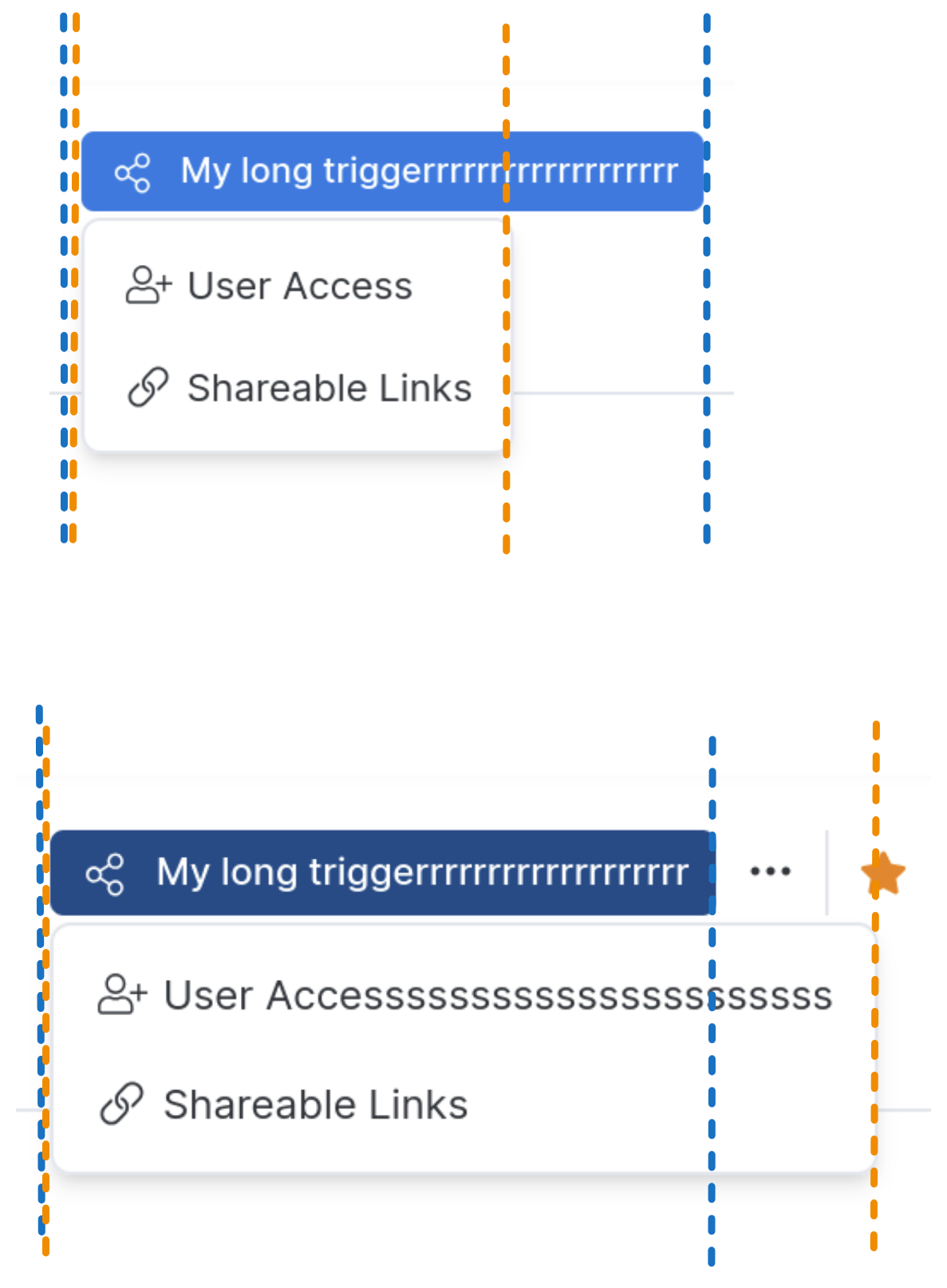 |
true: The floating menu size matches the anchor size. 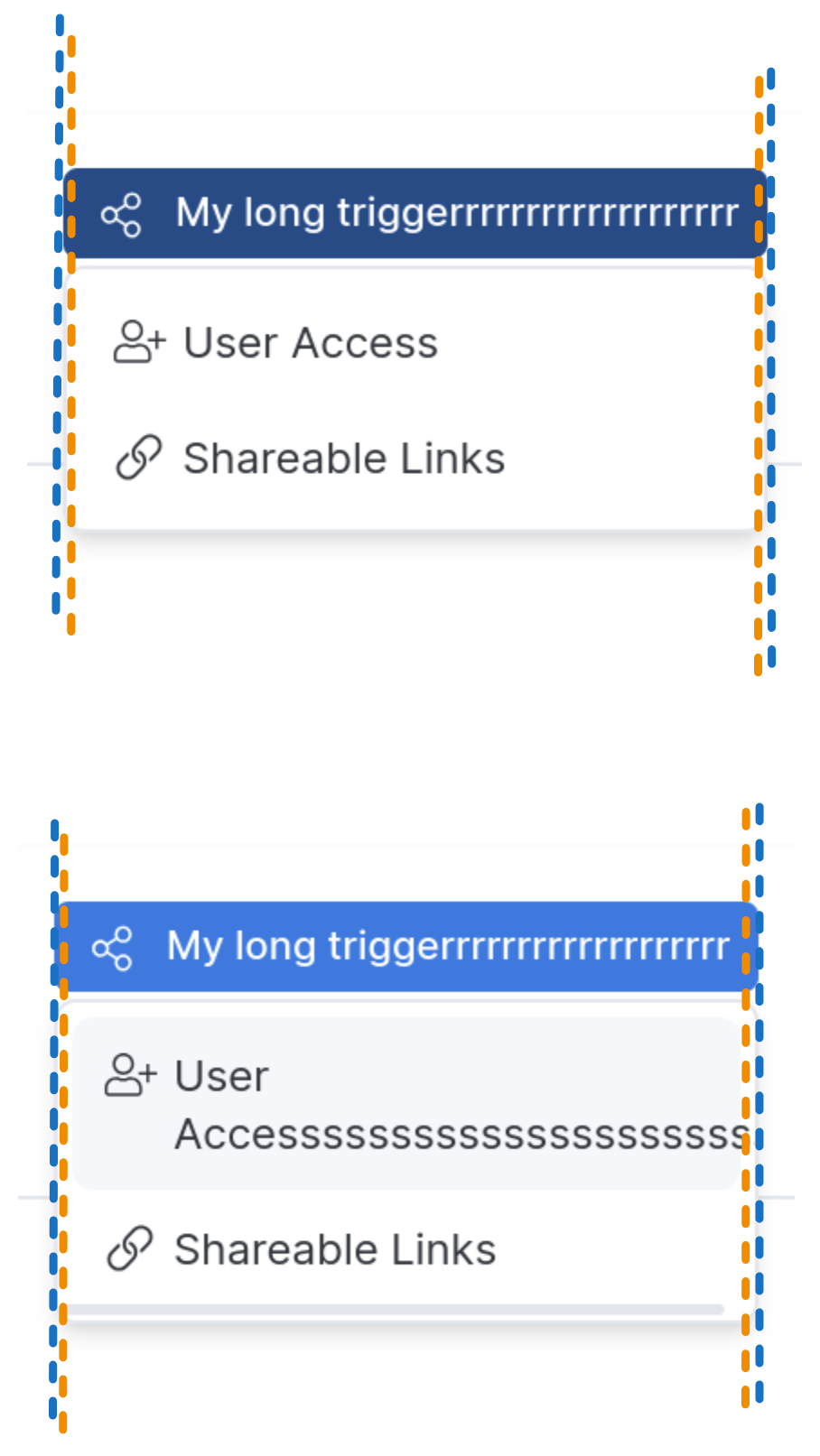 |
min: The minimum floating menu size matches the anchor size. 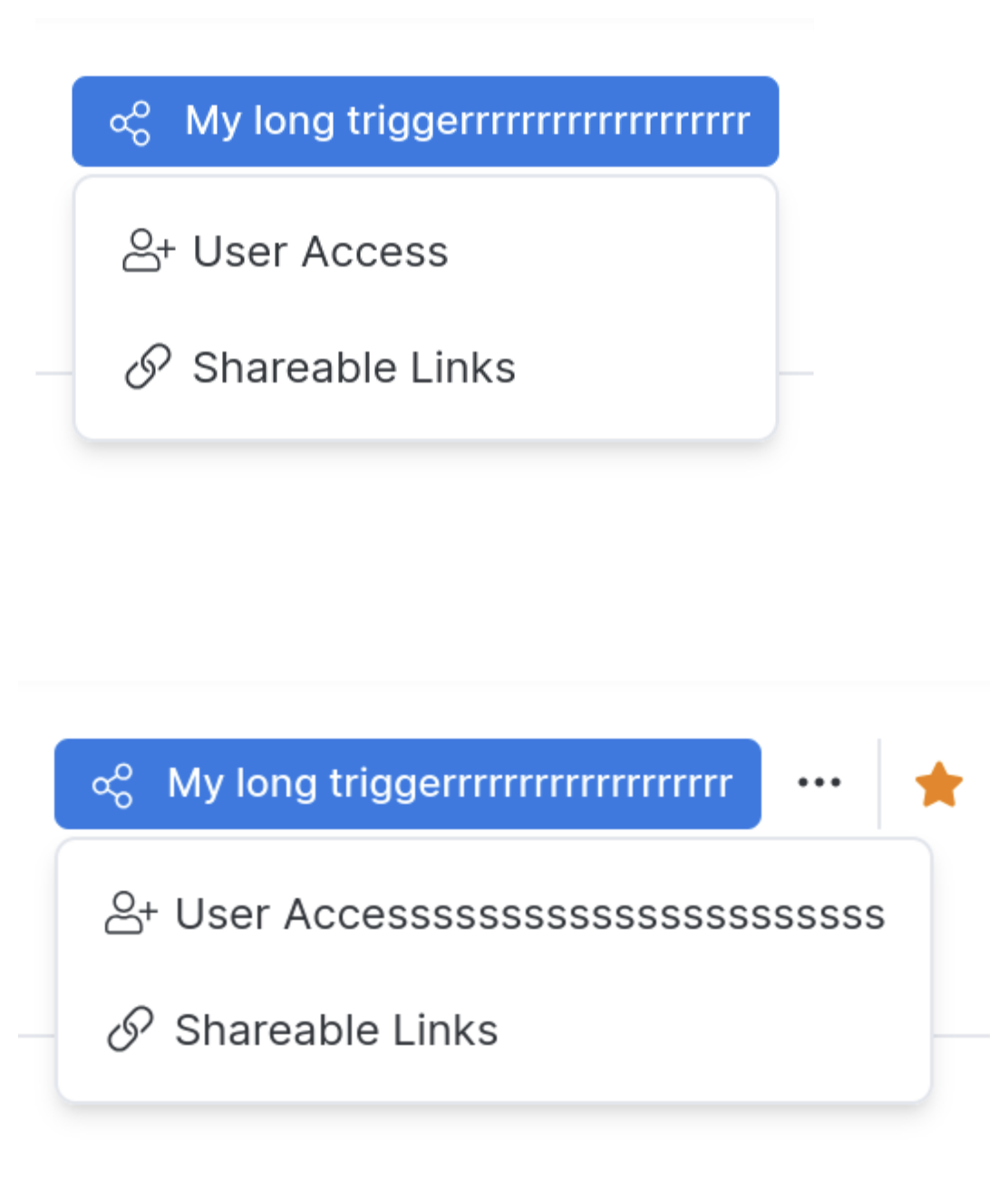 |
max: The maximum floating menu size matches the anchor size. 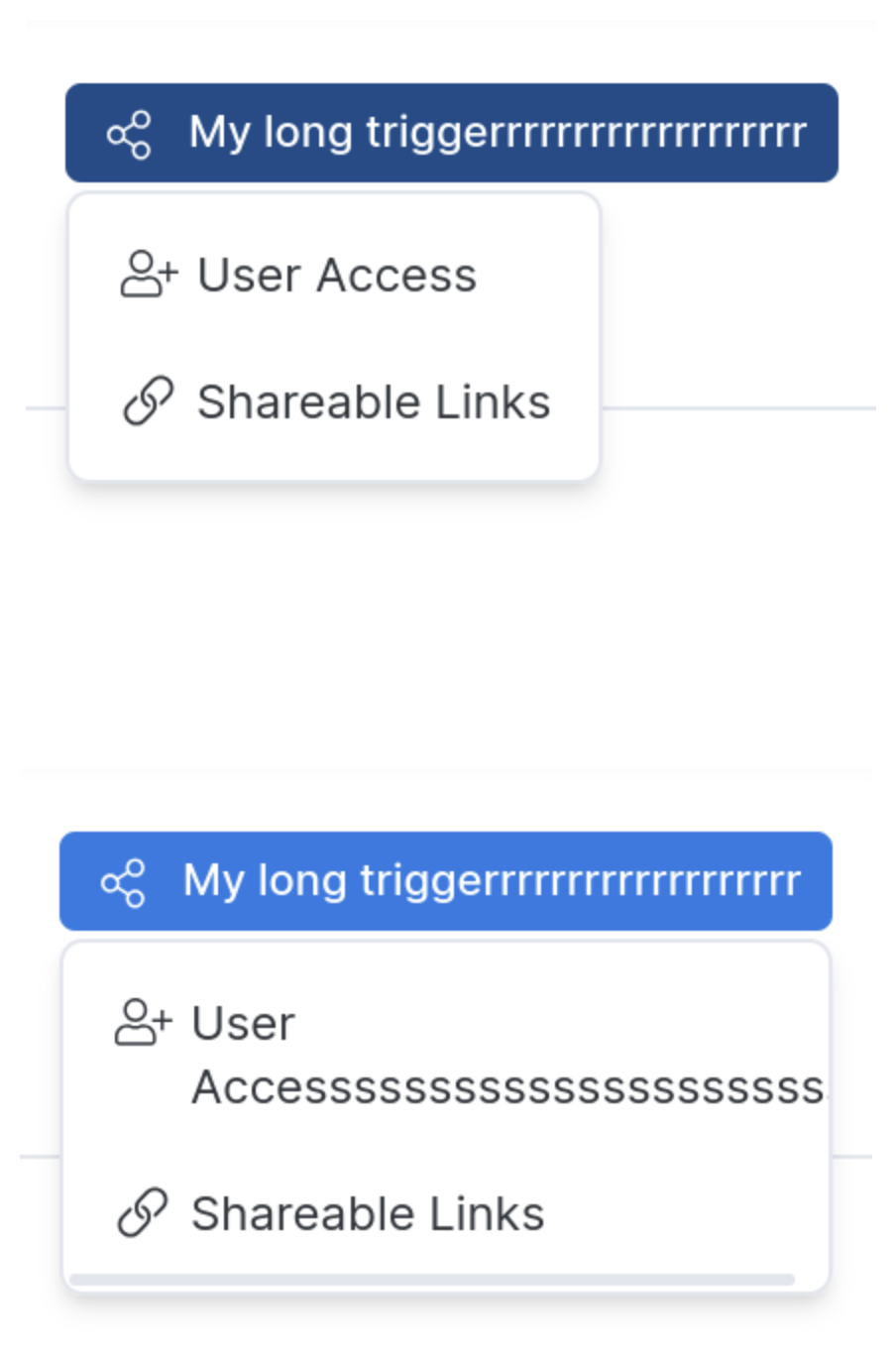 |
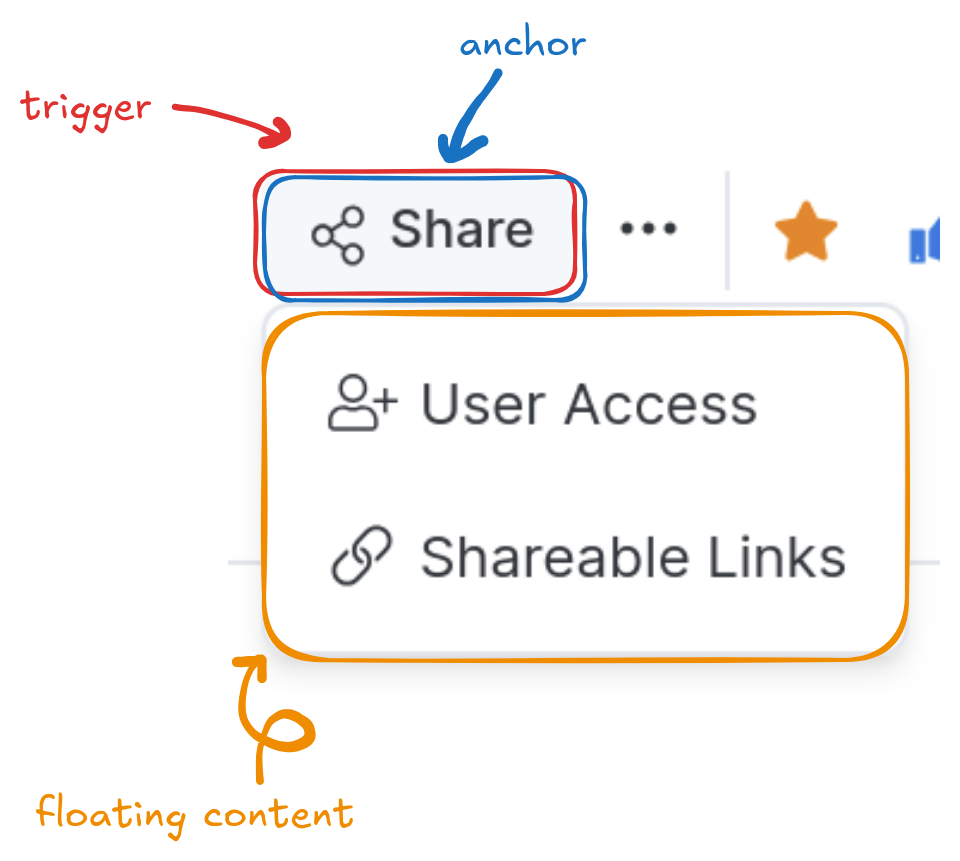
 A floating component consists of three parts:
* **Trigger**: When the user interacts with this element (e.g., focus or click), it toggles the open state of the menu.
* **Anchor**: When the menu is open, it is positioned relative to this element.
* **Floating content**: The menu itself.
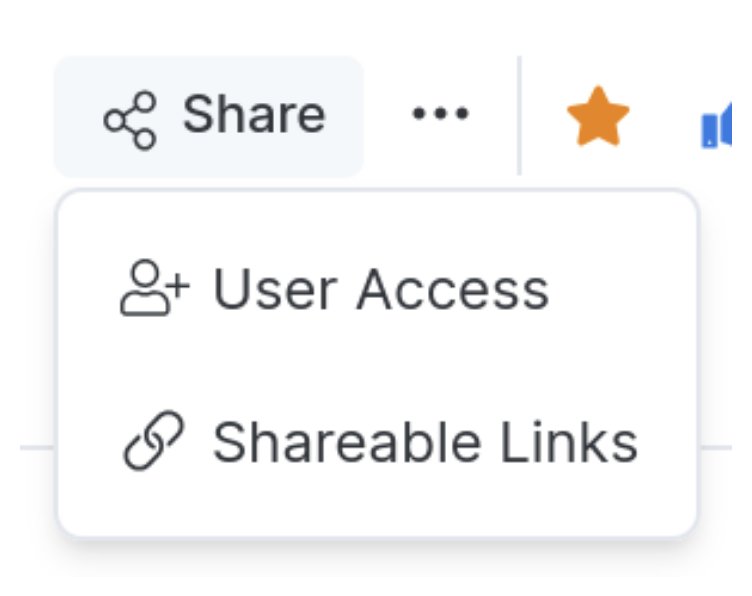
By default, the **trigger** also serves as the **anchor**. Clicking the Share button displays the menu directly beneath it:
A floating component consists of three parts:
* **Trigger**: When the user interacts with this element (e.g., focus or click), it toggles the open state of the menu.
* **Anchor**: When the menu is open, it is positioned relative to this element.
* **Floating content**: The menu itself.
By default, the **trigger** also serves as the **anchor**. Clicking the Share button displays the menu directly beneath it:
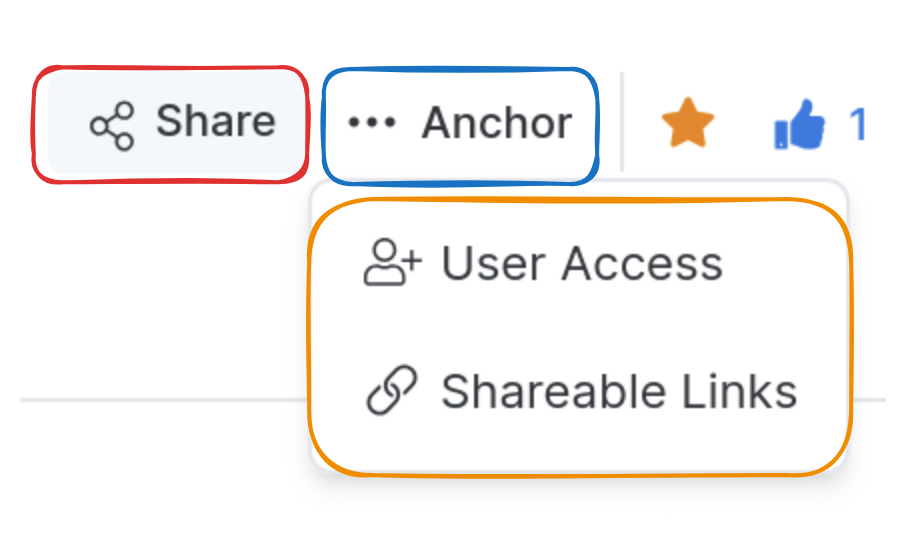
 You can change the anchor to display the floating content in a different position (see [Changing the anchor](./floating-ui-mechanism.md#changing-the-anchor)):
 ## Basic usage
### Props mapping
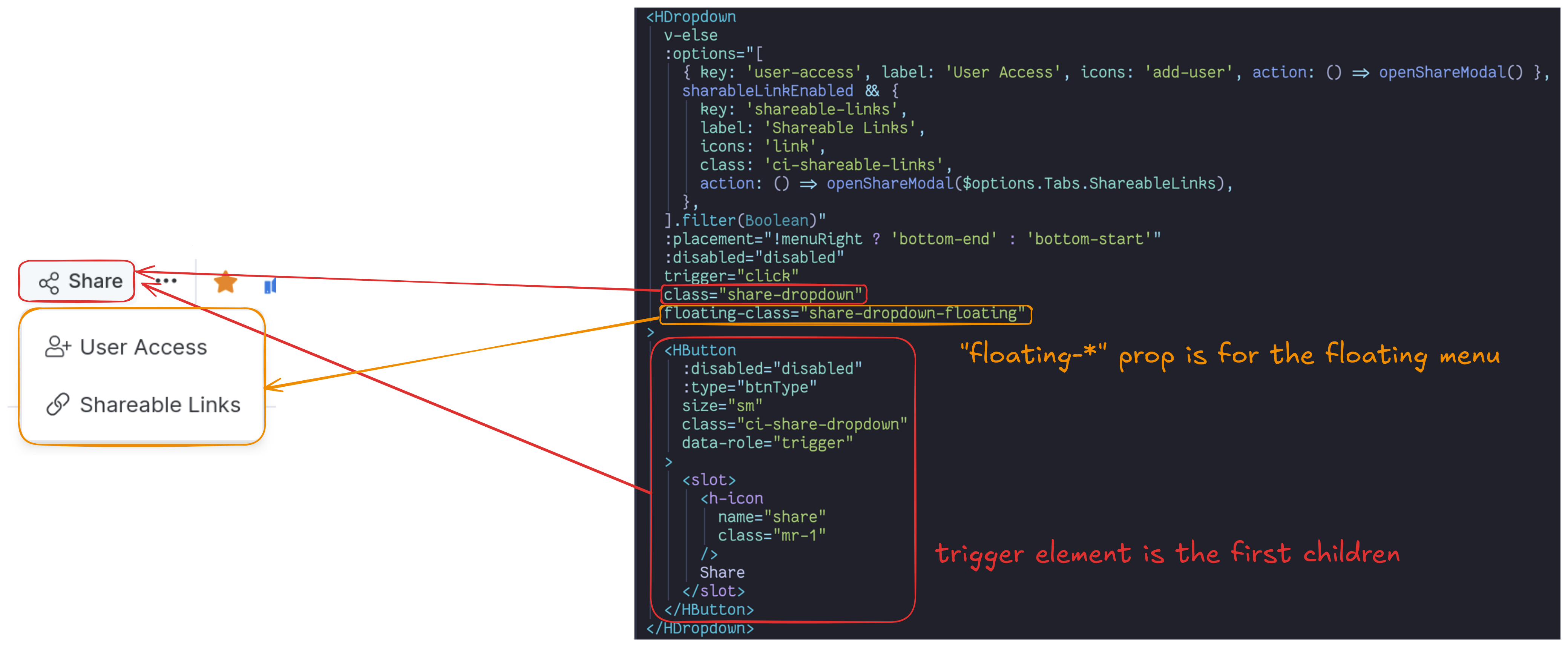
* The trigger element is the first child of the floating component.
* `floating-*` props apply to the floating content element.
::: tip Conditional rendering of the trigger element
Don't set `v-if` directly on the trigger element. It forces the component to re-render, so the floating UI can lose its anchor element reference and the menu appears in the wrong position.
```html
## Basic usage
### Props mapping

* The trigger element is the first child of the floating component.
* `floating-*` props apply to the floating content element.
::: tip Conditional rendering of the trigger element
Don't set `v-if` directly on the trigger element. It forces the component to re-render, so the floating UI can lose its anchor element reference and the menu appears in the wrong position.
```html
false: The floating menu size grows freely. |
true: The floating menu size matches the anchor size. |
min: The minimum floating menu size matches the anchor size. |
max: The maximum floating menu size matches the anchor size. |